
 STM32CubeIDE for Visual Studio Code Documentation

Bundles 
Bundles in Microsoft Visual Studio Code (VS Code) are collections of extensions, settings, and configurations packaged together to provide a comprehensive development environment for specific programming languages, frameworks, or workflows.
Introduction to Bundles 
What is a bundle? 
A bundles is a curated set of tools and configurations designed to enhance the development experience in VS Code. A bundle typically includes:
Extensions: Plugins that add functionality to VS Code, such as language support, debuggers, linters, and more.
Settings: Preconfigured settings that optimize the editor for a particular workflow or technology.
Configurations: Tasks, launch configurations, and other setup files that streamline the development process.
Difference between bundles and packs:
While the terms bundles and packs are sometimes used interchangeably, there are subtle distinctions:
Bundles refer to collections that include not only extensions but also configuration files, settings, and sometimes scripts or metadata to provide a fully integrated environment.
Packs refer specifically to groups of extensions bundled together for convenience but may lack additional configuration or metadata.
Understanding this distinction helps you select the right type of package for your development needs.
Bundle contents and structure 
Software components included 
A typical bundle contains:
Extensions: Language support, debuggers, linters, snippets, and more.
Settings: JSON files that define editor preferences, formatting rules, and other environment options.
Tasks and launch configurations: Automation scripts and debug launch profiles.
Snippets: Code templates for faster development.
Dependencies: Other required extensions or tools.
Configuration and metadata files 
Bundles include metadata files that describe the bundle, such as:
``package.json``: Defines extension dependencies, activation events, and contributions.
``README.md``: Documentation for installation and usage.
``settings.json``: Recommended or default settings.
``tasks.json`` and ``launch.json``: Define build and debug workflows.
Other custom config files: Specific to frameworks or tools integrated within the bundle.
These files ensure the bundle is self-descriptive and easy to manage.
Using bundles in the IDE 
Importing and managing bundles 
To import and manage bundles in VS Code:
Search and install: Use the Extensions Marketplace to find bundles or packs.
Automatic dependencies: Some bundles install dependencies automatically.
Manual configuration: Apply recommended settings or import configuration files as needed.
Update management: Keep bundles updated via the Extensions view or command palette.
VS Code supports workspace-level configurations, allowing bundles to be applied per project.
Integration with project development 
Bundles integrate with project workflows by:
Including project-specific configurations.
Defining tasks that automate builds, tests, or deployments.
Providing debugging configurations tailored to the project.
Offering snippets and templates aligned with project coding standards.
This integration ensures a seamless and productive development experience.
STM32Cube bundles manager 
In Visual Studio Code, the STM32 bundles manager provides an interface to manage your development bundles directly within the IDE.
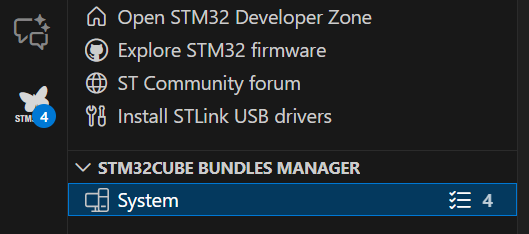
By clicking the STM32 logo located in the Activity Bar on the left side of the VS Code window, you access the bundles manager panel.
Detailed functions of the STM32 bundles manager interface 
The bundles manager panel in Visual Studio Code offers several key functions and controls that enhance your ability to manage STM32CubeIDE bundles efficiently:
1. Select all checkbox 
Located at the top-left of the bundles list, this checkbox allows you to select or deselect all bundles in the current view.
This is useful for batch operations such as installing, updating, or removing multiple bundles simultaneously.
2. Search and filter fields 
Name, version, type, status filters: Each column header includes a search or dropdown filter field.
These filters let you narrow down the list of bundles by typing keywords or selecting specific types or statuses, making it easier to find particular bundles among many.
For example, you can filter to show only bundles that have updates available or only show those related to debugging.
3. Bundles list table 
Displays information about each bundle:
Name: The bundle identifier, such as
cmake,jlink-gdbserver, ornode.Version: Shows the installed version and if it is the latest available (for example,
4.1.0+st.1 (latest)).Type: Describes the bundle category, such as
build,application,debug, ormetadata.Status: Indicates whether the bundle is
Up to dateor if anUpdate availableexists.
Bundles can be expanded by clicking the arrow icon to show more details or subcomponents, if applicable.
4. Actions toolbar 
The toolbar is located at the top right of the list and provides buttons for managing selected bundles:
Install: Install selected bundles that are not currently installed.
Update: Update selected bundles to their latest available versions.
Remove: Uninstall selected bundles from your environment.
Refresh: Reload the bundles list to check for new updates or changes in bundle availability.
These actions enable quick management without leaving Visual Studio Code.
5. Pagination controls 
At the bottom right of the list, you can control how many bundles are displayed per page, for example, 20 per page.
Navigation arrows allow you to move through multiple pages of bundles if your list is extensive.
This keeps the interface responsive and manageable, even with a large number of bundles.
6. Install and lock 
Install a specific version of a bundle and lock it to that version.
When a bundle is locked, it is not updated automatically, even if newer versions become available.
This is useful when you need a stable and reproducible environment, for example, to:
Ensure all team members use the same tool version.
Avoid unexpected changes in behavior due to automatic updates.
You can later unlock the bundle or manually select a newer version when you are ready to upgrade.
How these functions improve your workflow 
Efficiency: Locate and manage bundles using filters and batch selection.
Control: Install, update, or remove bundles seamlessly without manual downloads or command-line operations.
Visibility: Clear status indicators help you maintain an up-to-date development environment.
Convenience: Pagination and search capabilities keep the interface user-friendly, regardless of the number of bundles.
By using these interface features, developers maintain a consistent and optimized STM32CubeIDE for Visual Studio Code setup, ensuring compatibility and access to the latest tools and libraries directly within Visual Studio Code.
The bundles manager simplifies the process of setting up and maintaining your STM32 development environment by providing centralized control over all bundle-related operations without leaving the integrated development environment.
To use the command-line interface to install a specific version, see the Install a specific bundle version chapter.
Using this integrated tool helps maintain consistency across projects and team members, streamlining your embedded development workflow.
Bundles in middleware and UI frameworks 
Bundles for middleware stacks 
Middleware stacks often include bundles that provide:
Communication protocols, for example, TCP/IP or USB.
File system support.
Security modules.
Configuration files to integrate middleware with the application framework.
These bundles simplify middleware integration and reduce development time.
Creating and customizing bundles 
Tools and best practices 
To create your own bundles:
Structure your bundle with a clear folder hierarchy.
Define dependencies and activation events in
package.json.Include documentation and metadata.
Test the bundle thoroughly in different environments.
Best practices include:
Keep bundles modular and focused.
Provide clear installation and usage instructions.
Version bundles for maintainability.
Packaging custom software components 
When packaging custom components:
Bundle source code, compiled binaries, or scripts as needed.
Include configuration files that enable easy integration.
Use semantic versioning to track changes.
Consider publishing bundles to private or public registries for distribution.
Proper packaging ensures your bundle is reusable and easily shareable across teams or projects.
Why use bundles? 
Bundles offer several advantages:
Simplified Setup: Bundles provide a single solution for setting up a development environment, reducing the need to manually install and configure multiple extensions and settings.
Consistency: By using bundles, teams ensure that all members have a consistent development environment, minimizing discrepancies and configuration issues.
Productivity: Bundles streamline the development process by providing all necessary tools and configurations, allowing developers to focus on writing code instead of setting up their environment.
Further reading 
Bundles in Visual Studio Code offer a powerful way to enhance your development environment by providing curated sets of tools and configurations. By using bundles, you can simplify your setup, ensure consistency, and boost productivity.
For more detailed information, visit the official Visual Studio Code documentation.