
 STM32CubeIDE for Visual Studio Code Documentation

Build 
Build system overview 
The build system in STM32CubeIDE for VS Code efficiently compiles and links STM32 embedded projects. It uses the GNU Arm Embedded Toolchain and Makefiles to automate the build process.
Key components of the build system are:
Compiler: Converts source code files (.c, .cpp) into object files (.o).
Linker: Combines object files and libraries into the final executable binary.
Makefiles: Define the build rules, dependencies, and commands for incremental or full builds.
Build targets: Configurations such as Debug and Release, controlling optimization and debug information.
Integration with VS Code enables you to invoke builds from the editor interface, view build progress, and inspect output logs for diagnostics.
Build output and artifacts 
The build process generates output files and artifacts essential for debugging, flashing, and deployment:
Object files (.o): Intermediate compiled files for each source file.
Executable binary (.elf): Output containing machine code, debug symbols, and metadata.
Hex and binary files (.hex, .bin): Formats for programming the microcontroller flash memory.
Map file (.map): Provides memory layout and symbol information for analysis.
Build logs: Console output capturing compiler and linker messages, warnings, and errors.
By default, these artifacts are in the project Debug or Release directories, depending on the selected build configuration. You can customize output paths and file naming conventions through project settings in STM32CubeIDE and VS Code.
Customizing build process 
STM32CubeIDE for VS Code provides options to customize the build process for specific project requirements. Customization is possible by modifying Makefiles, adjusting project properties, or adding scripts.
Common customization tasks are:
Change compiler and linker options
Define preprocessor macros
Specify additional include or library paths
Add custom build steps or post-build actions
Select different build configurations (Debug, Release)
Customizing the build process optimizes performance, enables debugging features, or integrates third-party tools.
Adding custom build steps 
Custom build steps enable you to execute additional commands during the build process, such as code generation, file copying, or running tests. In VS Code, custom build steps are managed through editable configuration files instead of a graphical interface. This approach provides flexibility to tailor the build process to your needs.
Managing custom build steps with JSON configuration files
The primary files for customizing build steps in STM32CubeIDE for VS Code are in the .vscode folder:
tasks.jsonDefines build tasks and commands that can be executed independently or as part of a build sequence. You can add custom build steps such as code generation, file copying, or running scripts in this file.c_cpp_properties.jsonConfigures include paths, preprocessor definitions, and compiler settings to ensure IntelliSense and build consistency.
Adding custom build steps in
tasks.json
To add a custom build step, define a new task in
tasks.json. You can chain takss using the
dependsOn
attribute to run custom commands before or after the main build.
Example : Adding a post-build script
{
"version": "2.0.0",
"tasks": [
    {
    "label": "Build Project",
    "type": "shell",
    "command": "make all",
    "group": "build",
    "problemMatcher": ["$gcc"]
    },
    {
    "label": "Post Build Step",
    "type": "shell",
    "command": "python scripts/post_build.py",
    "dependsOn": "Build Project",
    "problemMatcher": []
    }
]
}
Build flags and optimization settings 
Build flags control how the compiler and linker process your source code, affecting performance, size, and debugging capabilities. STM32CubeIDE for VS Code supports a wide range of flags accessible via project settings.
Common categories of build flags:
Optimization flags: Control code optimization level, for example, -O0 (no optimization) to -O3 (maximum optimization).
Debugging flags: Enable generation of debug symbols with -g.
Warning flags: Enable or disable compiler warnings, for example, -Wall to enable all warnings.
Preprocessor flags: Define macros with -D to conditionally compile code.
Linker flags: Control linking behavior, such as specifying libraries or memory layout.
Adjust these flags to balance code size, execution speed, and ease of debugging.
Troubleshooting build errors 
Build errors can result from syntax mistakes, missing files, or configuration issues. Effective troubleshooting involves systematic analysis and correction.
Steps to troubleshoot build errors:
Read the error messages carefully: Error messages often indicate the file and line number causing the issue.
Check include paths and dependencies: Missing headers or libraries are common causes.
Verify compiler and linker flags: Incorrect flags can cause build failures.
Clean and rebuild the project: Stale object files can cause conflicts.
Consult documentation and forums: STM32CubeIDE for VS Code and GCC communities provide valuable insights.
Common build issues and fixes 
Frequent build issues and recommended solutions include:
Missing header files: Ensure include paths are correctly set in project properties.
Undefined references: Verify that all required libraries are linked and source files are included.
Syntax errors: Review code for typos, missing semicolons, or mismatched braces.
Memory overflow: Check the linker script and optimize code size or increase memory allocation.
Permission denied errors: Confirm file system permissions and ensure no other process locks build files.
Using build logs for debugging 
Build logs provide detailed output from the compiler and linker, which is essential for diagnosing build problems.
Tips for using build logs effectively:
Enable verbose build output to see all commands executed.
Search logs for keywords such as “error”, “warning”, or “undefined”.
Compare logs between successful and failed builds to identify differences.
Use log timestamps to correlate build steps with errors.
Save logs for sharing with colleagues or support teams.
In VS Code, build logs are accessible in the terminal or output panels, allowing easy navigation and filtering.
Build button 
Build button functionality
The Build button in the CMake View starts the build process for the currently selected target. The target is specified in the CMake configuration and can be an executable, library, or other build artifacts. The build button compiles and links the selected target according to the defined build configuration.
Selecting the correct context in multi-project workspaces
In workspaces with multiple projects, the CMake View allows you to select the correct project context for building and exploring files. Switch between different CMake projects by selecting the desired project in the CMake View. This ensures that the build commands and file explorations execute within the correct project context, providing a seamless development experience across multiple projects.
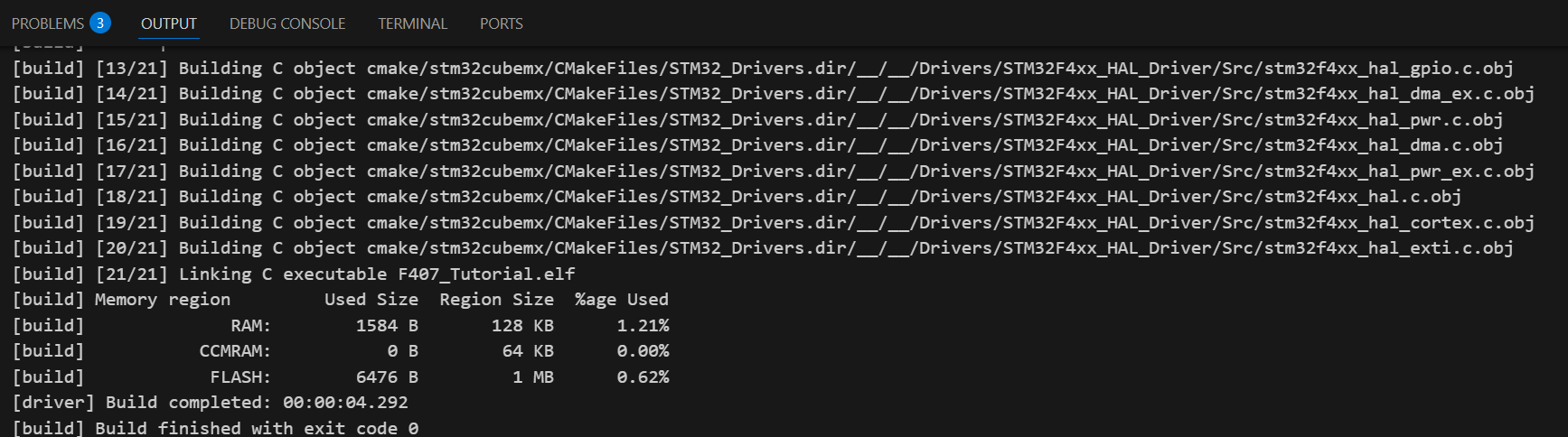
After building the project, the output log appears similar to the following:
Switching between debug and release configurations
To switch between Debug and Release configurations, follow these steps:
Open the Command Palette: Press
Ctrl + Shift + Pto open the Command PaletteSelect a CMake configuration: Type and select
CMake: Select Configure PresetChoose a preset: In the list of available presets, choose the appropriate configuration (for example,
DebugorRelease). The project is reconfigured to use the selected build type
Alternatively, switch configurations directly from the CMake View:
Open the CMake view: Click the CMake icon in the Activity Bar on the side of the window
Select a configuration: Use the dropdown menu to select the desired configuration (for example,
DebugorRelease)