
 STM32CubeIDE for Visual Studio Code Documentation

CMake 
Efficient and reliable build systems are essential in embedded development to accelerate product development and maintain code quality. For STM32 developers, mastering the build process is fundamental to fully leveraging STM32 microcontrollers and their extensive ecosystem.
CMake is a modern, versatile, and widely adopted build system generator that addresses many challenges faced by embedded developers. Unlike traditional integrated development environment (IDE)-specific project formats, CMake provides a unified, flexible, and portable approach to managing builds across different platforms, toolchains, and environments.
This page introduces STM32 developers to the basics of CMake, focusing on practical use cases that simplify the learning curve and help avoid common pitfalls during onboarding.
Why learn CMake for STM32 development? 
IDE independence and choice
STM32CubeIDE and Eclipse/CDT are popular development environments. However, relying solely on graphical user interface (GUI)-driven projects can limit flexibility. CMake enables developers to generate project files for multiple IDEs or build directly from the command line, offering freedom to select the best tools for each task.
Improved project portability and scalability
CMake uses simple, text-based configuration files (
CMakeLists.txt) that are easy to version control, share, and maintain. This contrasts with IDE-specific project files that are often bulky and difficult to manage. As STM32 projects grow in complexity, CMake’s modular approach helps maintain a clean and scalable build system.
Compiler abstraction
CMake toolchain abstraction enables developers to switch seamlessly between toolchains without rewriting build scripts. This flexibility allows STM32 developers to port projects between toolchains more easily.
Automation and continuous integration ready
Automated builds and testing pipelines are key to maintaining code quality and accelerating delivery in embedded development. CMake’s command-line driven workflow integrates naturally with continuous integration (CI) systems, enabling STM32 teams to automate builds, run tests, and deploy firmware efficiently.
Software component and library integration
Many STM32 software components, middleware, and libraries provide native CMake support or integration examples. Learning CMake empowers developers to take full advantage of these resources, reducing integration effort and avoiding vendor lock-in with specific IDEs.
By understanding and adopting CMake, STM32 developers gain a powerful skillset that enhances productivity, fosters collaboration, and future-proofs projects. This page guides readers step-by-step through essential CMake concepts and practical examples tailored to STM32 development, ensuring a smooth onboarding experience.
Further reading 
For more detailed information on CMake, see the official CMake online documentation.
For more information on CMake integration and usage, see the CMake integration in STM32CubeMX and usage in STM32CubeIDE for Visual Studio Code community article.
Create a CMake project 
To create a new CMake project and open it in Visual Studio Code, follow the Import STM32CubeMX project guide.
After the project is created and imported into Visual Studio Code, revisit this page for additional CMake information.
STM32CubeMX generated files 
STM32CubeMX generates two types of CMake files:
Tool-owned files - These files must not be modified. CubeMX overwrites them.
User-owned files - These files can be modified by the user to manage builds.
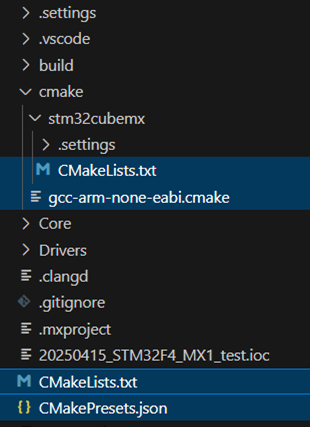
CMakeLists.txt: Managed by CubeMX. Do not modify it.gcc-arm-none-eabi.cmake: Contains toolchain settings. Users can modify this file.CMakeLists.txt: Contains high-level project definition. Users can modify this file.CMakePresets.json: Contains CMake presets. Users can modify this file.
Generated files 
How to create a configuration preset 
Create a configuration and build preset in the
CMakePresets.json
file.
The following is an example of preset configuration:
"name": Machine-friendly name of the preset
"hidden": Specifies whether a preset is hidden
"inherits": Preset name to inherit from
"condition": Condition to use this preset
"vendor": Vendor name
"displayName": Human friendly name
"generator": Generator to use for the preset
"toolchainFile": Path to the toolchain file
"cacheVariables": {
    "CMAKE_BUILD_TYPE": Cache variable embedding the machine-friendly name of  the preset
}
For more detailed information, see the official CMake presets documentation.
After creating the configuration preset, create a build preset in the same file. An example is shown below:
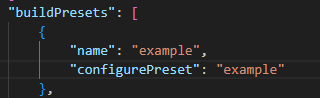
To use this configuration preset, select it from the Project Status tab of the CMake extension interface or use the command line with
--preset=example:
You can also use the
CMAKE_BUILD_TYPE
as a condition to build or include files.
CMakeLists.txt

CMakeLists.txt
is generated once. Any user modification is preserved if STM32CubeMX or other ST tools regenerate assets.
Two
CMakeLists.txt
files are available in the project:
A generic
CMakeLists.txtin the main project folderAn MX-Generated
CMakeLists.txtincluded by the generic file, containing STM32CubeMX project configuration.
How to add source files 
Use relative paths intead of absolute paths to facilitate project sharing across development environments.
Use the target_sources() command to add source files to a target.
Syntax: 
target_sources(<target> <scope>
  <source1>
  <source2>
  ...
)
<target>: Target name, such as an executable or library
<scope>: PRIVATE, PUBLIC, or INTERFACE
<source>: Source file paths relative to the
CMakeLists.txtfile
Example: 
target_sources(my_project PRIVATE
  src/main.c
  src/stm32c0xx_it.c
  Drivers/STM32C0xx_HAL_Driver/Src/stm32c0xx_hal_gpio.c
  startup/startup_stm32c0l1xx.s
)
Steps: 
Identify the target name.
List source files with correct relative paths.
Add the files using target_sources() with the appropriate scope.
Run CMake to configure and build the project.
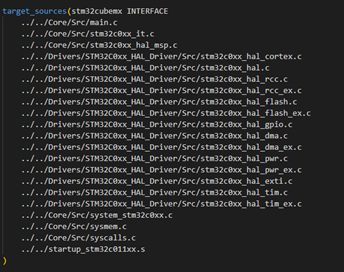
How to add include files and folders 
Add source files with target_sources() and include directories with target_include_directories() .
Add source files:
target_sources(<target> <scope>
  <source1>
  <source2>
  ...
)
Add include directories:
target_include_directories(<target> <scope>
  <include_dir1>
  <include_dir2>
  ...
)
Example: 
target_sources(stm32cubemx INTERFACE
  ../../Core/Src/main.c
  ../../Drivers/STM32C0xx_HAL_Driver/Src/stm32c0xx_hal_gpio.c
  ../../startup_stm32c0l1xx.s
)

target_include_directories(stm32cubemx INTERFACE
  ../../Core/Inc
  ../../Drivers/STM32C0xx_HAL_Driver/Inc
  ../../Drivers/CMSIS/Include
)
Notes: 
Use PRIVATE for internal use, INTERFACE to propagate to dependents.
Paths are relative to the
CMakeLists.txtfile location.Include directories specify header file locations for compilation.
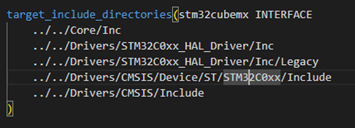
How to add symbols 
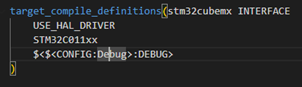
Use the target_compile_definitions() command to add preprocessor macros (compile-time symbols) to a target.
Syntax 
target_compile_definitions(<target> <scope>
  <definition1>
  <definition2>
  ...
)
<target>: Target name (executable or library).
<scope>: PRIVATE, PUBLIC, or INTERFACE.
<definition>: Preprocessor definitions (macro), optionally with a value or generator expression.
Example 
target_compile_definitions(stm32cubemx INTERFACE
  USE_HAL_DRIVER
  STM32C011xx
  $<$<CONFIG:Debug>:DEBUG>
)
Explanation 
USE_HAL_DRIVER and STM32C011xx are macros defined for all builds.
$<$<CONFIG:Debug>:DEBUG> defines the DEBUG macro only for Debug configuration builds.
Definitions added with the INTERFACE scope propagate to targets that link to stm32cubemx.
Steps 
Identify the target to add definitions to.
Choose the appropriate scope:
PRIVATE: For the target only.
PUBLIC: For the target and dependents.
INTERFACE: For dependents only.
List the macros to define.
Add conditional macros using generator expressions if required.
Run CMake to apply the changes.
How to add libraries 
Use the target_link_libraries() command to specify libraries to link to a target.
Syntax 
target_link_libraries(<target> <scope>
  <library1>
  <library2>
  ...
)
<target>: Target to link libraries to (executable or library).
<scope>: Optional; can be PRIVATE, PUBLIC, or INTERFACE.
<library>: Name of the library or target to link.
Example 
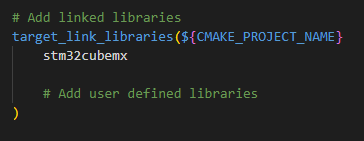
target_link_libraries(${CMAKE_PROJECT_NAME} PRIVATE
  stm32cubemx
  # Add other user-defined libraries here
)
Explanation 
${CMAKE_PROJECT_NAME} is the current project target.
stm32cubemx is a library target linked to the project.
The PRIVATE scope means libraries are linked only for this target.
Use PUBLIC or INTERFACE to propagate linkage to dependents.
Steps 
Identify the target to link libraries to.
List the libraries or targets to link.
Specify the linkage scope if required.
Add the target_link_libraries() command in the CMakeLists.txt file.
Run CMake to configure and build the project.
Toolchain files 
Toolchain files configure the compiler, linker, and build environment for cross-compiling or targeting specific platforms.
Purpose: 
Define system name and processor architecture.
Specify compiler and toolchain executables.
Set compiler and linker flags.
Enable building with different toolchains, for example GCC or LLVM.
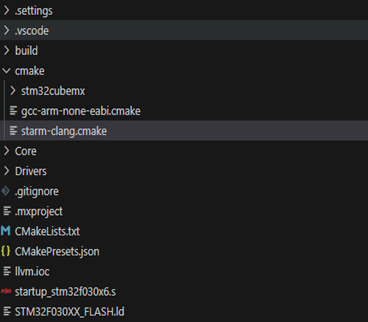
Common toolchain files: 
gcc-arm-none-eabi.cmake: For GCC ARM embedded toolchain.
starm-clang.cmake: For LLVM/Clang ARM toolchain.
Project setup: 
When creating a new project, select one of the following options: - GCC toolchain only. - LLVM toolchain only. - Hybrid environment with both GCC and LLVM toolchains.
Hybrid projects include both toolchain files, allowing flexible use of either compiler.
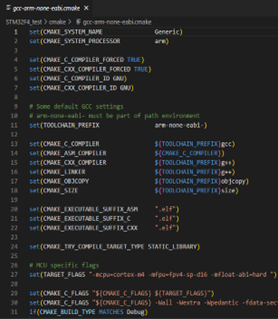
Example snippet (GCC toolchain): 
set(CMAKE_SYSTEM_NAME generic)
set(CMAKE_SYSTEM_PROCESSOR arm)

set(TOOLCHAIN_PREFIX arm-none-eabi-)
set(CMAKE_C_COMPILER ${TOOLCHAIN_PREFIX}gcc)
set(CMAKE_CXX_COMPILER ${TOOLCHAIN_PREFIX}g++)
set(CMAKE_LINKER ${TOOLCHAIN_PREFIX}ld)

set(CMAKE_C_FLAGS "-mcpu=cortex-m4 -mthumb ...")
Usage: 
Specify the toolchain file when configuring CMake:
cmake -DCMAKE_TOOLCHAIN_FILE=path/to/gcc-arm-none-eabi.cmake ..The toolchain file sets up the environment for cross-compilation automatically.
Use different toolchain files to switch between GCC and LLVM compilers.
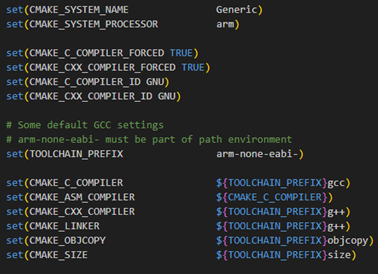
Compiler settings 
This snippet configures the compiler environment in CMake by setting the system name, processor type, and enforcing the use of GCC compilers. It defines the toolchain prefix and specifies the compiler, assembler, linker, and related tools for ARM cross-compilation.
Build output suffix 
This snippet sets the output file suffix for assembly, C, and C++ executables to .elf in the CMake build configuration.

Cortex settings 
This snippet sets MCU-specific compiler flags for the Cortex-M4 processor, enabling floating-point and specific instruction set options.

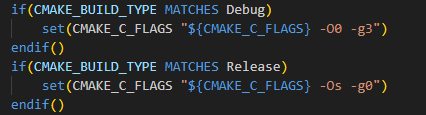
Build optimization settings 
The build optimization settings depend on the selected context. By default, only release and debug configurations are available. If additional build contexts are required, you can add more configurations in this area.
The compiler supports the following optimization levels:
-O (Same as -O1)
-O0 (no optimization, the default if no optimization level is specified)
-O1 (minimal optimization, prioritizing compilation time)
-O2 (more optimization, without speed or size trade-off)
-O3 (increased optimization, prioritizing speed)
-Ofast (very aggressive optimization that may break standard compliance and change program behavior)
-Og (optimizes for debugging experience. -Og enables optimizations that do not interfere with debugging. It is recommended for the standard edit-compile-debug cycle, offering a reasonable level of optimization while maintaining fast compilation and a good debugging experience.)
-Os (optimizes for size. -Os enables all -O2 optimizations that do not typically increase code size and performs further optimizations to reduse code size. -Os disables the following optimization flags: -falign-functions -falign-jumps -falign-loops -falign-labels -freorder-blocks -freorder-blocks-and-partition -fprefetch-loop-arrays -ftree-vect-loop-version)
ASM configuration 
This snippet sets assembler flags to enable C++ preprocessing and configures C++ compiler flags to disable RTTI, exceptions, and thread-safe statics.

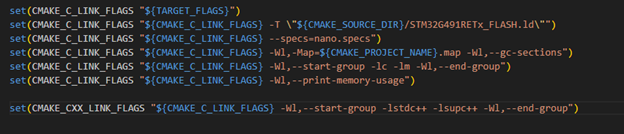
Linker configuration 
This snippet sets linker flags to specify the linker script, memory map output, garbage collection of unused sections, library groups, and memory usage printing for the build.
STM32CubeMX generated project structure 
STM32CubeMX can generate two types of projects; single-context projects and multi-context projects.
A multi-context project is generated for the following cases: - Dual-core products - Flashless products - Secure products
The following figure illustrates the differences between these two types of projects.
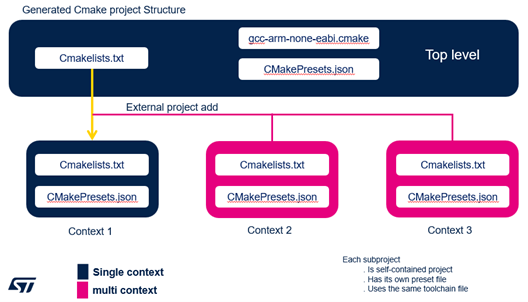
For multi-context projects, you will find the same files described above, with additional specificities:
A top-level
Cmakelists.txtandCMakePresets.jsonfile (all subprojects inherit from these files)A specific
Cmakelists.txtandCMakePresets.jsonfor each subproject, where you can add or modify settings for only the related subproject