
 HAL2 Migrator

Script scope 
The script helps users migrate their projects from the HAL1 environment to the HAL2 environment. Based on the command-line arguments provided, it detects HAL1 APIs within the specified path and generates detailed reports. These reports serve as a practical guide for updating the identified HAL1 code to HAL2.
HAL1 API detection scope 
The script uses an internal database to perform an in-depth analysis of the project. It identifies occurrences of HAL1 calls and HAL1 implementations, such as callbacks. Refer to Script execution for more details.
Note
The script can filter out STMicroelectronics driver files (HAL, LL, and BSP), which are automatically excluded from the detection process. Only HAL1 APIs in the user application files are identified.
HAL1 API reporting scope 
Console log 
During execution, the script provides comprehensive status updates through the console log. This includes detailed progress information, as well as messages related to errors, missing libraries (for Python execution), and other relevant status notifications.

|
Item |
Description |
|---|---|
|
Files analyzed |
Total source files scanned. |
|
Progress |
Real-time completion indicator. |
|
Files detected |
Number of files with HAL1 APIs. |
|
Log file |
Path to the detailed HTML report. |
|
Execution time |
Total duration of the process. |
|
Status |
Confirms successful completion. |
Generated reports 
The generated reports guide the migration process by providing detailed information about the detected APIs and links to the relevant migration documentation.
The script can generate:
A global HTML report summarizing all processed files.
One HTML source view per processed source file.
An optional JSON report containing run, file, and event records for automation or post-processing.
Global HTML log file 
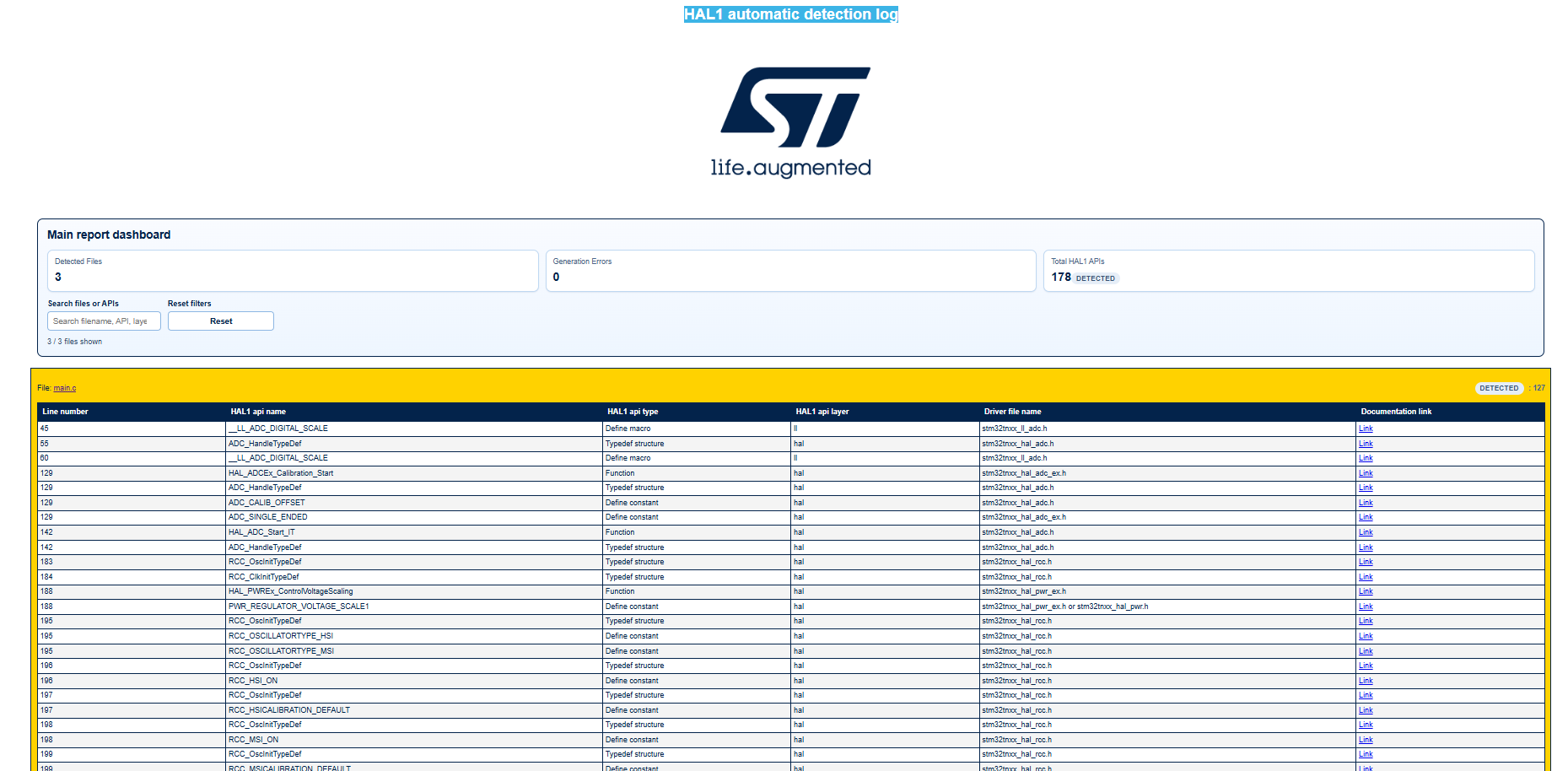
The script generates a global HTML report containing an exhaustive list of the detected HAL1 APIs, grouped by application file.
The main report also includes a dashboard section with summary cards and a search field to filter the displayed files by filename, API, layer, or module.
Each file entry in the main report is associated with a processing status. Depending on the execution result, a file status is reported as either Detected or Stubbed.
This makes it possible to distinguish between files that require migration work, files that were already processed, and files that were scanned successfully but did not contain HAL1 APIs.
Per-file source report 
The HTML report generated for each processed file displays the application code with all detected HAL1 API references clearly highlighted.
Each API occurrence is rendered as a clickable link, directing users to the relevant section of the HAL1-to-HAL2 migration documentation.
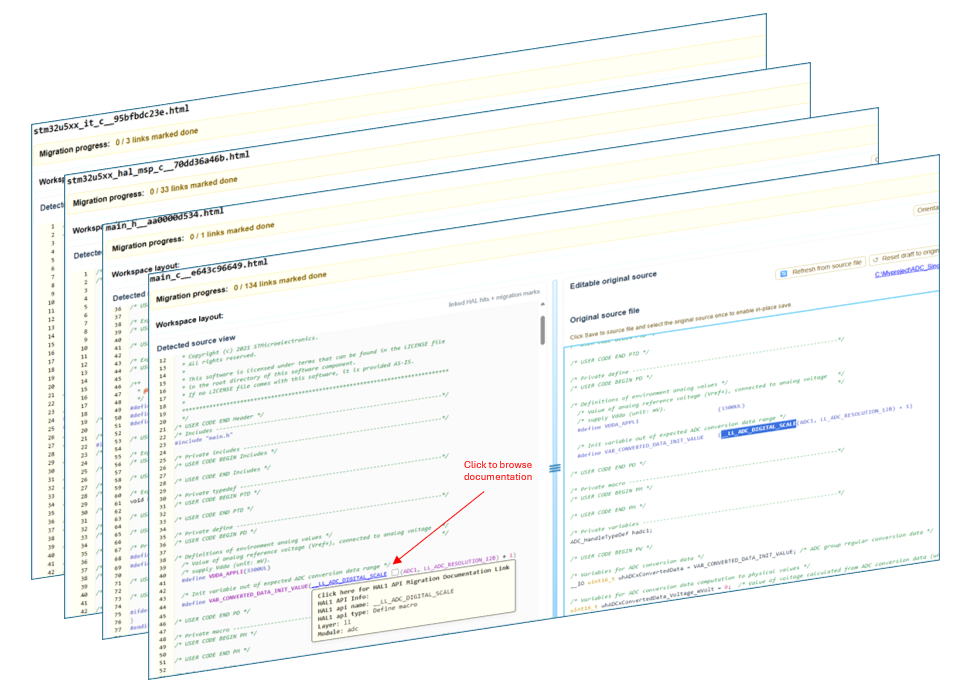
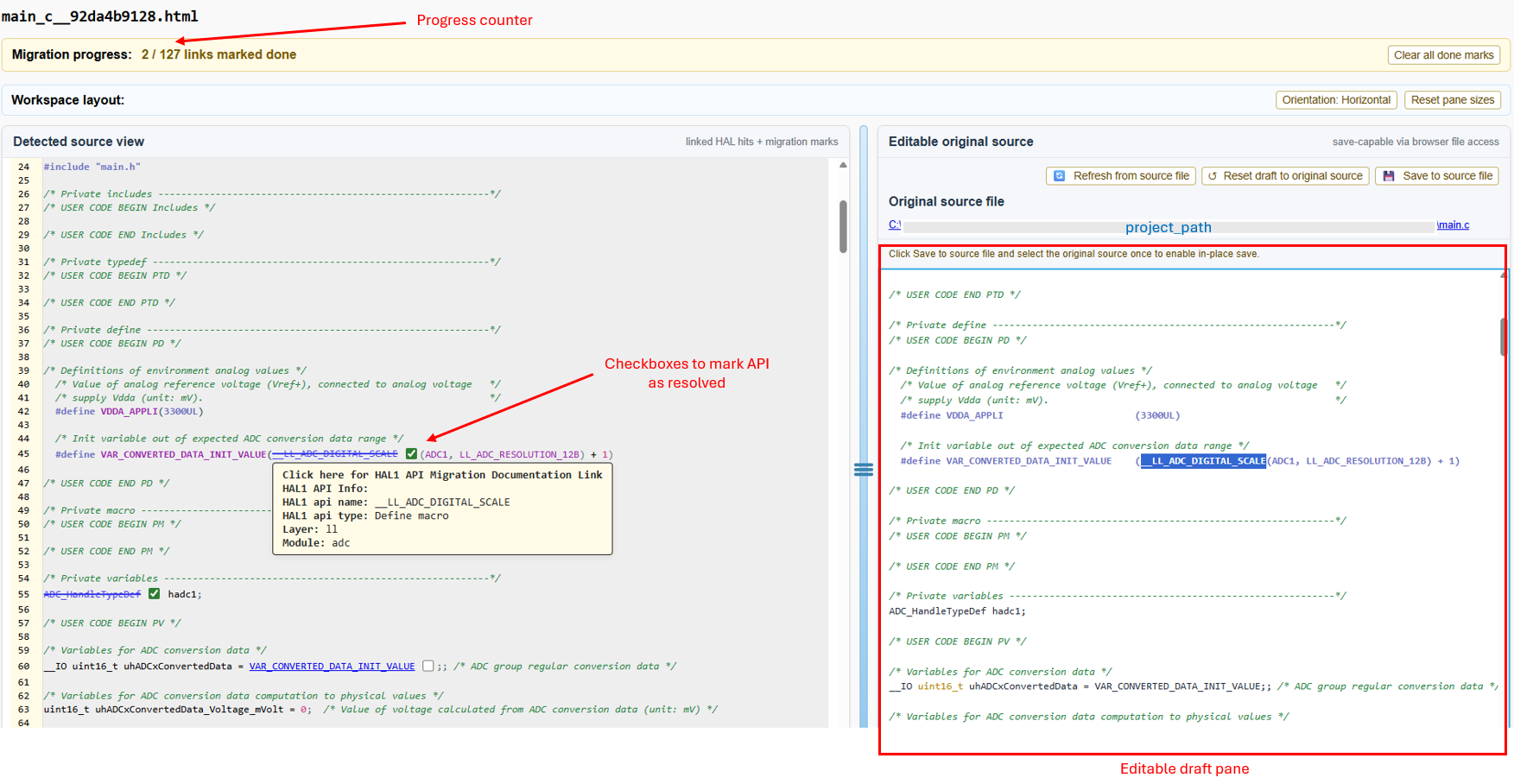
Each per-file HTML report also provides a migration workspace with:
A progress counter for completed migration items.
Checkboxes to mark API occurrences as resolved.
An
only unresolved linksfilter.An editable draft pane for the original source file.
Layout controls for the side-by-side source view.
The generated HTML links can point either to:
The online STM32Cube migration documentation.
The local documentation tree, when
UseLocalMigrationDocumentationPathis enabled.
Migration marks and source-draft workspace state are stored in the browser so that users can continue the review workflow while navigating between generated reports.
Files without matching HAL1 APIs still appear in the report view, where they are identified as having nothing to be stubbed. This helps users confirm that the source path was scanned even when no migration action is required for a given file.
Structured JSON log 
When
UseStructuredJSONLog
is enabled, the tool also writes a JSON report in the same log directory as the
HTML report. The JSON file contains:
Run metadata (mode, duration, counters, timings).
File-level summaries (status, warning count, associated events).
Event-level details (API name, API type, layer, documentation link, line ranges).
This format is intended for automation, CI analysis, or custom post-processing tools.
For more details about log file configurations, refer to Log file message configuration. For more details about log file usage, refer to Log file use section.