
 HAL2 Migrator

Script setup and usage 
Execution requirements 
Important
Before running the migration script, make sure that the HAL entry point includes
stm32_hal.h. Refer to
breaking_concepts_concept_L
for more details.
Additionally, if the HAL1-based application uses low-layer (LL) drivers, make sure that the corresponding LL file exists in HAL2.
Python format 
When using the Python script format, install the dependencies listed in
hal1_detection_requirements.txt
by running:
pip install -r hal1_detection_requirements.txt
Note
Use a Python version that is compatible with the package versions specified in the
hal1_detection_requirements.txt
file.
Executable format 
When using the executable format, there are no Python package dependencies. The
hal1_detection.exe
launcher is ready to use.
The executable launcher expects the migration package directory to be available next to the executable. By default,
this directory is named
hal_detection_stubbing_script
and contains the migration core, logging logic, parser,
and CSV databases.
Note
The executable is compatible with 64-bit Windows 11.
Use the Python format if Windows 11 is not available.
Launcher behavior and overrides 
The launcher always executes the external
migration_core.py
file located in the configured script package.
This package name is resolved in the following order:
HAL_STUB_SCRIPT_MODULE_NAMEenvironment variable.Side-by-side
hal1_detection_config.pyfile.Bundled default value (
hal_detection_stubbing_script).
This behavior makes it possible to:
Update the migration logic next to the launcher without rebuilding the executable.
Rename the script package directory if required by an integration flow.
Keep the same launcher while switching between script package variants.
Command-line options 
The built-in
--help
output presents the command-line interface as two usage modes:
Configuration management mode.
Detection/stubbing mode.
These two modes are mutually exclusive.
|
Option |
Shortcut |
Type |
Description |
|---|---|---|---|
|
|
|
Optional |
Displays information about the use of the migration tool and its available options. |
|
|
|
Optional |
Displays the tool version and exits. |
|
|
|
Optional |
Configuration management:
Matching
|
|
|
|
Optional |
Detection mode:
|
|
|
|
Mandatory |
Directory/file location of the HAL1-based project. |
|
|
|
Mandatory |
Peripheral filter (such as
|
Script configuration 
This section describes the available options for configuring the script. The
-c
option supports:
Configuration file management commands such as
list,modify, anddefault.Direct one-shot toggle operations such as
-c llor-c json-output.Hidden
--no-*helper flags used together with-cto disable a single option without editing the configuration file manually.
If the
-c
option is used without an argument, an interactive menu is shown. For clarity, the examples presented in this section use the executable file, but the script shows identical behavior in its
Python
format.
The accompanying screenshots were taken from the Bash interface.
Operational notes 
The command-line interface follows a small set of important rules:
Configuration mode (
-c) and detection mode (-d/-psrc/-m) are mutually exclusive.-psrcaccepts either a single source file or a source directory.When
-psrcand-mare provided without-d, the script automatically runs indry-runmode.When
-dis present without a value, the script prompts for the detection mode interactively.When
-cis present without a value, the script displays the interactive configuration menu.If the source path is empty or contains no valid source files, the script stops with an error.
In stub mode, files that already contain the stubbing header marker are detected and skipped rather than being modified again.
To display the command-line summary exactly as implemented by the tool, run:
py hal1_detection.py --help
Show configuration 
|
Description |
Example |
|---|---|
|
Use one of the following commands to display the current configuration settings, including all stubbing and warning message options. # Using the Python script
# Compatible with bash and Windows console
python hal1_detection.py -c list
# Using the executable on bash
./hal1_detection.exe -c list
# Using the executable on
# Windows console
hal1_detection.exe -c list
Using the interactive menu, as shown below, provides the same results. # Run the command with no option
# then type `1` to the prompt.
hal1_detection.exe -c
|
Displaying the current configuration 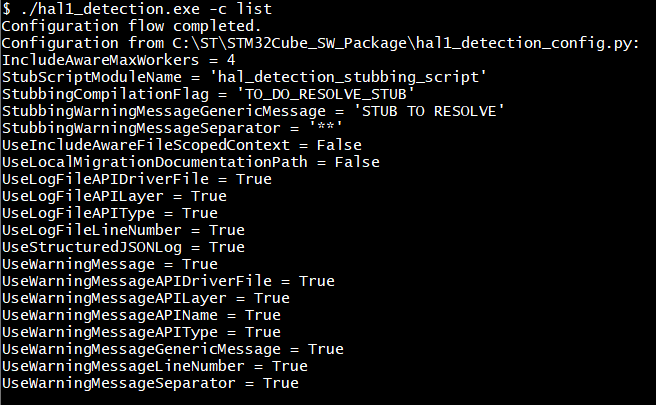
Opening the interactive configuration flow 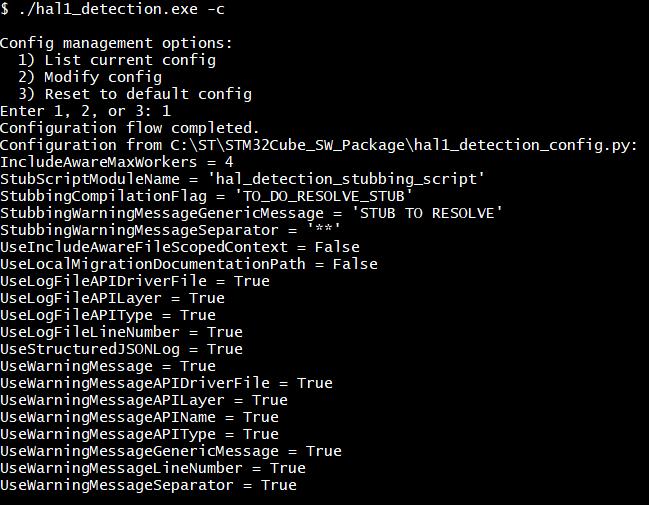
|
Modify configuration 
|
Description |
Example |
|---|---|
|
Use one of the following commands to change the current script configuration: # Using the Python script
# Compatible with bash and Windows console
python hal1_detection.py -c modify
# Using the executable on bash
./hal1_detection.exe -c modify
#  Using the executable on Windows console
hal1_detection.exe -c modify
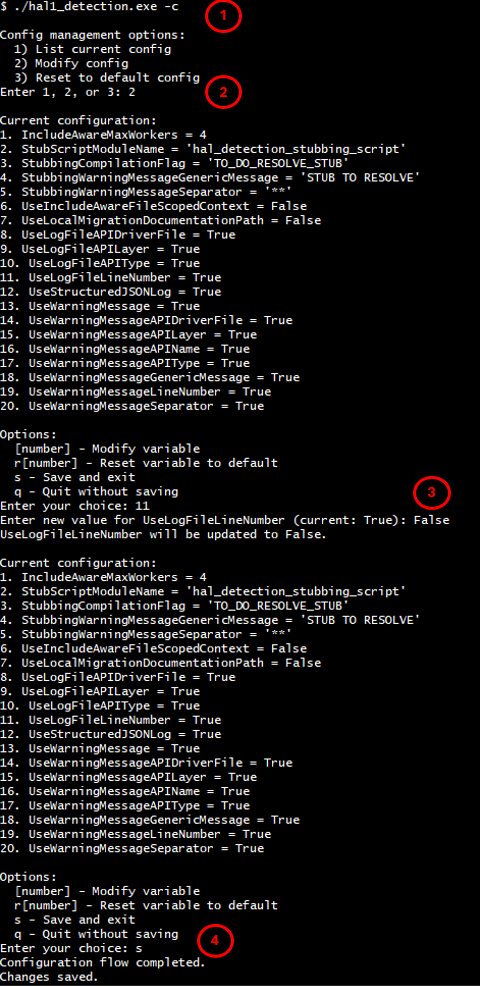
Select the number corresponding to the variable to be modified. Enter the new value and save the selection.
The following example illustrates the process using the interactive menu to change the value of the
# 1 - Run the command with no option then type `2` to the prompt.
hal1_detection.exe -c
# 2 - Type `11` to the prompt to select ``UseLogFileLineNumber``.
# 3 - Enter a new value for the selected field (``False``).
# 4 - Save and exit.
|
|
Reset configuration 
|
Description |
Example |
|---|---|
|
Use one of the following commands to reset the configuration: # Using the Python script
# Compatible with bash and Windows console
python hal1_detection.py -c default
 # Using the executable on bash
./hal1_detection.exe -c default
#  Using the executable on Windows console
hal1_detection.exe -c default
Using the interactive menu, as shown below, provides the same results. # Run the command with no option then type `3` to the prompt.
hal1_detection.exe -c
|
Reset configuration 
Reset configuration using the interactive menu 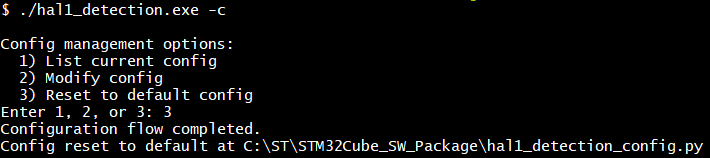
|
Direct single-option configuration commands 
For common enable/disable operations, the script can update a single configuration field directly from the command line.
This avoids opening the interactive menu or manually editing
hal1_detection_config.py.
The direct operations are grouped into the following categories:
Warning generation toggles.
Warning-field toggles.
Runtime/report toggles.
HTML log-column toggles.
The command updates the configuration file immediately and then exits.
Note
The
--no-*
helper flags must be used together with
-c. Only one
--no-*
helper flag can be used at a time.
Equivalent forms are accepted, for example
-c


              no-log-line
and
-c


              --no-ll
.
|
Purpose |
Example |
|---|---|
|
Enable warning-message generation |
|
|
Disable warning-message generation |
|
|
Enable JSON report generation |
|
|
Disable JSON report generation |
|
|
Enable local migration-documentation links |
|
|
Disable local migration-documentation links |
|
|
Enable include-aware file-scoped context processing |
|
|
Disable include-aware file-scoped context processing |
|
|
Show line numbers in the HTML report |
|
|
Hide line numbers in the HTML report |
|
The same mechanism also supports the other warning-field and log-column aliases listed earlier on this page.
Log file message configuration 
Users can customize the messages recorded in the log file to meet their specific requirements. To do this, they can edit
hal1_detection_config.py, use the interactive menu, or run a direct single-option command that updates one
UseLogFile_xxxx
field at a time.
The table below provides a summary of the available configuration options:
|
Field |
Default value |
Possible values |
|---|---|---|
|
UseLogFileLineNumber |
True |
True/False |
|
UseLogFileAPIType |
True |
True/False |
|
UseLogFileAPILayer |
True |
True/False |
|
UseLogFileAPIDriverFile |
True |
True/False |
|
Field |
Default value |
Description |
|---|---|---|
|
StubScriptModuleName |
|
Name of the side-by-side migration package directory loaded by the launcher. |
|
UseStructuredJSONLog |
True |
Enables generation of a JSON report alongside the HTML reports. |
|
UseLocalMigrationDocumentationPath |
False |
Redirects generated documentation links to a local
|
|
UseIncludeAwareFileScopedContext |
False |
Enables include-aware file-scoped extraction context scheduling. |
|
IncludeAwareMaxWorkers |
4 |
Maximum worker count used only when include-aware mode is enabled. |
When online documentation mode is selected, the script resolves the latest published HAL1-to-HAL2 migration documentation version and builds report links against that version automatically.
At startup, the tool also validates a few configuration invariants before processing begins. In particular:
StubScriptModuleNamemust remain a non-empty string.StubbingCompilationFlagmust remain a non-empty string.IncludeAwareMaxWorkersmust be an integer greater than or equal to1.Runtime toggles such as
UseStructuredJSONLogandUseLocalMigrationDocumentationPathmust remain boolean values.
|
Description |
Example |
|---|---|
|
The following example demonstrates a custom configuration in which the user sets
# 1 - Edit the configuration as shown.
# 2 - Save and exit.
# 3 - Run the detection script.
# 4 - Observe the updates in the generated log file.
|
Editing the
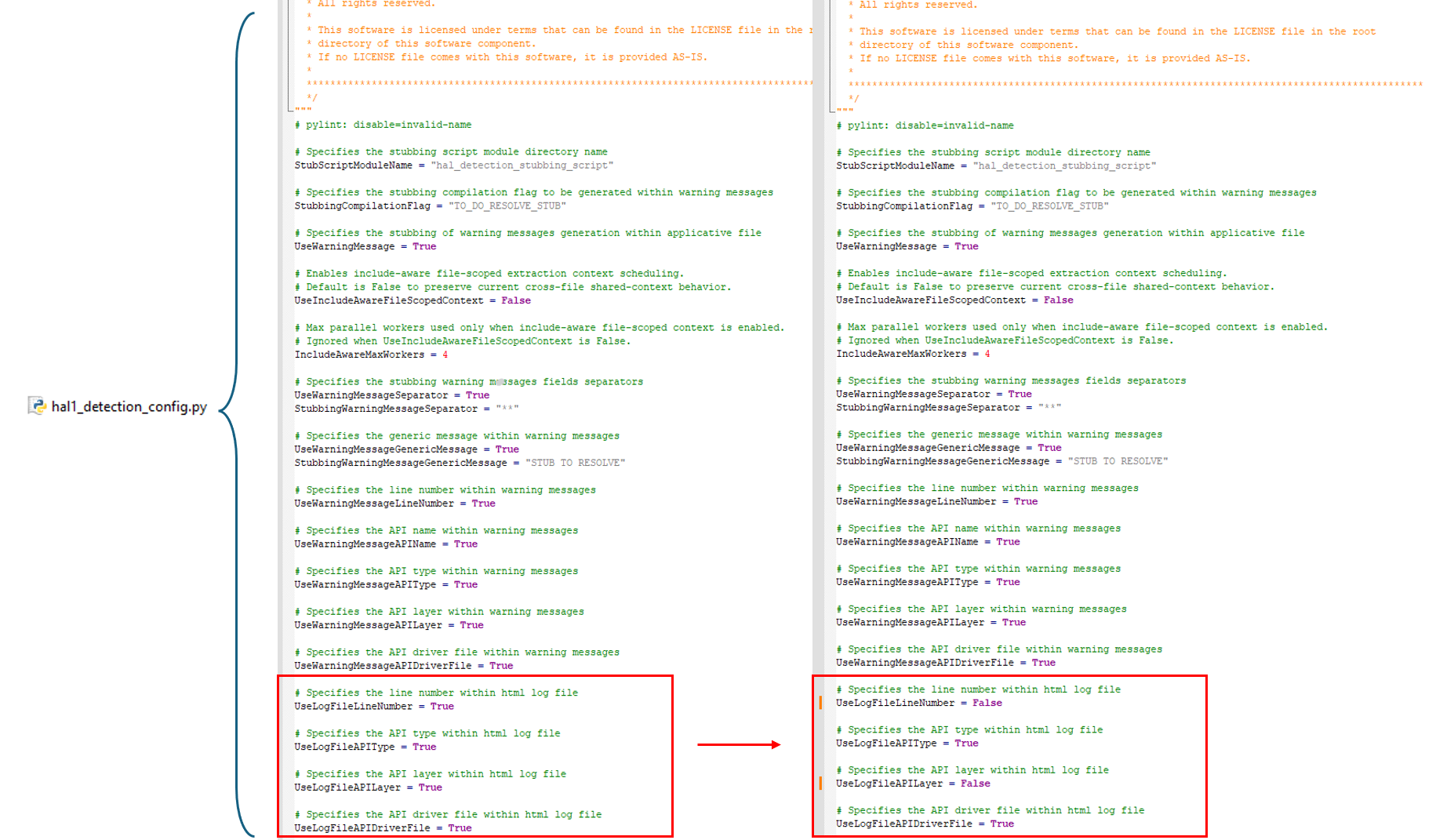
Impact on the generated log file. 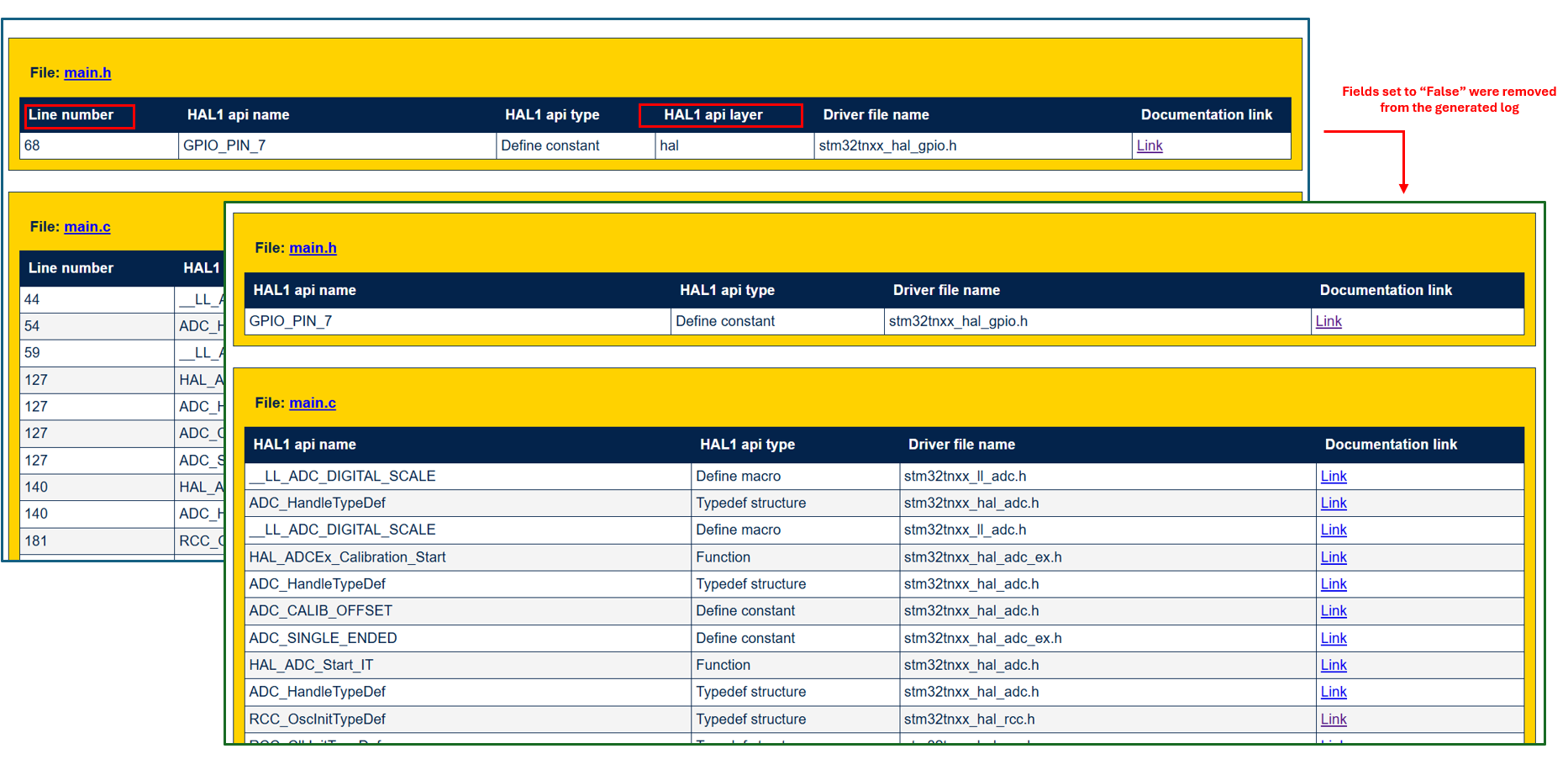
|
Script execution and examples 
Script execution 
|
Item |
Description |
|---|---|
|
Purpose |
Detect HAL1 APIs and generate a log file (no source modifications). |
|
Syntax |
Use one of the following commands: # Using the Python script
# Compatible with bash and Windows console
python hal1_detection.py -psrc PATH -m all|module1 module2 ...
# Using the executable on bash
./hal1_detection.exe -psrc PATH -m all|module1 module2 ...
# Using the executable on Windows console
hal1_detection.exe -psrc PATH -m all|module1 module2 ...
|
|
Mandatory arguments |
|
|
Optional arguments |
|
|
Examples |
|---|
# On windows console
# Detect all HAL1 APIs in src (dry run, no file modifications)
hal1_detection.exe -psrc .\src -m all

# On bash env use
./hal1_detection.exe -psrc ./src -m all
|
# On windows console
# Detect (dry-run) specific HAL1 APIs in a single file
hal1_detection.exe -psrc .\src\main.c -m spi i2c

# On bash env use
hal1_detection.exe -psrc ./src/main.c -m spi i2c
|
Log file use 
The log file generated by the HAL1 detection script is in HTML format. It includes excerpts of user application code where HAL1 APIs are identified.
Each HAL1 API occurrence in the log is presented as a clickable hyperlink. The hyperlink directs users to the relevant section of the HAL1-to-HAL2 migration documentation. This makes navigation easier and provides quick access to migration guidance for each detected HAL1 API.
The main HTML report also provides a dashboard view with summary cards and a text filter that can be used to search by file name, API, layer, or module.
|
Examples |
|---|
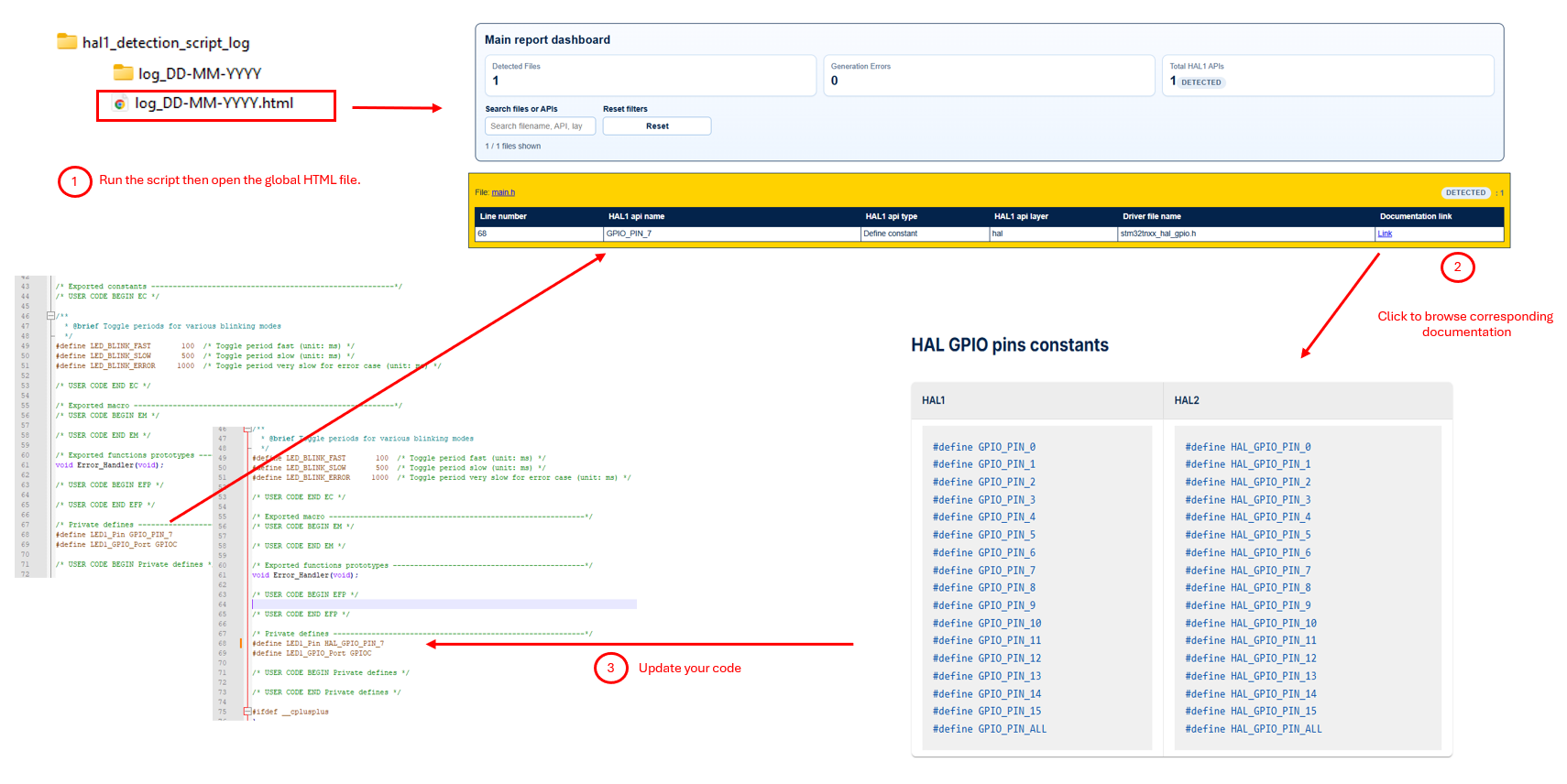
|
In addition, the script generates a dedicated HTML file for each processed source file. These files are saved in the user’s working folder under
hal1_detection_script_log/log_{date}_{time}
and support the migration workflow.
Each per-file HTML report includes:
Clickable HAL API links with inline metadata tooltips.
Checkboxes to mark individual migration items as done.
A progress indicator and an
only unresolved linksfilter.A side-by-side workspace with the detected source view and an editable draft of the original source.
Browser-side persistence for migration marks, layout preferences, and draft text during the documentation-assisted migration workflow.
When the browser supports file-system access, the editable draft pane can also refresh from and save back to the original source file. On browsers that do not support this capability, the pane remains useful as a migration scratchpad, but direct save-to-source is not available.
The first save operation may require the user to select the linked source file explicitly so that the browser can grant access.
When
UseStructuredJSONLog
is enabled, an additional JSON report is also generated in
hal1_detection_script_log.
This JSON output is suitable for automation because it records the run mode, counters, timings, file states, and
individual HAL detection events.
|
Examples |
|---|
|
After script execution 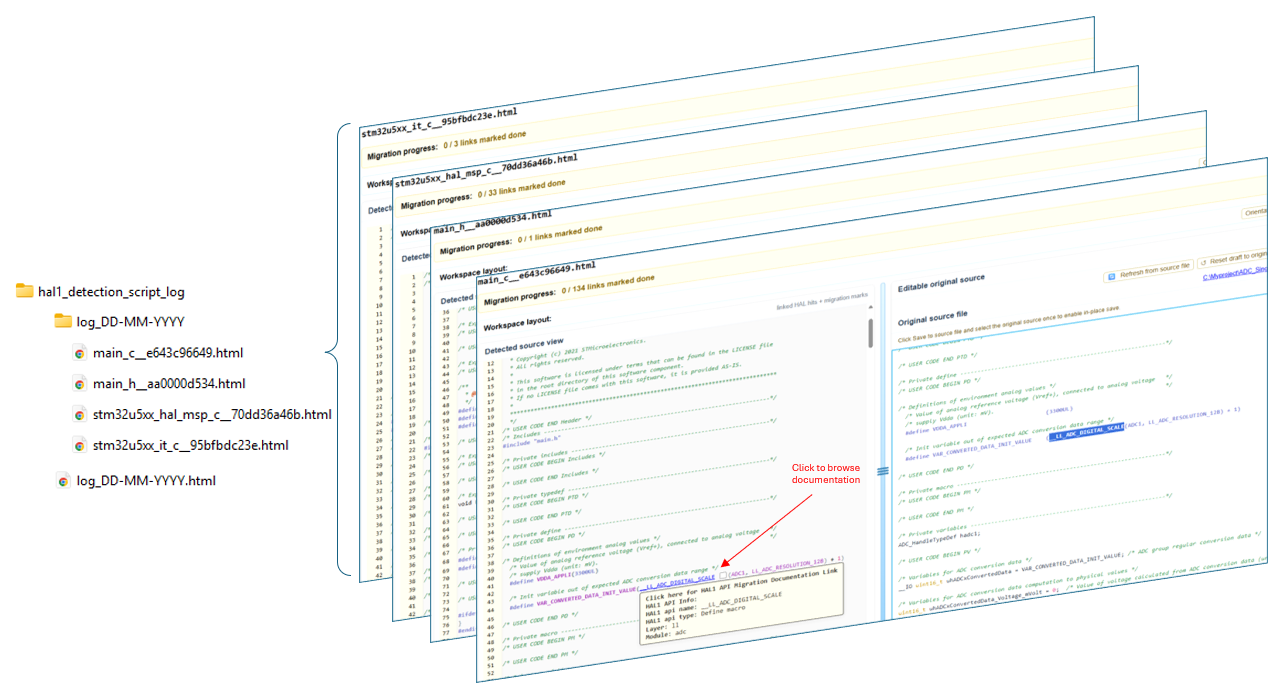
|
|
To migrate detected APIs in
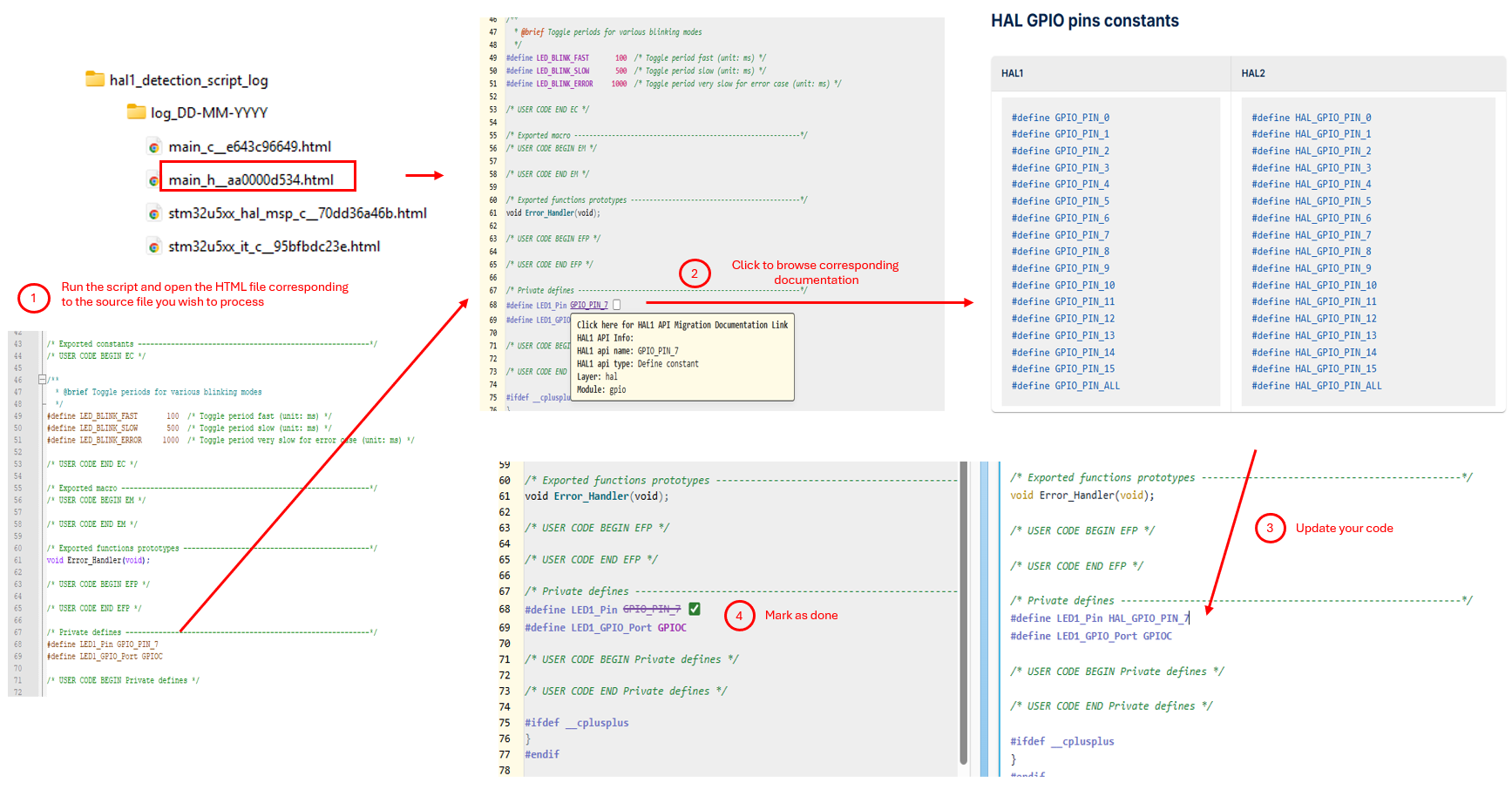
|
Note
It is possible to navigate from the global log file to the corresponding application source code file by clicking on the file name.
|
Examples |
|---|
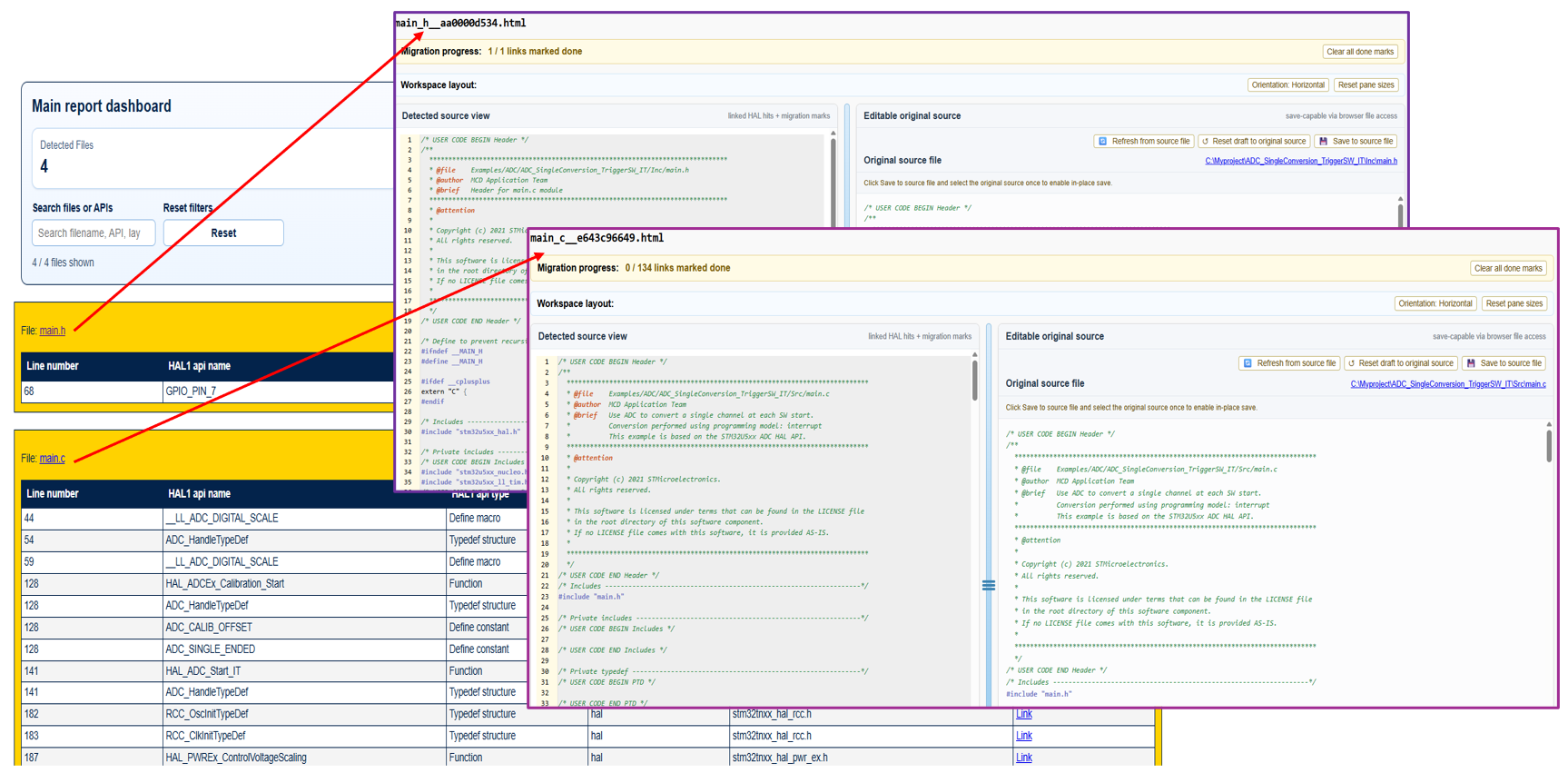
|