
 STM32CubeIDE for Visual Studio Code Documentation

Installation 
To get the full experience with STM32CubeIDE for Visual Studio Code, follow these steps:
In Visual Studio Code, select the Extensions icon in the Activity Bar.
In the Extensions Marketplace, search for “STM32”.
Select “Install” to add the STM32 extension.
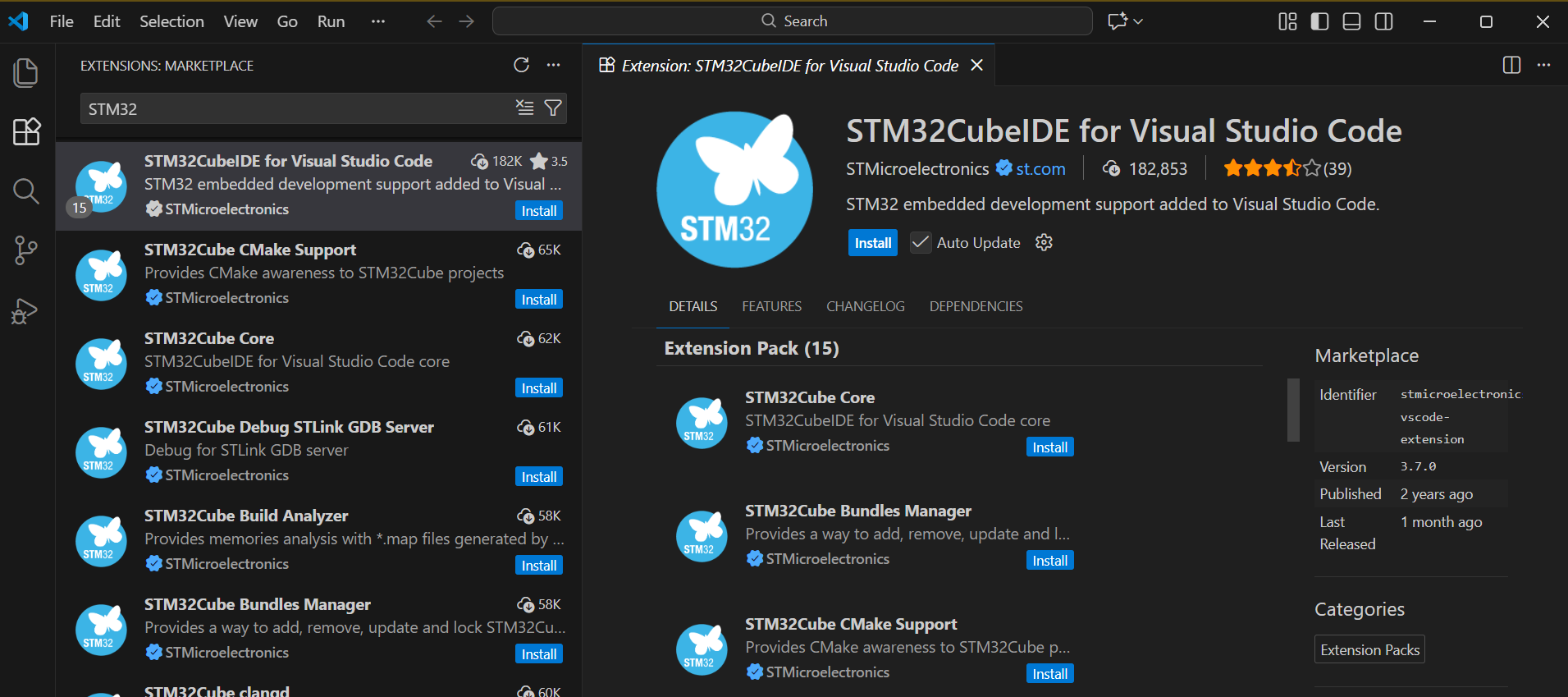
Cherry-picking extensions
To install only specific parts of the STM32 extension, select and install individual extensions as needed. This approach enables customization of you development environment.
To install a specific version using the command-line interface, see the Install a specific bundle version chapter.
Note
If migrating from STM32 VS Code Extension 2.0, see the Migrating from STM32CubeIDE for Visual Studio Code extension 2.x to 3.x chapter.
If new to STM32 development in Visual Studio Code, see the First project creation chapter to start your first project.
Installing drivers
Note
For the current release version, users must install debug probe drivers manually because administrator privileges are required. This process will be improved in future updates.
When setting up STM32CubeIDE for Visual Studio Code, install the required drivers to enable communication between the development board and the computer. Follow the instructions below to install drivers for ST-Link and SEGGER J-Link.
Installing ST-Link USB drivers 
In the STM32CubeIDE for Visual Studio Code Extension, select the STM32CubeIDE for Visual Studio Code icon in the Activity Bar.
In the extension, locate the STM32Cube Resources section.
Select ST-Link USB Drivers to begin installation. This step ensures the ST-Link interface is configured for communication with the STM32 development board.
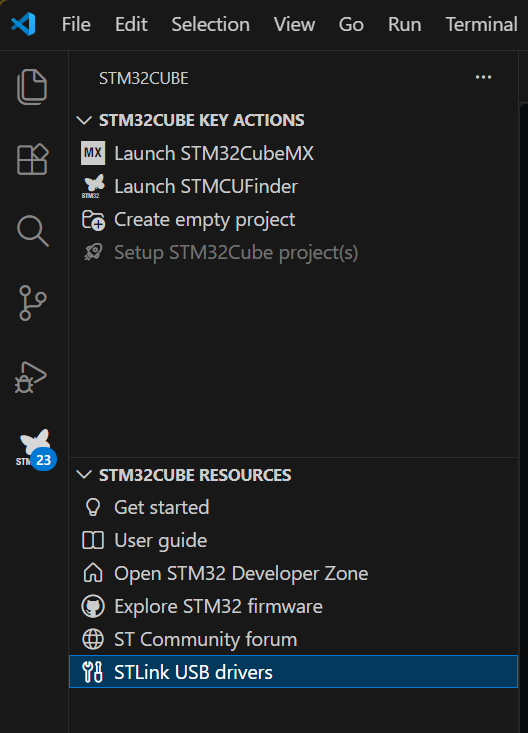
Installing SEGGER J-Link drivers 
Go to the SEGGER J-Link driver download page at SEGGER J-Link driver download page.
Download the J-Link Software and Documentation Pack for your operating system.
Follow the installation instructions provided by SEGGER to install the J-Link drivers.
Proxy configuration 
Some users have connections protected by company network security protocols. In most cases, a proxy or certificate configuration is required.
For more information about configuring a proxy or certificate, see the How to configure the proxy or certificate for STM32CubeIDE for Visual Studio Code community article.