
 STM32CubeIDE for Visual Studio Code Documentation

STM32Cube Bundles 
STM32CubeIDE for Visual Studio Code supports STM32Cube Bundles.
STM32Cube Bundles are collections of facilities that provide a comprehensive development environment like toolchains, debuggers, build systems, and other development tools.
Introduction to Bundles 
What is a bundle? 
A bundles is raw package that contains components for development purposes. A bundle typically includes:
A CubeBundle.json file: Describes the bundle, including its components, dependencies, and metadata.
A Payload: Contains the actual files and resources included in the bundle, such as toolchains, debuggers, and other development tools.
Difference between bundles and packs 
While the terms bundles and packs are sometimes used interchangeably, there are subtle distinctions:
Bundles refer to unique STM32Cube technology packages that include both the metadata and the actual development tools, providing a fully integrated environment.
Packs refer specifically to OpenCMSIS Packs, which are providing standardized software components for ARM Cortex-M microcontrollers like drivers, middlewares, and other software modules.
Understanding this distinction helps you select the right type of package for your development needs.
Using STM32Cube Bundles in STM32CubeIDE for Visual Studio Code 
STM32CubeIDE for Visual Studio Code relies heavily on STM32Cube Bundles to provide edition, build & debug capabilities.
STM32CubeIDE for Visual Studio Code handles bundles silently in the background to maximize the end-user experience. For advanced use, both a command line interface (CLI) and graphical tools are available to manage STM32Cube bundles:
Graphical tool accessible from dedicated view or VS Code command palette:
STM32Cube: Open System STM32Cube Bundles ManagerCommand Line Interface:
cube bundle --help
STM32Cube bundles manager 
In STM32CubeIDE for Visual Studio Code, the STM32Cube bundles manager provides an interface to manage your development bundles directly within the IDE.
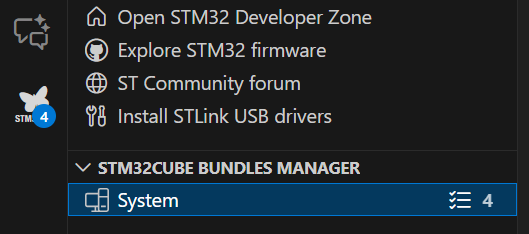
By clicking the STM32 logo located in the Activity Bar on the left side of the VS Code window, you access the bundles manager panel.
Detailed functions of the STM32 bundles manager interface 
The bundles manager panel in Visual Studio Code offers several key functions and controls that enhance your ability to manage STM32CubeIDE bundles efficiently:
1. Select all checkbox 
Located at the top-left of the bundles list, this checkbox allows you to select or deselect all bundles in the current view.
This is useful for batch operations such as installing, updating, or removing multiple bundles simultaneously.
2. Search and filter fields 
Name, version, type, status filters: Each column header includes a search or dropdown filter field.
These filters let you narrow down the list of bundles by typing keywords or selecting specific types or statuses, making it easier to find particular bundles among many.
For example, you can filter to show only bundles that have updates available or only show those related to debugging.
3. Bundles list table 
Displays information about each bundle:
Name: The bundle identifier, such as
cmake,jlink-gdbserver, ornode.Version: Shows the installed version and if it is the latest available (for example,
4.1.0+st.1 (latest)).Type: Describes the bundle category, such as
build,application,debug, ormetadata.Status: Indicates whether the bundle is
Up to dateor if anUpdate availableexists.
Bundles can be expanded by clicking the arrow icon to show more details or subcomponents, if applicable.
4. Actions toolbar 
The toolbar is located at the top right of the list and provides buttons for managing selected bundles:
Install: Install selected bundles that are not currently installed.
Update: Update selected bundles to their latest available versions.
Remove: Uninstall selected bundles from your environment.
Refresh: Reload the bundles list to check for new updates or changes in bundle availability.
These actions enable quick management without leaving Visual Studio Code.
5. Install and lock 
Install a specific version of a bundle and lock it to that version.
When a bundle is locked, it is not updated automatically, even if newer versions become available.
This is useful when you need a stable and reproducible environment, for example, to:
Ensure all team members use the same tool version.
Avoid unexpected changes in behavior due to automatic updates.
You can later unlock the bundle or manually select a newer version when you are ready to upgrade.
How these functions improve your workflow 
Efficiency: Locate and manage bundles using filters and batch selection.
Control: Install, update, or remove bundles seamlessly without manual downloads or command-line operations.
Visibility: Clear status indicators help you maintain an up-to-date development environment.
Convenience: Pagination and search capabilities keep the interface user-friendly, regardless of the number of bundles.
By using these interface features, developers maintain a consistent and optimized STM32CubeIDE for Visual Studio Code setup, ensuring compatibility and access to the latest tools and libraries directly within Visual Studio Code.
The bundles manager simplifies the process of setting up and maintaining your STM32 development environment by providing centralized control over all bundle-related operations without leaving the integrated development environment.
To use the command-line interface to install a specific version, see the Command-line tools page.
Using this integrated tool helps maintain consistency across projects and team members, streamlining your embedded development workflow.
Why use bundles? 
Bundles offer several advantages:
Simplified Setup: Bundles provide a single solution for setting up a development environment, reducing the need to manually install and configure multiple extensions and settings.
Consistency: By using bundles, teams ensure that all members have a consistent development environment, minimizing discrepancies and configuration issues.
Productivity: Bundles streamline the development process by providing all necessary tools and configurations, allowing developers to focus on writing code instead of setting up their environment.
Further reading 
Bundles in STM32CubeIDE for Visual Studio Code offer a powerful way to enhance your development environment by providing curated sets of tools and configurations. By using bundles, you can simplify your setup, ensure consistency, and boost productivity.
For more detailed information, visit the official STM32CubeCLI documentation.