
 STM32CubeIDE

FAQ 
Authentication issue 
For STM32CubeIDE versions prior to 2.0.0: If you have encountered an authentication problem while using STM32CubeIDE, do not worry. You simply need to set your connection parameters. For more details, see this link : https://community.st.com/t5/stm32-mcus/how-to-set-the-network-connection-parameters-for-stm32cubeide/ta-p/585694
How to refresh the code after an update within STM32CubeMX standalone tool 
If the new version of STM32CubeIDE 2.0.0 is used, imported projects from STM32CubeMX need to be refreshed according to the following instructions: right-click on the imported project, and select the :guilabel:Refresh entry in the menu. Perspectives ——————
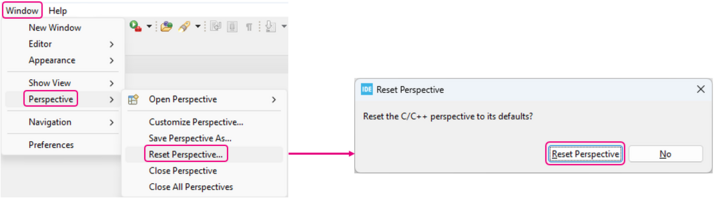
Reset perspectives 
The user can reset the perspective back to the default configuration using the menu
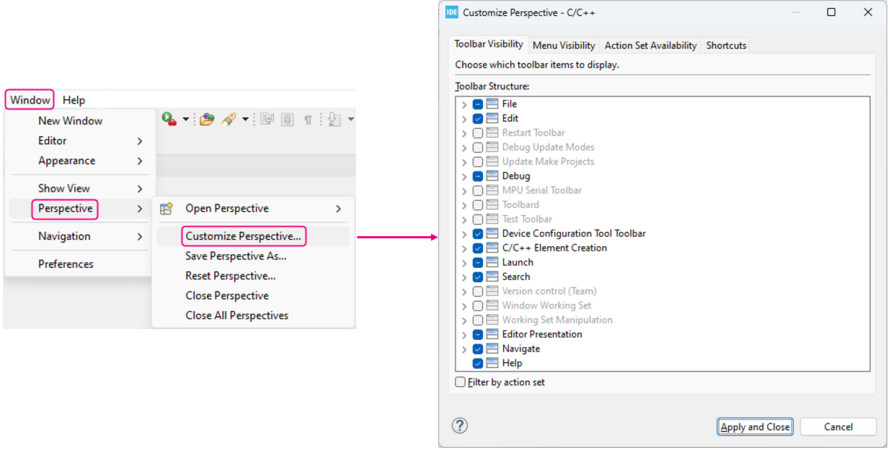
Customize perspectives 
The user can customize the perspectives using the menu :menuselection:Window –> Perspective –> Customize Perspective… and choosing toolbars and menu visibility, action sets, and shortcuts availability.
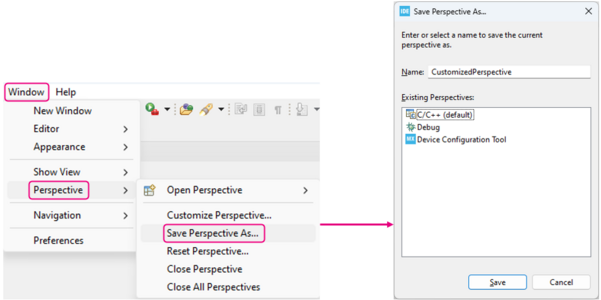
Create an own perspective 
The user can create a customized perspective after selecting or moving some views and using the menu , and then choosing a name to save it.
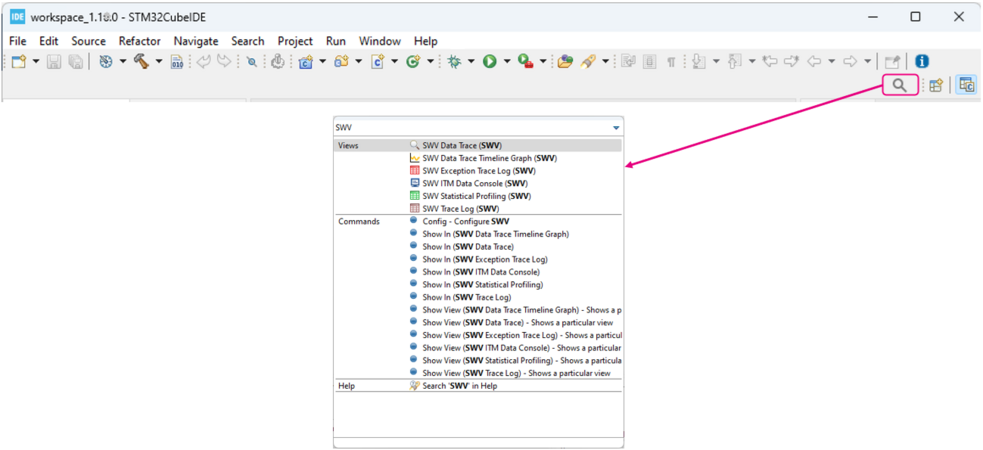
Quick access to views, menus, preferences 
A quick-access menu is available to search for views, menus, and preferences by clicking on the magnifying glass at the top right and typing the name of the view in the dialog.
Key bindings 
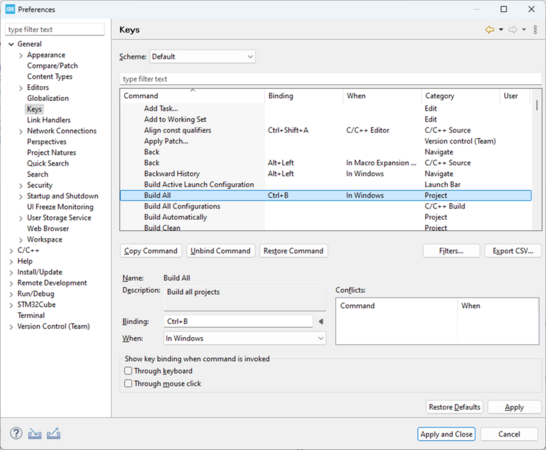
Select the menu then select the category .
Choose between three different key binding schemes: Eclipse, GNU Emacs, Microsoft Visual Studio.
Use the search filter to find a command and learn or configure its specific key binding.
For example, use
Ctrl+B
to Build All:
Shortcuts 
Shortcuts to debug 
Use shortcuts to run, debug, and control code execution.
Ctrl+F11to run the last application launched.F11to debug the last application launched.F5to step into.F6to step over, i.e. go to next line.F7to step return to caller.F8to resume until next breakpoint.
Shortcuts to code 
Use shortcuts to code.
Ctrl+Spaceto auto complete.Ctrl+Hto search workspace resources with useful filters.Alt+Shift+Ato select blocks. It is useful to modify several lines at a time.Ctrl+Oto open the quick outline.Ctrl+Shift+Rto open resources.Ctrl+Shift+Tto open elements.
Dark theme 
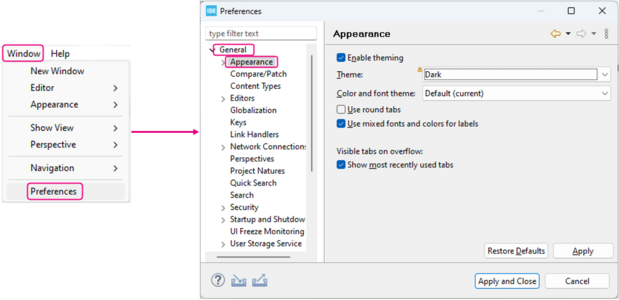
The dark theme is a very popular preference. A restart is needed for the theme change to come into effect. Select the menu then select the category and turn the theme to dark.
Workspace path 
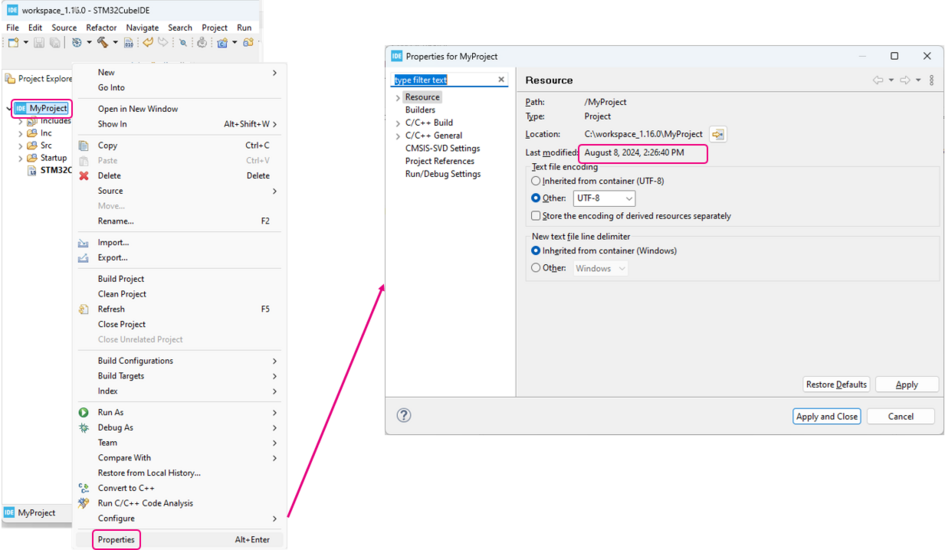
STM32CubeIDE is always launched inside a workspace. A workspace contains projects. It is easy to open a file explorer inside the workspace folder. Select a project inside the Project Explorer, right-click to open the menu and then select Properties .
Link with editor 
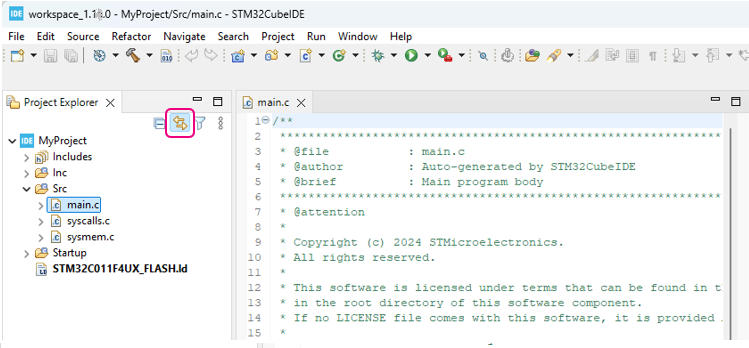
To know where a file is located, activate the link with editor feature. By default, this feature is toggled off. The link with editor feature is very convenient to find a file inside a large folder hierarchy. It is recommended to toggle it on only when needed.
Task tags 
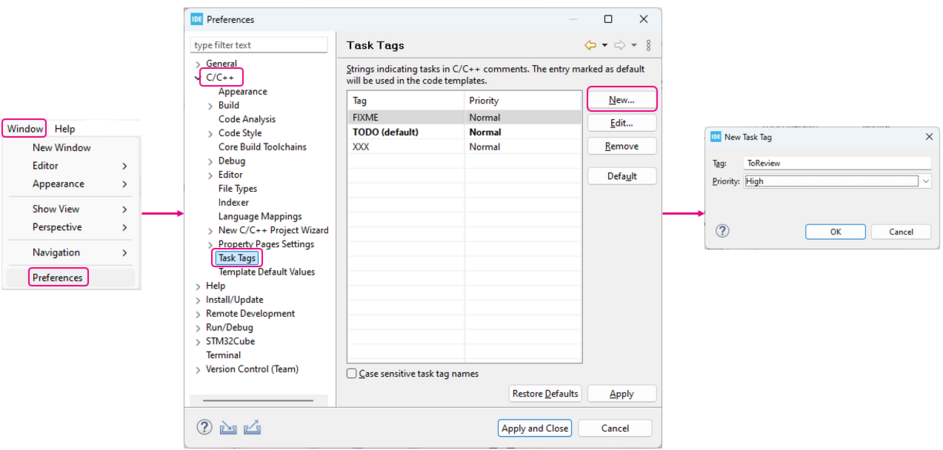
Define your own task tags to keep track of your selections. Select the menu then select the category and click on the New button. Enter a tag name and a priority (High/Normal/Low). Tags may contain any character string.
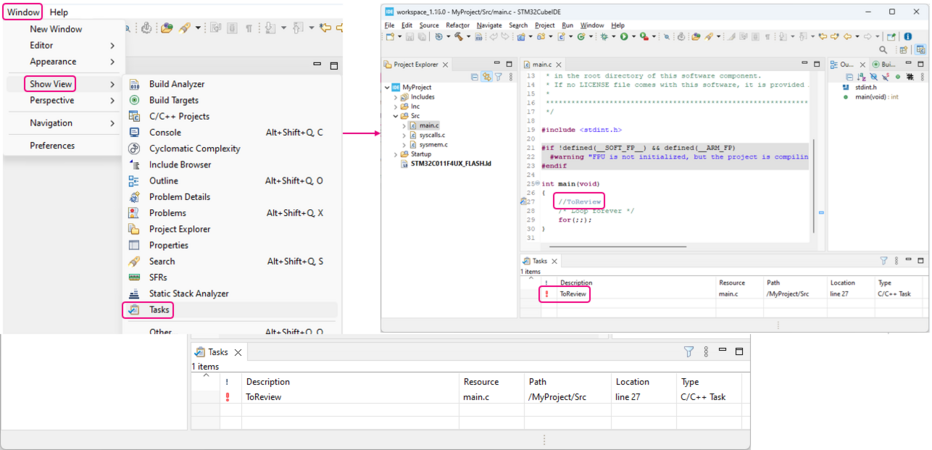
Add several tags into the code. Open the Tasks view: to access and navigate your list of tags.
Code templates 
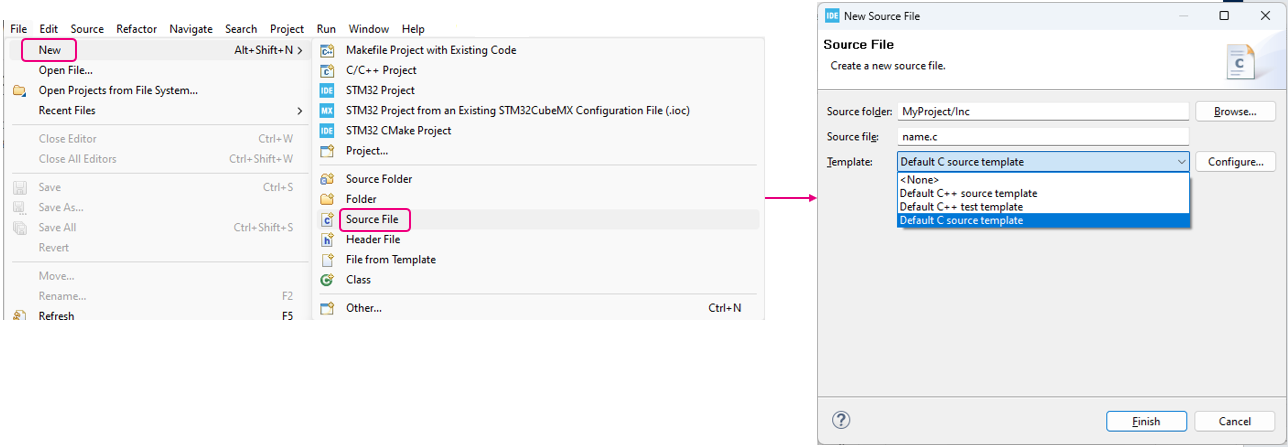
To simplify and standardize the source files, usage of code templates is very useful. Select the menu and select the template, or configure a new default template, or modify an existing one by clicking Configure… .
Include browser 
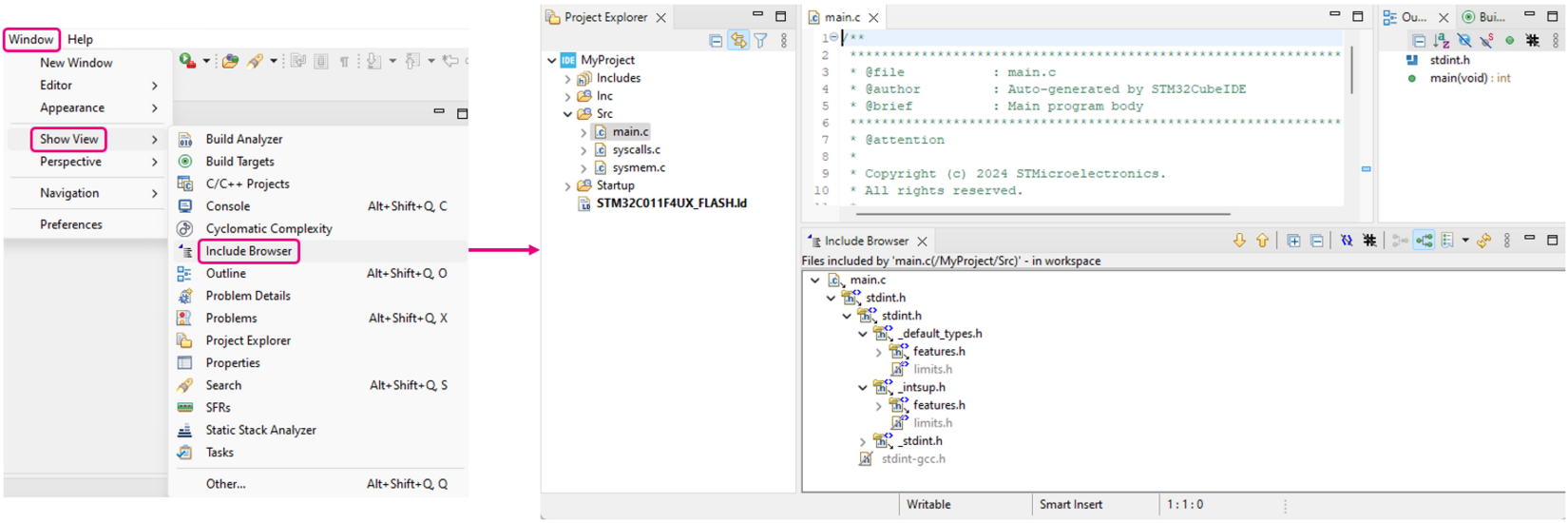
Open the Include Browser view with the menu to visualize include dependencies between files. Drag and drop a file into the view.
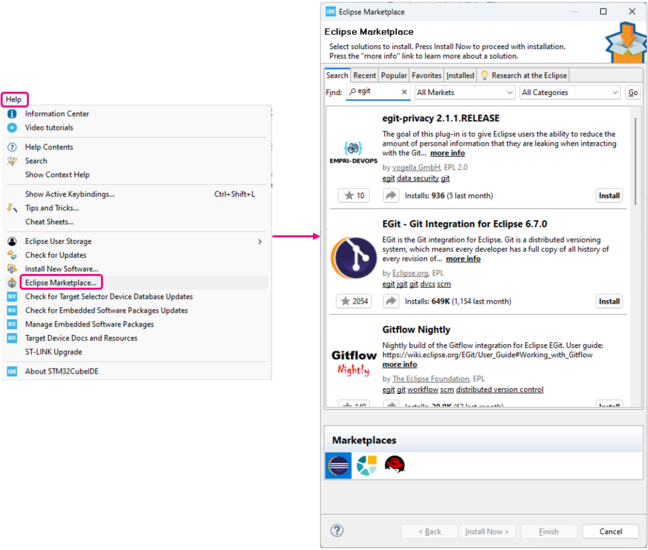
Eclipse Marketplace 
The Eclipse Marketplace is an interface for browsing and installing additional tools or features. Open the menu
. Search for a keyword, for example
egit, for related solutions.
Cyclic redundancy check - An error detection method 
Cyclic redundancy check (CRC) is an error detection method used for digital data, based on binary division. The CRC algorithm generates a fixed-length checksum code.
The post below describes how to implement the CRC mechanism in your project: CRC computation in STM32 MCUs and post-build creation
The following GitHub repository contains an example of how to generate the CRC for your projects: ethanhuanginst/STM32CubeIDE-Workshop-2019 GitHub
Project migration from IAR Embedded Workbench® for Arm or Keil® MDK-ARM to STM32CubeIDE 
Create an empty project in STM32CubeIDE based on the same MCU as the EWARM or MDK-ARM project.
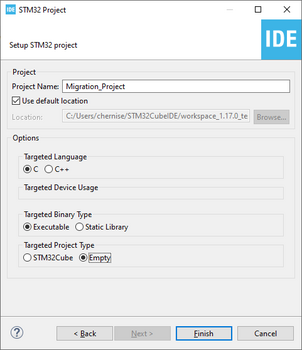
The empty project contains the basic necessary items to make the MCU work:
Startup file
Linker file
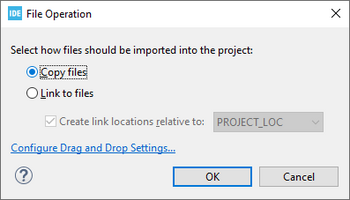
Manually import source files from the original project by dragging and dropping them into the STM32CubeIDE workspace. During this operation, a pop-up message appears. Select the adequate option for your application:
Copy files: This creates a copy of the file under the project folder.Link to files: This creates a link between the STM32CubeIDE project in the workspace and the original project folder.
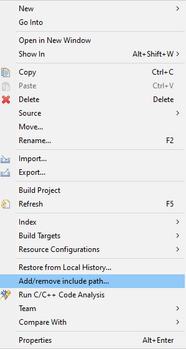
Set the include paths from STM32CubeIDE settings:
Option 1: Right-click on the folder inside the workspace and select Add/remove include path…
Option 2: Under , add the include files folder.
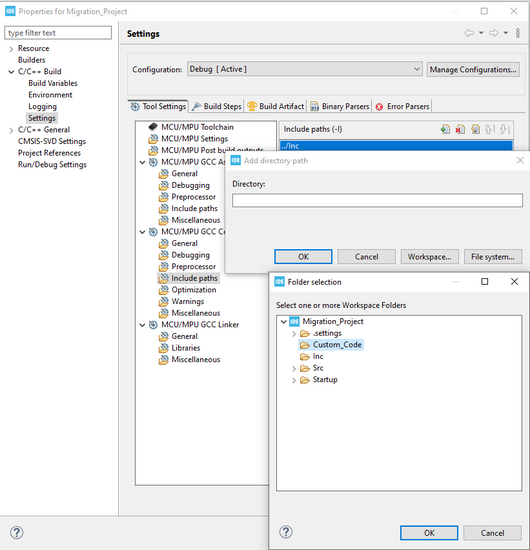
The remaining options (such as compilation and linker) are described in the STM32CubeIDE user guide.
At the end, the user obtains an STM32CubeIDE project.
The link time optimization (LTO) 
The link time optimization (LTO) is a feature that requests the linker to optimize generated code. To apply LTO, add the
-flto
option to compiler (CFLAGS) and linker (LDFLAGS) options in project properties.
Add the flag
-flto
to the MCU GCC Compiler Miscellaneous:
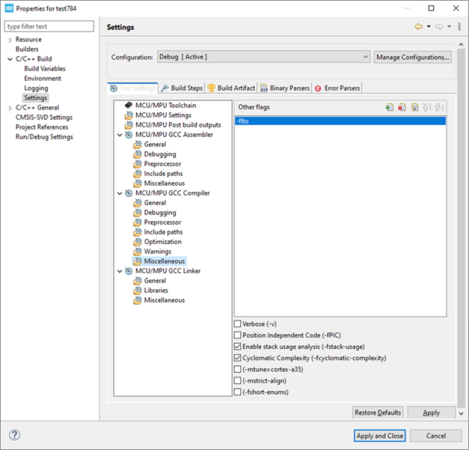
LTO compiler flag 
Add the flag
-flto
to the MCU GCC linker Miscellaneous:
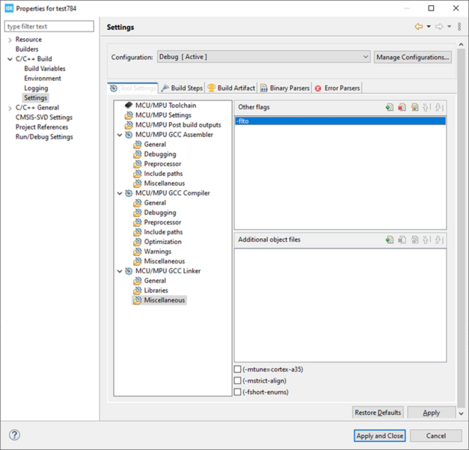
Memory management 
If the load address is wrong in ELF file.
If the user changes the origin of a memory area with a non-aligned address in the linker file and enables conversion to Hex (
-O


            hex
), for example:
From
/* Memories definition */
MEMORY
{
  RAM    (xrw)    : ORIGIN = 0x20000000,   LENGTH = 24K
  FLASH  (rx)     : ORIGIN = 0x8000000,    LENGTH = 128K
}
to
/* Memories definition */
MEMORY
{
  RAM    (xrw)    : ORIGIN = 0x20000000,   LENGTH = 24K
  FLASH  (rx)     : ORIGIN = 0x8000800,    LENGTH = 128K
}
The user has to change the maximum page size by adding the flag
-n
which turns off page alignment (
-Wl,-n
on the GCC driver command line).
GNU
ld
manual full description:
-n--nmagicTurn off page alignment of sections, and disable linking against shared libraries. If the output format supports Unix style magic numbers, mark the output as NMAGIC.
Debug an already-running target 
STM32CubeIDE does not provide a dedicated one-click command to attach to a running target. Configure a debug session to load the application symbols without reloading the program or resetting the target.
Before you start:
Start the target and ensure the application is running.
Use the ELF file that matches the firmware running on the target. Matching symbols are needed for accurate source-level debugging.
Configure the debug session:
In Project Explorer, right-click the project and select .
Select the debug configuration for your STM32 project, or create one.
Configure the application loading option to Load symbols only.
In the Debugger tab, set Reset behavior to None.
In the Startup tab, select the loaded file, clear Download, and keep Load symbols selected.
Apply the changes and start the debug session.
The debugger connects using the selected symbols without reprogramming or resetting the target. To return to the usual debug workflow, restore the normal application-loading and reset settings in the configuration.