
STM32CubeMX2 STM32CubeMX2 STM32CubeMX2 Go to parent
/
  • latest
  • 1.1.2
  • English
  • HTML (zip: en)
  • PDF (pdf: en)
ST Online Support

Table of contents

  • STM32CubeMX2 documentation
  • How to get started with STM32CubeMX2
  • How to start
    • System requirements
    • Installation
    • Uninstallation
    • Settings and preferences
    • Navigation and page structure
    • How to start from example projects
    • How to use STM32CubeMX2 in offline mode
  • User manual
    • Home
    • Project settings
    • Clock
    • Pinout
    • Menu bar and left bar
    • Footer
    • Peripherals
    • DMA
    • NVIC
    • EXTI
    • Middleware and utilities
    • HW Parts
    • Project Generation
    • Pack manager
    • Code preview
  • Command lines interface
  • How to
    • How to configure a clock
    • How to select a format and generate code
    • How to reserve a GPIO pin
    • How to access peripherals configuration
    • How to access hardware parts
    • How to access middleware & utilities
    • How to configure DMA
    • How to configure EXTI
    • How to configure NVIC
    • How to manage packs in Pack Manager
    • How is errors and conflicts propagation managed ?
    • How to restore the board constraints
  • Release Note
    • Release details
    • Release limitations
  • FAQ
  • Community

On this page

  • Footer overview
  1. STM32CubeMX2 /
  2. User manual /
  3. Footer

Footer 

Footer overview 

The footer in STM32CubeMX2 shows two types of information: Save state (1) and Notifications (2). Users can interact with both items by clicking them.
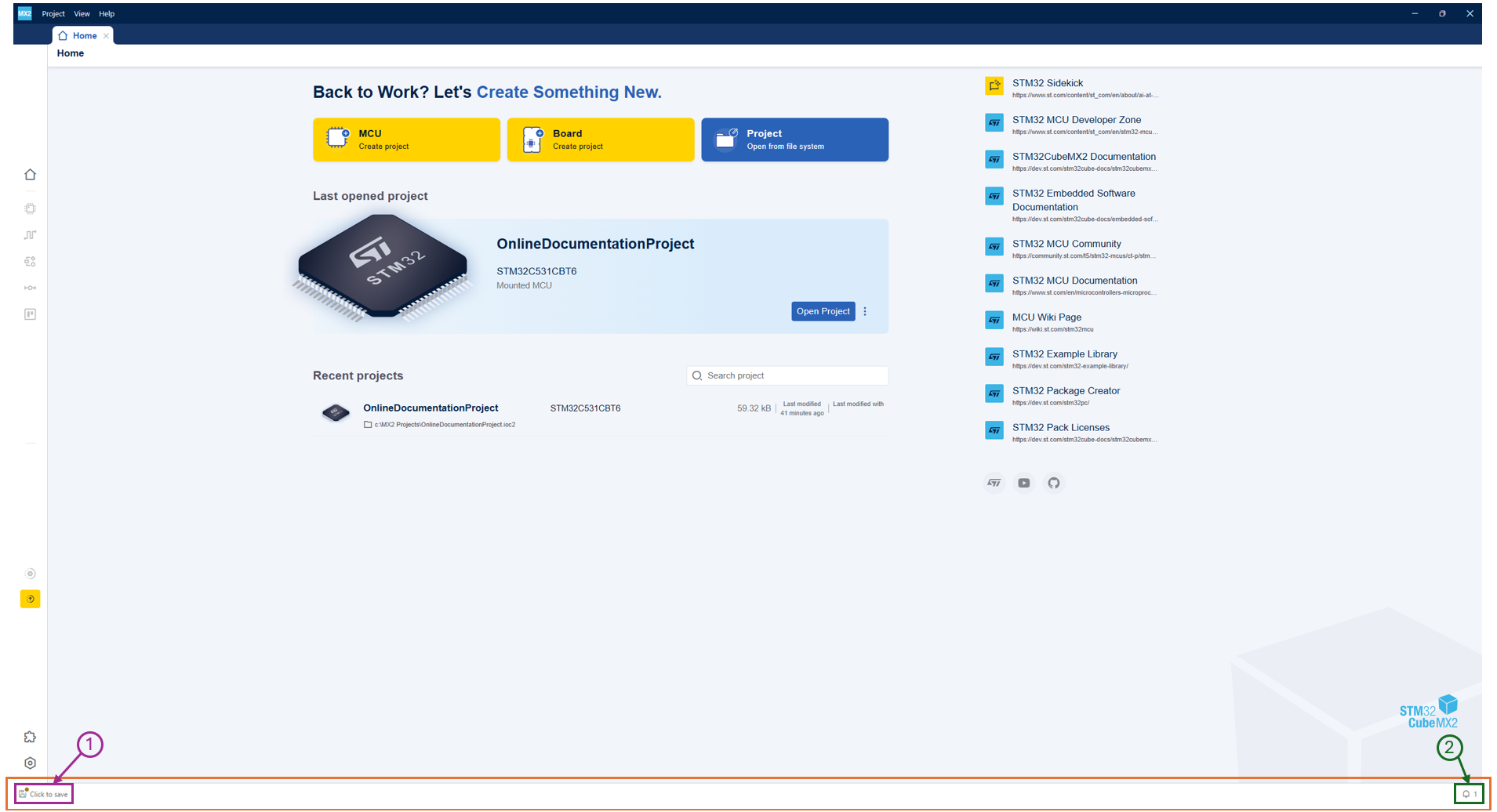
../../../_images/Footer-Fig1.png

Footer overview 

  • Save state: The footer provides, in the bottom-left corner, a quick view of the current save state of the project. Three states are possible:

    • Unsaved changes: This is the default state after project creation. The label “Click to save” appears on hover. Clicking it saves the project.

    • Saving: This is the transition state between unsaved changes and saved.

    • Saved: This indicates that all changes are saved. The label “All changes saved” appears on hover.
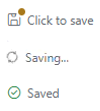
../../../_images/Footer-Fig2.png

Footer different save states 

  • Notifications: The footer provides an overview of notifications with an incremental counter. Clicking the notification icon opens a pop-up window that lists all notifications. The number of notifications appears on the icon. Several actions are available:

    • Show in logs: Clicking the “Show in logs” button opens the logs view in STM32CubeMX2.

    • Clear all: Clicking the “Clear all” button clears all notifications.

    • Close notification: Clicking the “X” button closes the notification.

    • Show details: Clicking a notification opens the corresponding view in STM32CubeMX2.
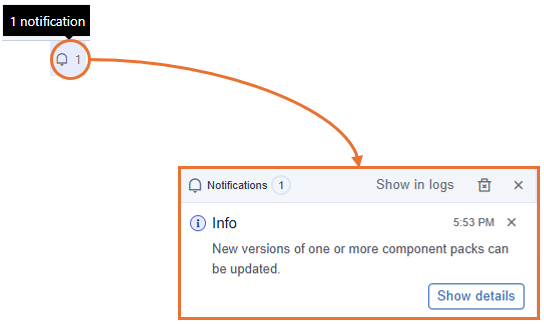
../../../_images/Footer-Fig3.png

Footer notifications 

  • When all notifications are cleared, the counter reaches 0, and the notification pop-up indicates that all notifications are cleared.
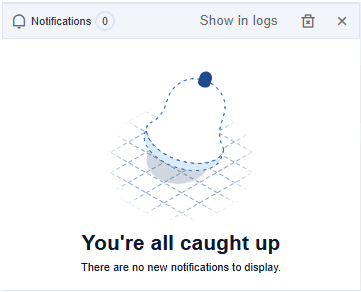
../../../_images/Footer-Fig4.png

No notification remaining 

Note

The footer is always displayed at the bottom of the STM32CubeMX2 window, even when the window is resized and regardless of the active view.

Previous
Menu bar and left bar
Next
Peripherals

© Copyright 2026, STMicroelectronics.

Built with Sphinx and the Shibuya theme.