
 HAL2 Migrator

Script setup and usage 
Execution requirements 
Important
Before running the migration script, make sure that the entry point for HAL includes
stm32_hal.h. Refer to
breaking_concepts_concept_L
for more details.
Additionally, if the HAL1-based application uses low-layer (LL) drivers, make sure that the corresponding LL file exists in HAL2.
Python format 
When using the Python script format, it is essential to install the dependencies specified in the
hal1_detection_requirements.txt
file. Install all required dependencies using the following command:
pip install -r hal1_detection_requirements.txt
Note
The script was developed and tested using Python version 3.8.0.
Executable format 
When using the executable format, there are no package dependencies. The
hal1_detection.exe
is ready to use.
Note
The script is compatible with the Windows 11 64-bit operating system.
Use the Python format if Windows 11 is not available.
Command description 
|
Option |
Shortcut |
Type |
Value |
|---|---|---|---|
|
|
|
Optional |
Displays information about the use of the migration tool and its available options. |
|
|
|
Optional |
Configuration management:
|
|
|
|
Optional |
Detection mode:
|
|
|
|
Mandatory |
Directory/file location of the HAL1-based project. |
|
|
|
Mandatory |
Peripheral (such as
|
Script configuration 
This section details the available options for configuring the script [ list| modify | default ]. If the
-c
option is used without an argument, an interactive menu is shown. For clarity, the examples presented in this section use the executable file, but the script shows identical behavior in its
Python
format.
The accompanying screenshots were taken from the Bash interface.
Show configuration 
|
Description |
Example |
|---|---|
|
Use one of the following commands to display the current configuration settings, including all stubbing and warning message options. # Using the Python script
# Compatible with bash and Windows console
python hal1_detection.py -c list
# Using the executable on bash
./hal1_detection.exe -c list
# Using the executable on
# Windows console
hal1_detection.exe -c list
Using the interactive menu, as shown below, provides the same results. # Run the command with no option
# then type `1` to the prompt.
hal1_detection.exe -c
|
Displaying the current configuration 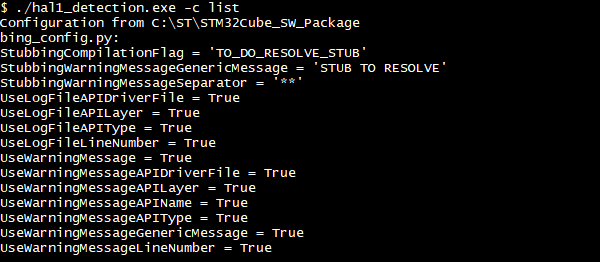
Displaying the current configuration using the interactive menu 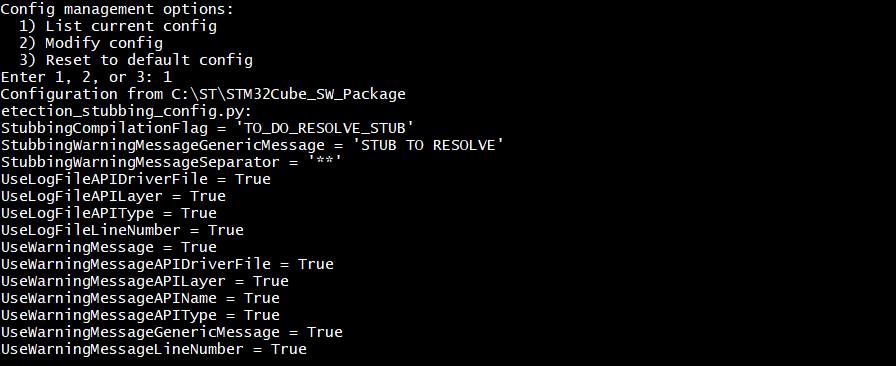
|
Modify configuration 
|
Description |
Example |
|---|---|
|
Use one of the following commands to change the current script configuration: # Using the Python script
# Compatible with bash and Windows console
python hal1_detection.py -c modify
# Using the executable on bash
./hal1_detection.exe -c modify
#  Using the executable on Windows console
hal1_detection.exe -c modify
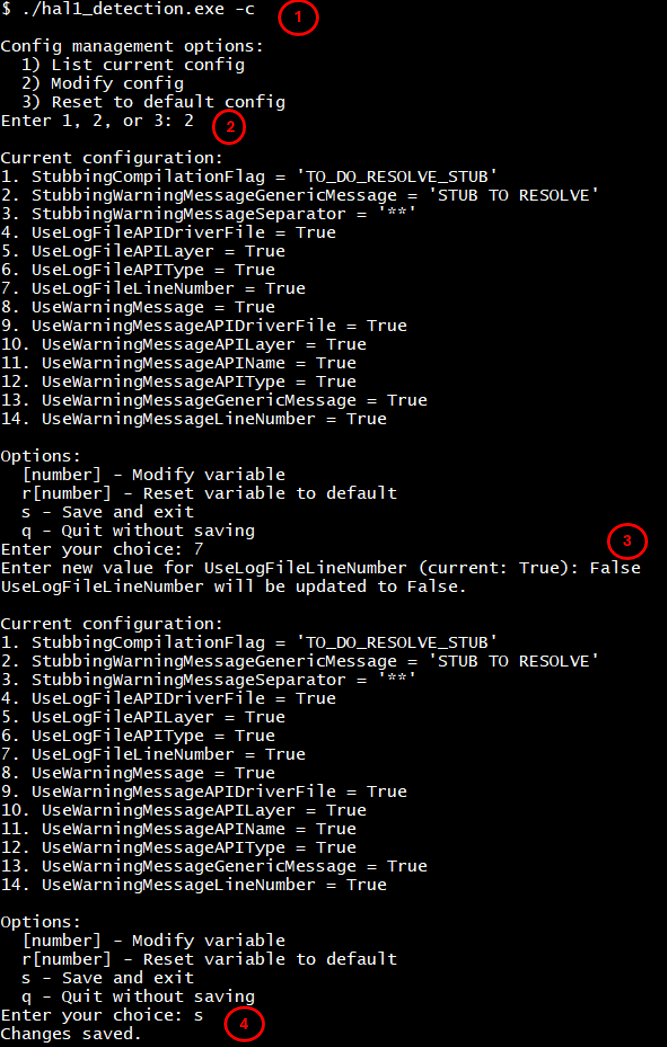
Select the number corresponding to the variable to be modified. Enter the new value and save the selection.
The following example illustrates the process using the interactive menu to change the value of the
# 1 - Run the command with no option then type `2` to the prompt.
hal1_detection.exe -c
# 2 - Type `7` to the prompt to select ``UseLogFileLineNumber``.
# 3 - Enter a new value for the selected field (``False``).
# 4 - Save and exit.
|
|
Reset configuration 
|
Description |
Example |
|---|---|
|
Use one of the following commands to reset the configuration: # Using the Python script
# Compatible with bash and Windows console
python hal1_detection.py -c default
 # Using the executable on bash
./hal1_detection.exe -c default
#  Using the executable on Windows console
hal1_detection.exe -c default
Using the interactive menu, as shown below, provides the same results. # Run the command with no option then type `3` to the prompt.
hal1_detection.exe -c
|
Reset configuration 
Reset configuration using the interactive menu 
|
Log file message configuration 
Users can customize the messages recorded in the log file to meet their specific requirements. To achieve this, they can either edit the
hal1_detection_config.py
configuration file or modify the value of the
UserLogFile_xxxx
field through the interactive menu, as described earlier.
The table below provides a summary of the available configuration options:
|
Field |
Default value |
Possible values |
|---|---|---|
|
UseLogFileLineNumber |
True |
True/False |
|
UseLogFileAPIType |
True |
True/False |
|
UseLogFileAPILayer |
True |
True/False |
|
UseLogFileAPIDriverFile |
True |
True/False |
|
Description |
Example |
|---|---|
|
The following example demonstrates a custom configuration where the user chooses to set the
# 1 - Edit the configuration as shown.
# 2 - Save and exit.
# 3 - Run the detection script.
# 4 - Observe the updates in the generated log file.
|
Editing the
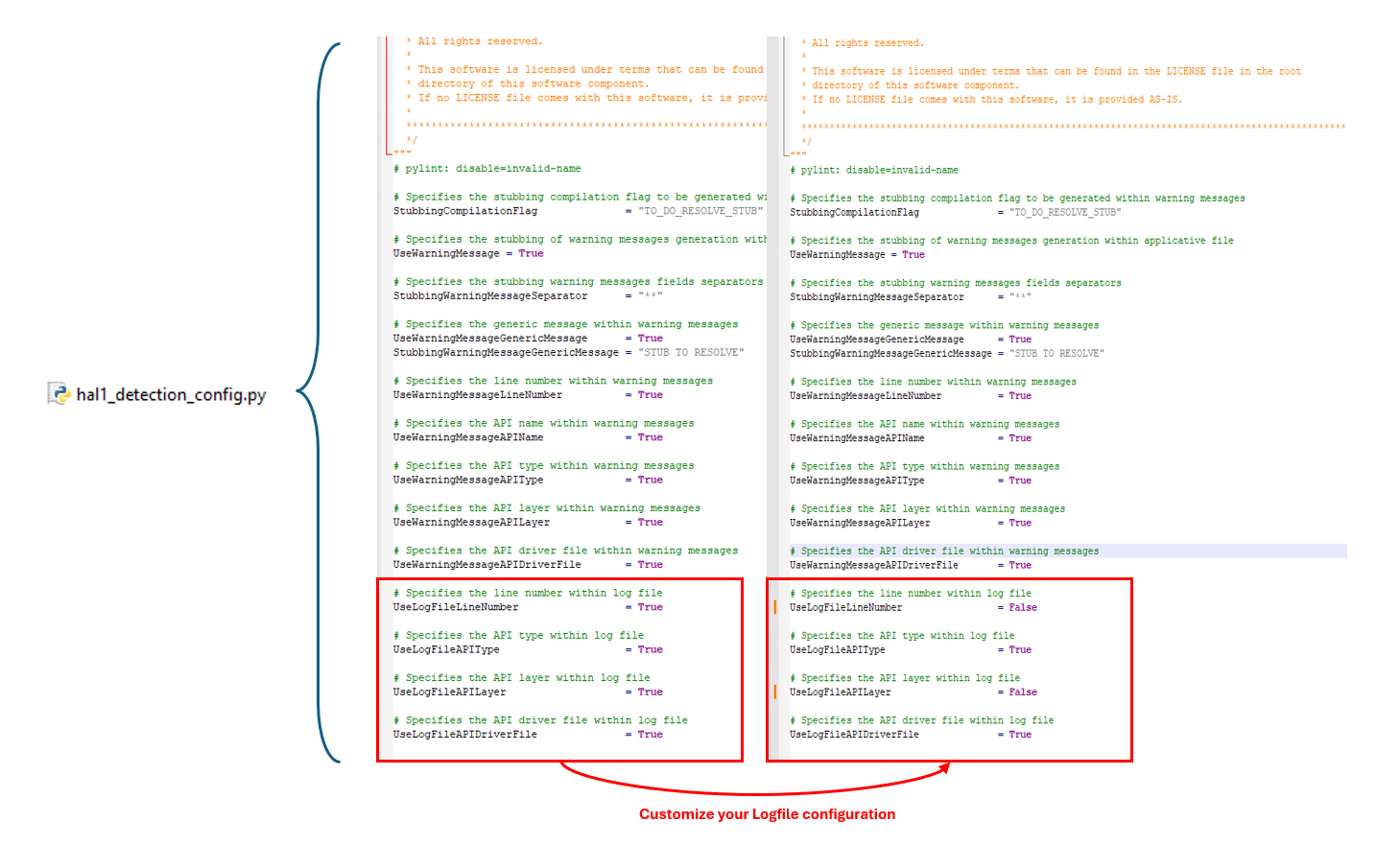
Impact on the generated log file. 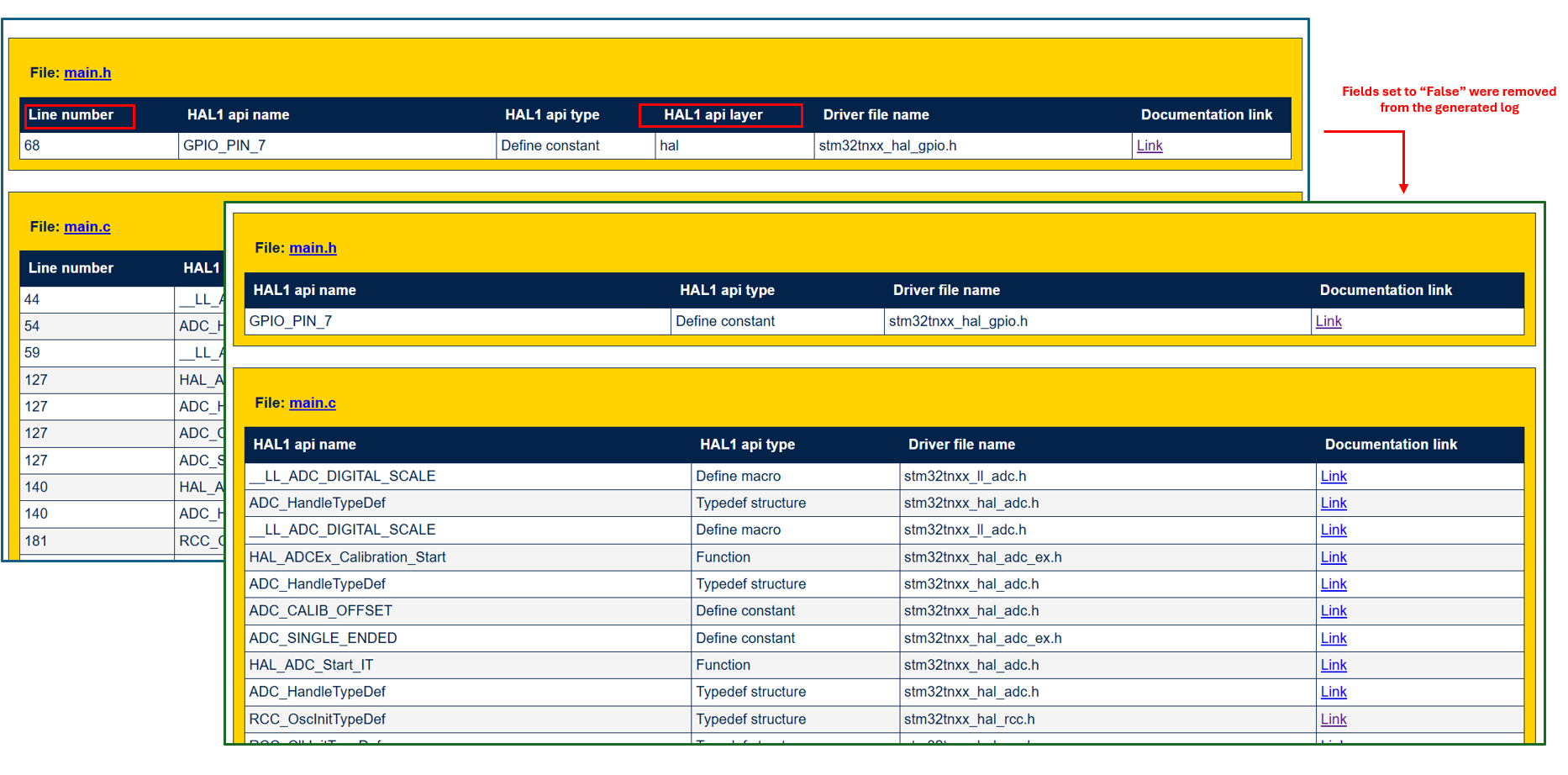
|
Script execution and examples 
Script execution 
|
Item |
Description |
|---|---|
|
Purpose |
Detect HAL1 APIs and generate a log file (no source modifications). |
|
Syntax |
Use one of the following commands: # Using the Python script
# Compatible with bash and Windows console
python hal1_detection.py -psrc PATH -m all|module1 module2 ...
# Using the executable on bash
./hal1_detection.exe -psrc PATH -m all|module1 module2 ...
# Using the executable on Windows console
hal1_detection.exe -psrc PATH -m all|module1 module2 ...
|
|
Mandatory arguments |
|
|
Examples |
|---|
# On windows console
# Detect all HAL1 APIs in src (dry run, no file modifications)
hal1_detection.exe -psrc .\src -m all

# On bash env use
./hal1_detection.exe -psrc ./src -m all
|
# On windows console
# Detect (dry-run) specific HAL1 APIs in a single file
hal1_detection.exe -psrc .\src\main.c -m spi i2c

# On bash env use
hal1_detection.exe -psrc ./src/main.c -m spi i2c
|
Log file use 
The log file generated by the HAL1 detection script is in HTML format. It includes excerpts of the user application code where HAL1 APIs are identified.
Each occurrence of a HAL1 API within the log is presented as a clickable hyperlink. The hyperlink directs users to the relevant section of the HAL1-to-HAL2 migration documentation. This functionality enables easy navigation and provides quick access to comprehensive migration guidance for each detected HAL1 API.
|
Examples |
|---|
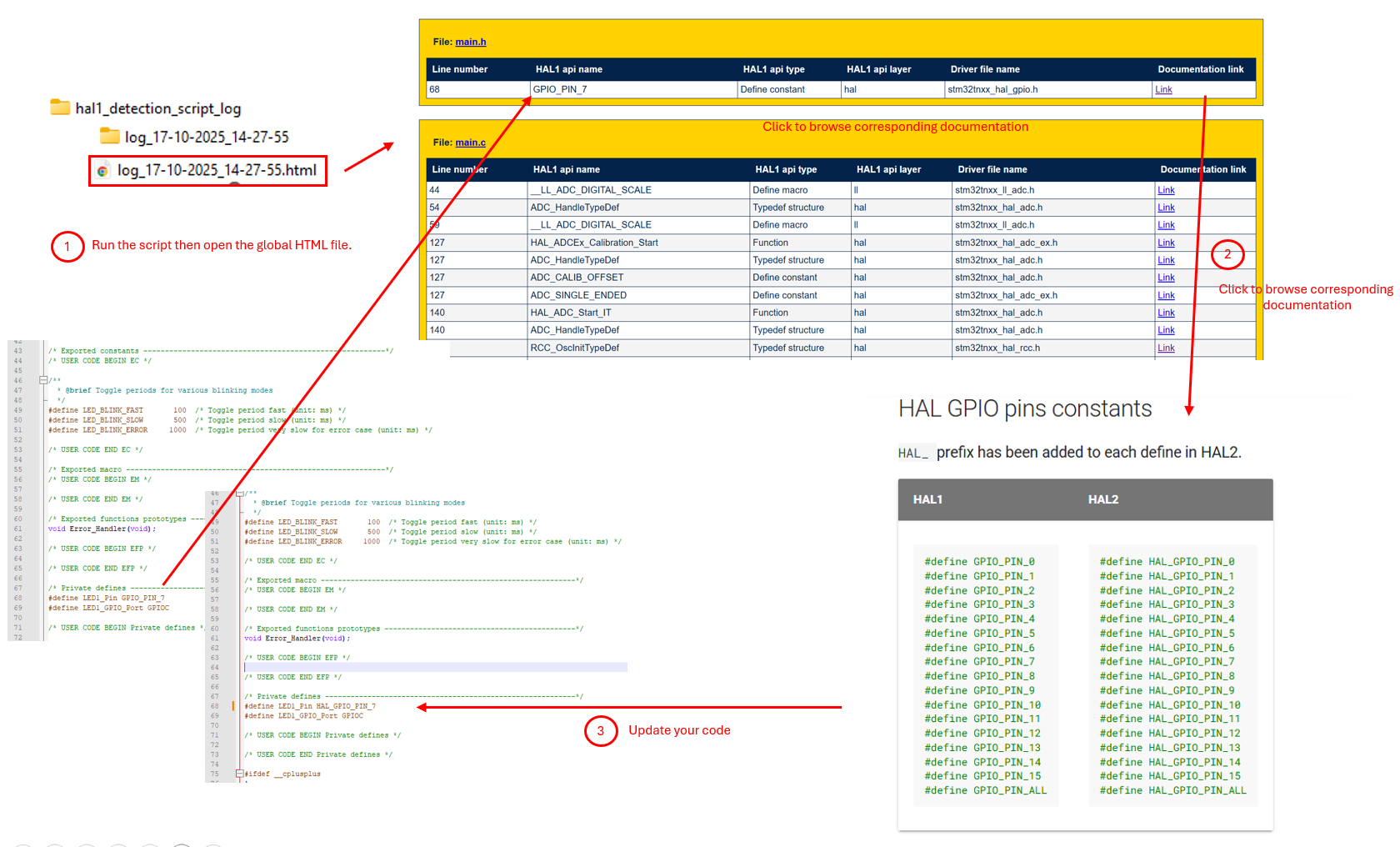
|
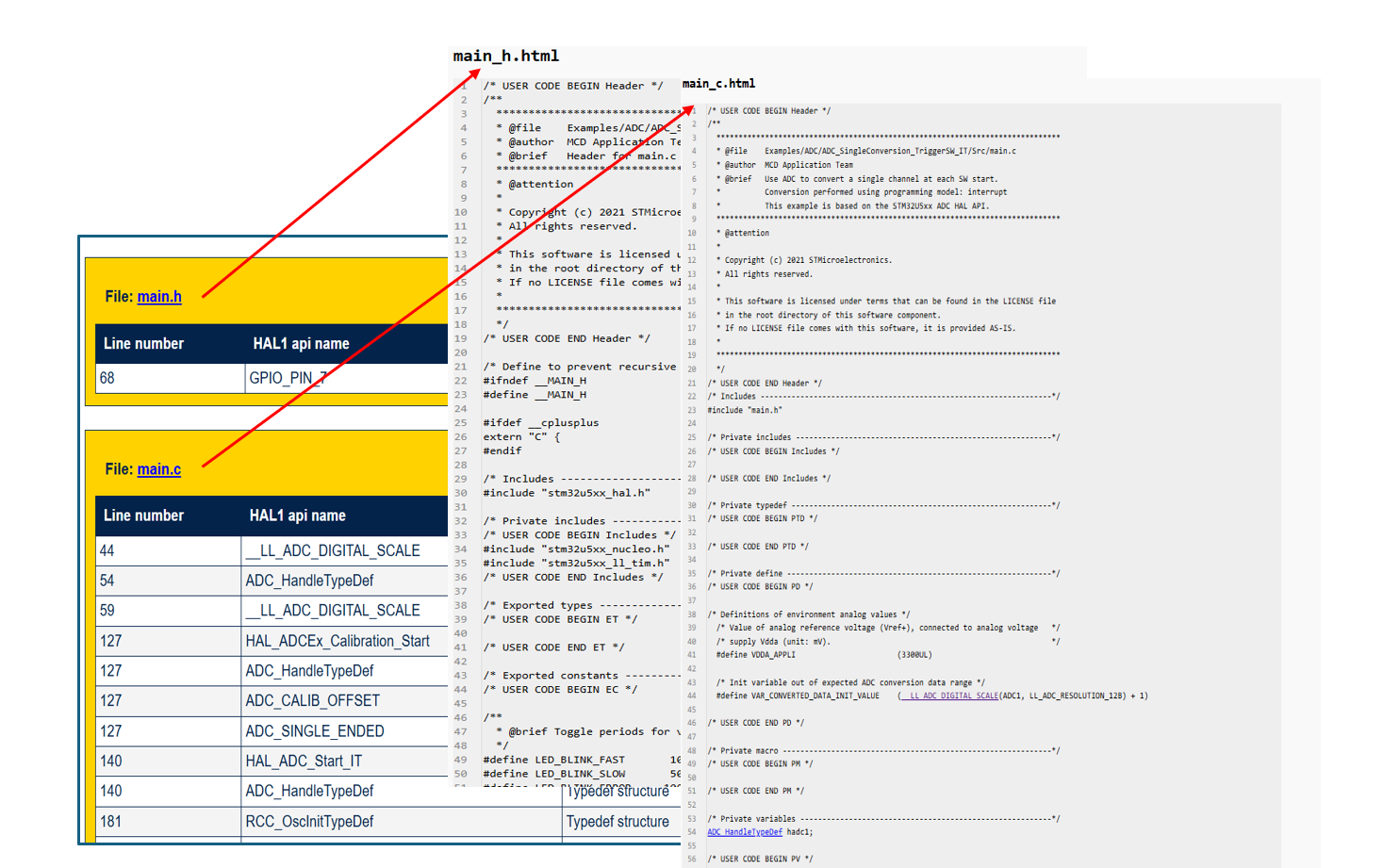
Additionally, the script generates a specific HTML file for each processed file. These files are saved in the user’s working folder under
hal1_detection_script_log/log_{date}_{time}
and can assist with migration.
|
Examples |
|---|
|
After script execution 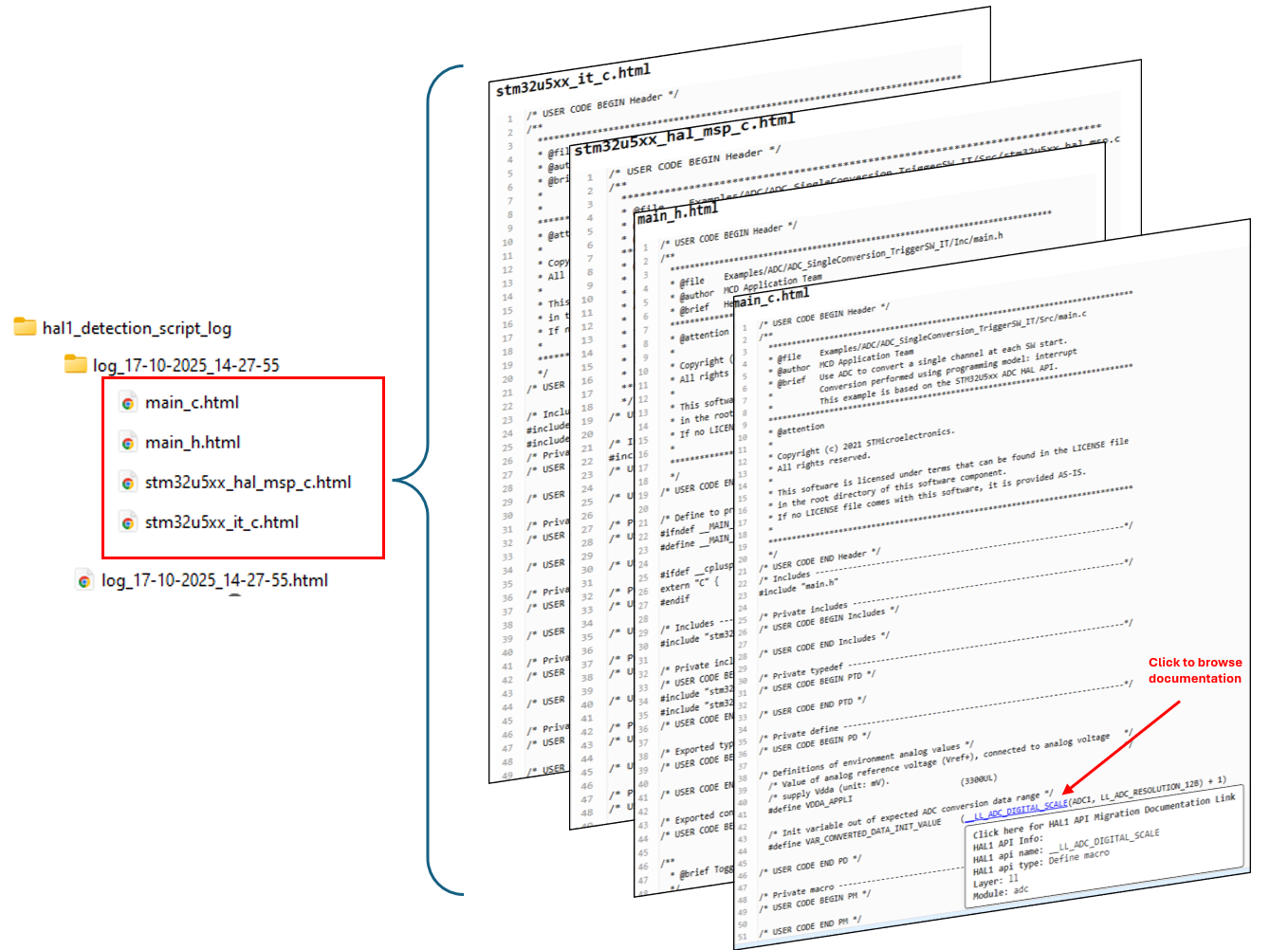
|
|
To migrate detected APIs in
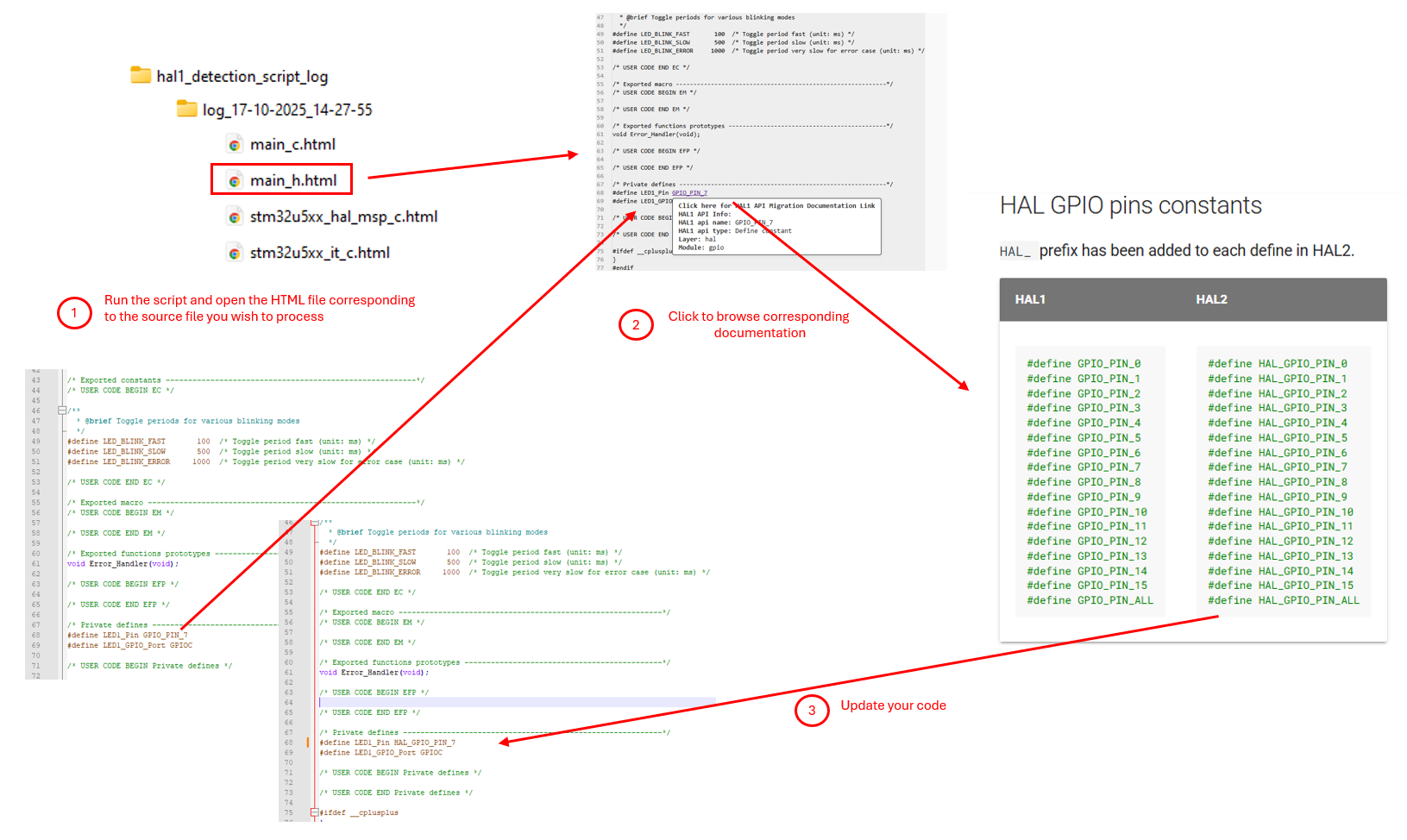
|
Note
It is possible to navigate from the global log file to the corresponding application source code file by clicking on the file name.
|
Examples |
|---|
|