
 STM32CubeMX2

Uninstallation 
Uninstallation process 
Uninstall on Windows 
Follow these steps to uninstall STM32CubeMX2 from Windows :
In Windows settings, select Apps > Installed apps (1).
In the search bar, enter STM32CubeMX2 (2).
Select Uninstall next to STM32CubeMX2 (3).
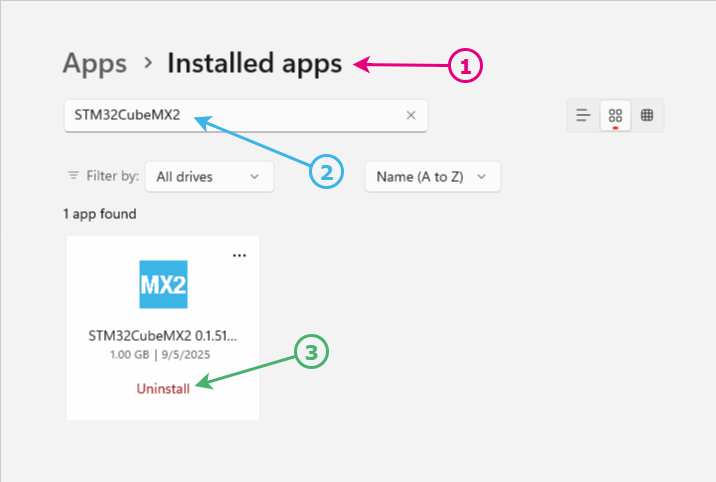
Uninstallation process of STM32CubeMX2 on Windows 
Follow the on-screen instructions to complete the uninstallation. The process removes files and shortcuts:
Confirm the uninstallation by entering yes.
When the uninstallation completes, the message Uninstallation completed successfully appears. Press Enter to exit.

STM32CubeMX2 uninstaller on Windows 
Note
If you use the uninstaller.exe from STM32CubeMX2 installation path, the tool is not completely removed. In these cases, reinstalling the software fails. To resolve this, open Control Panel from Windows Settings and perform a forced uninstallation.
Uninstall on Linux 
To uninstall STM32CubeMX2 from Linux:
Open a terminal and navigate to the installation folder.
Enter ./uninstall to launch the uninstallation process.
Confirm the uninstallation by typing yes.
When the uninstallation is complete, the message “Uninstallation completed successfully” appears. Press Enter to exit.
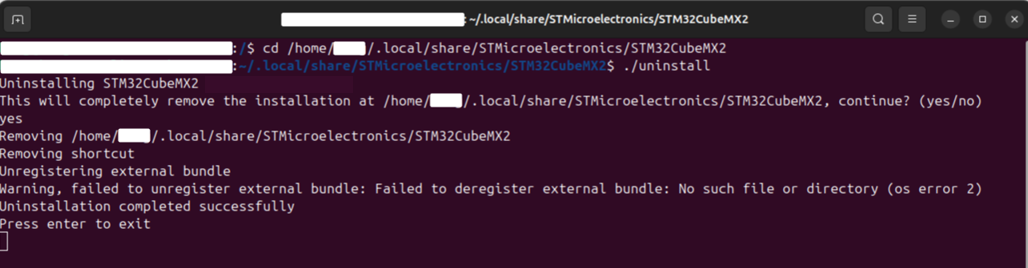
STM32CubeMX2 uninstaller on Linux 
Uninstall on MacOS 
To uninstall STM32CubeMX2 from MacOS:
Open a terminal and navigate to the installation folder.
Enter ./uninstall to start the uninstallation process.
Confirm the uninstallation by entering yes.
When uninstallation completes, the message Uninstallation completed successfully appears. Press Enter to exit.
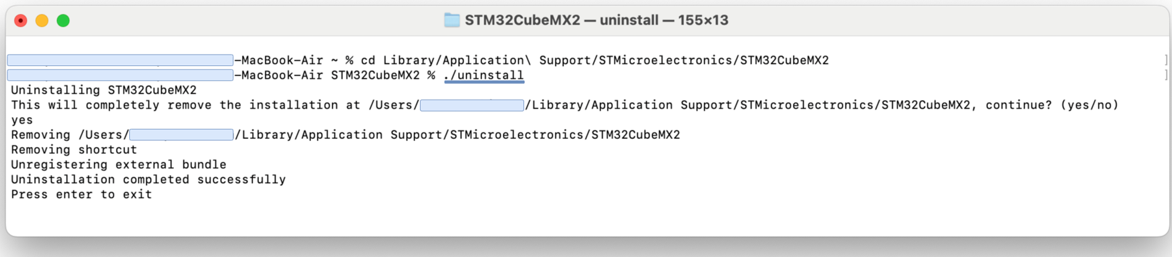
STM32CubeMX2 uninstaller on MacOS 