STM32CubeMX2

Middleware and utilities 
In the Middleware and utilities view, the user can perform the following actions:
Filter (1a): Search for specific middleware or utility by name, category, or status (active/inactive).
Middleware section (1b): View the list of predefined or manually added middlewares.
Utilities section (1c): View the list of predefined or manually added utilities.
Add middleware or utility (2): Select one or more middlewares or utilities from the available list and add them to the project.
Sort (3): Sort the list of middlewares or utilities in ascending or descending alphabetical order.
Activate/Deactivate middleware or utility (4): Create or delete a configuration for the selected middleware or utility. When a middleware or utility is activated, its configuration panel appears, and a check mark icon is displayed next to the middleware or utility name in the left panel.
Remove from list (5): Remove an added middleware or utility from the list. A middleware or utility cannot be removed if it is activated. This feature is only available for added middlewares or utilities. The predefined list cannot be removed and is prefixed with a padlock icon.
Note
The Remove from list option is grayed out for the default list, but it becomes available for added middlewares or utilities.
Reset Configuration (6): Reset configuration settings to their default values.
Toggle the detail view (7): Display or hide the detail view panel.
Toggle the code preview (8): Display or hide the code preview panel.
Toggle the quick menu (9): Display or hide the quick menu panel.
Access STM32Cube documentation (10): Open the STM32Cube documentation.
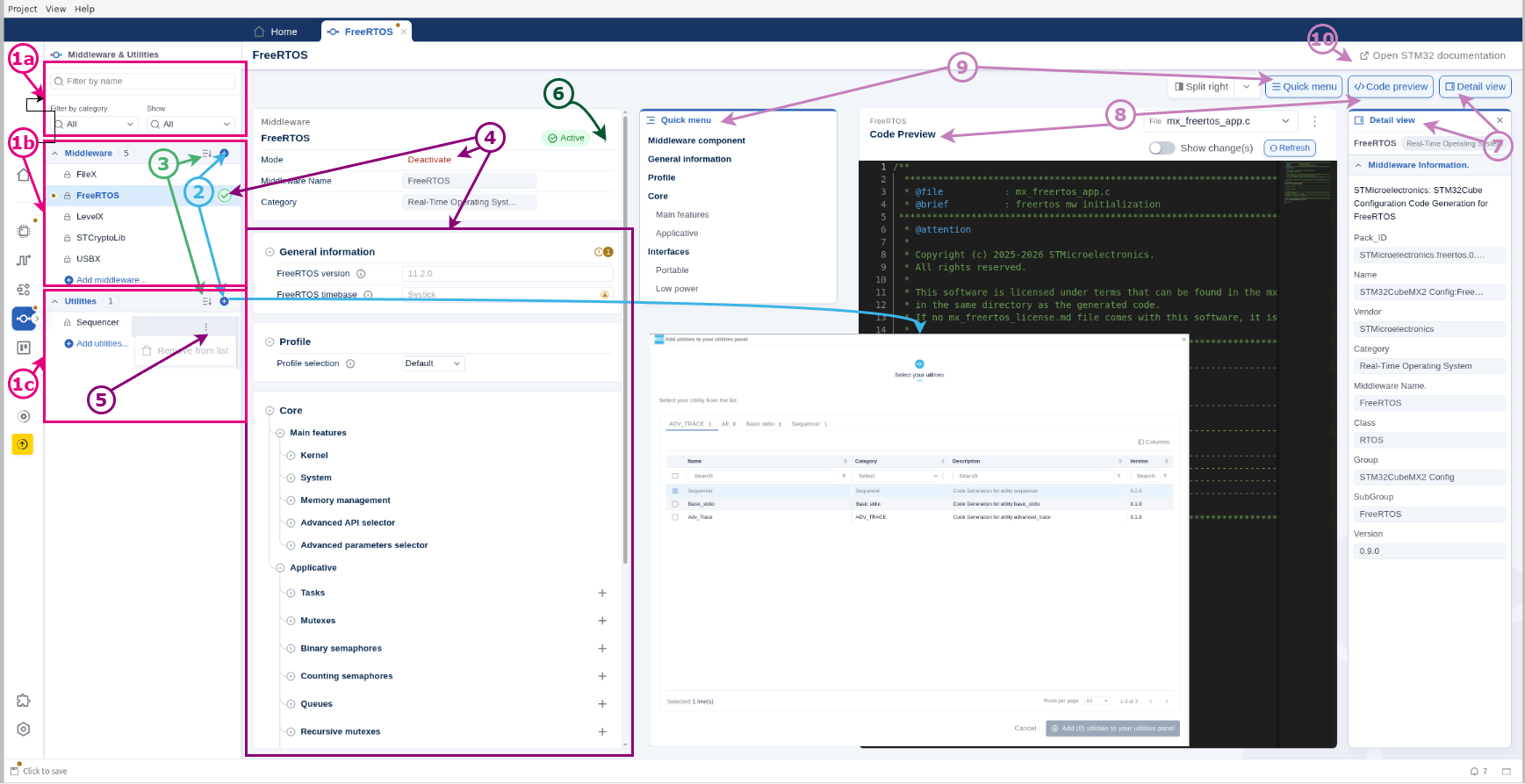
Middlewares and utilities panel 
Note
The Errors & Warnings icons (E) allow the user to highlight errors and warnings related to the selected middleware or utility.
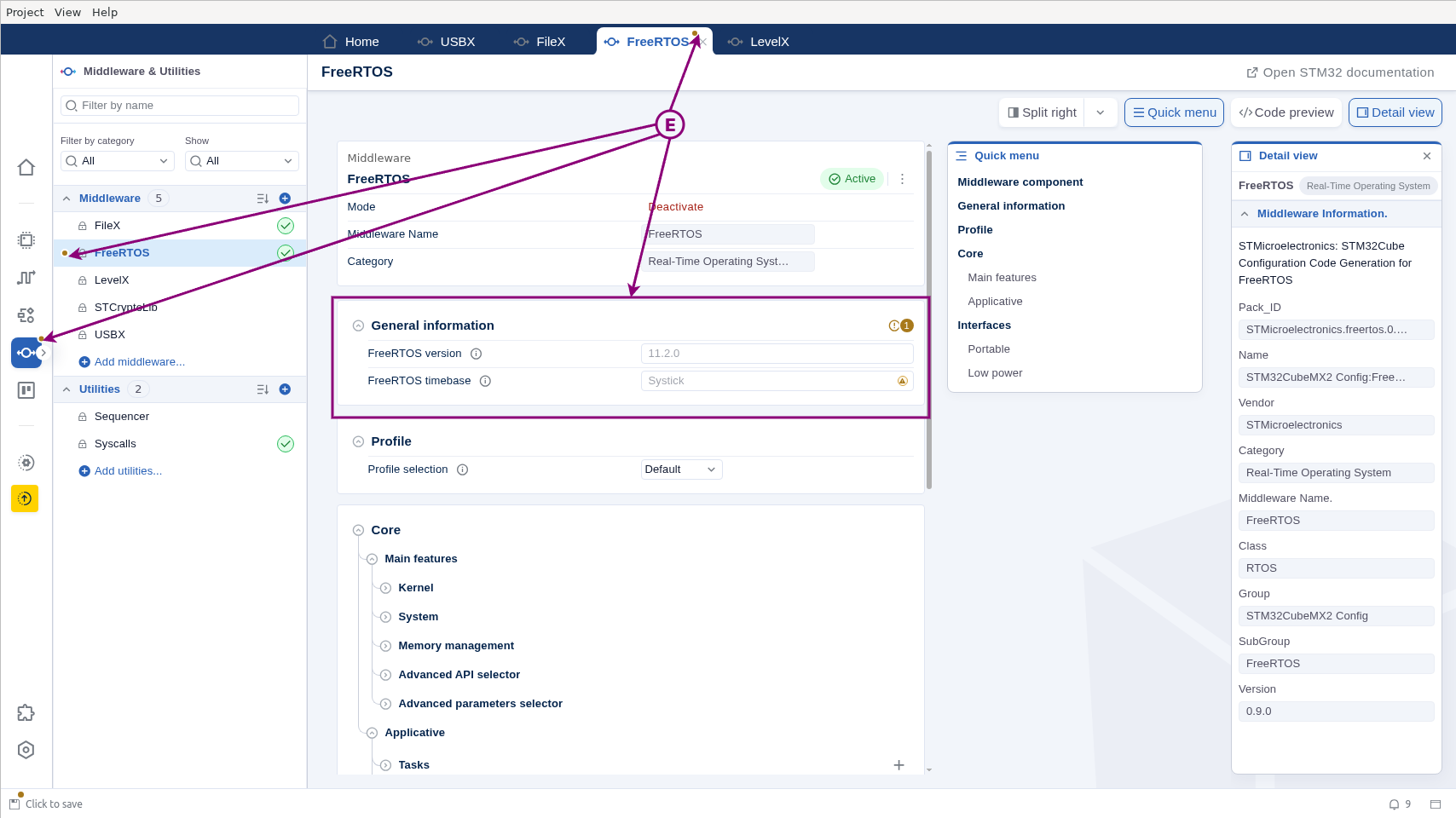
The Banners provide information to help users quickly identify the status of the selected middleware or utility.

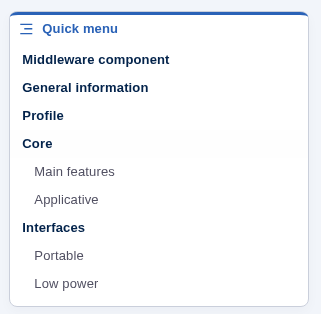
The Quick Menu provides a convenient way to navigate middleware-related or utility-related options.
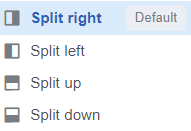
The Split view allows the user to divide the current workspace or editor window into multiple panes for multitasking and comparison.