
 STM32CubeMX2

Clock 
This interface enables microcontroller clock configuration and management, offering two view modes:
Graphic view: Provides a schematic overview of the clock paths, clock sources, dividers, and multipliers(see Clock tree).
Drop-down menus and buttons allow modification of clock element values.
A zoom feature is available to enhance visibility.
Table view: Displays all clock sources in a tabular format (see Clock table).
In both views, users can:
Switch view (1): Switch between clock tree or table view.
Search (2): Search for specific clock components.
Resolve clock issues (3): Address any existing clock issues.
Conflicts are highlighted with red borders.
Reset clock (4): Reset the clock configuration to default settings.
Lock/unlock (5): Lock an element to prevent changes. It is possible to lock any type of clock element (for example, multiplexers, dividers, etc.)
Toggle detail view (6): Display or hide the detail view panel.
The following functionalities are only available in the clock tree:
Configure RCC (7): Navigate to the RCC configuration tab.
Highlight clock path (8): Visually emphasize the selected clock path.
Highlight all paths: Highlight all related paths.
Highlight occurrences: Highlight every occurrence of the selected element.
Highlight to origin: Highlight the path tracing back to its origin source.
The following functionalities are only available in the graphic view:
Navigation and zoom controls (9): The bottom toolbar provides tools for zooming (see Clock tree toolbar).
Keyboard shortcuts (10): Access a list of available shortcuts to speed up operations within the graphic view (see Clock tree shortcuts).
The following functionalities are only available in the table view:
Columns table settings (11): Customize visible table columns.
Pagination controls (12): Navigate through the table pages.
Note
When no issues are detected in the clock view, the Resolve clock issues button changes to No clock issues .

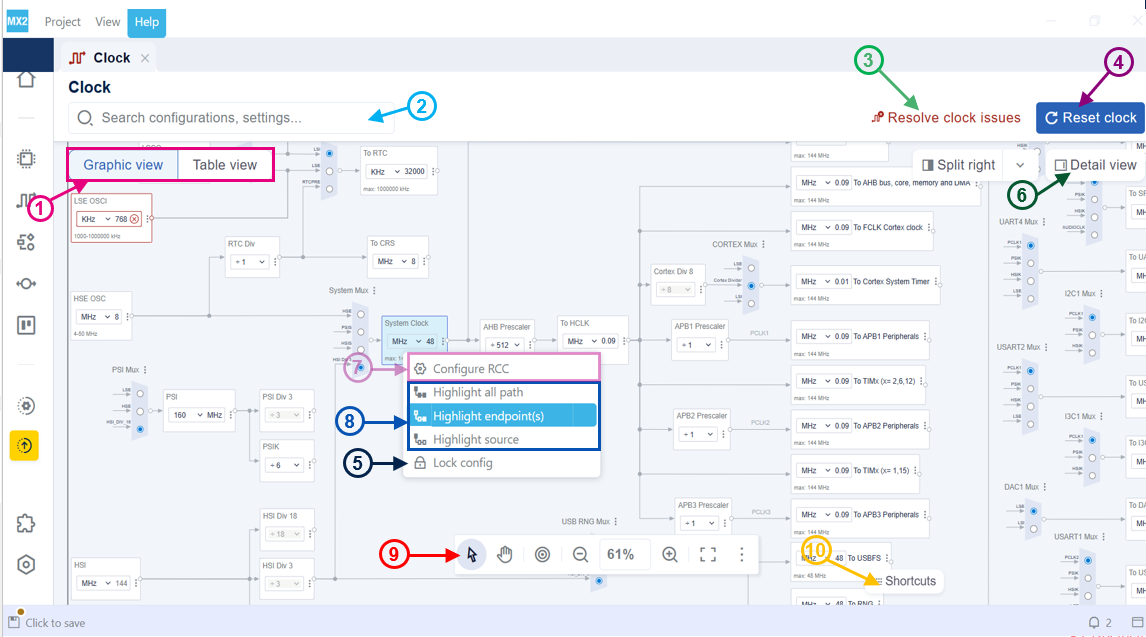
Clock tree 
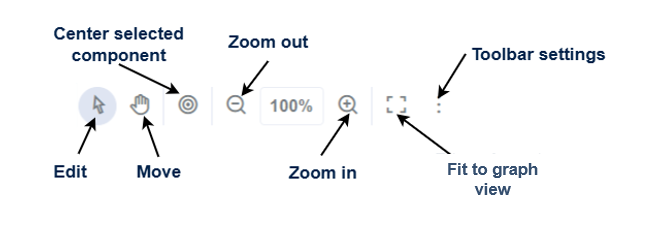
Clock tree toolbar 
To toggle between the hand cursor (move mode) and the selection cursor (edit mode), user can press the Esc key , which makes it easier to pan the graph and then quickly return to selecting and editing graph elements.
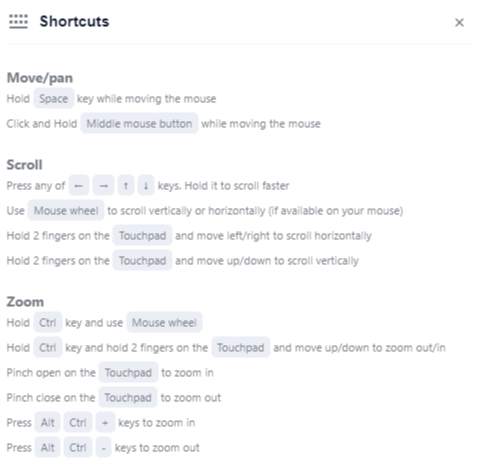
Clock tree shortcuts 
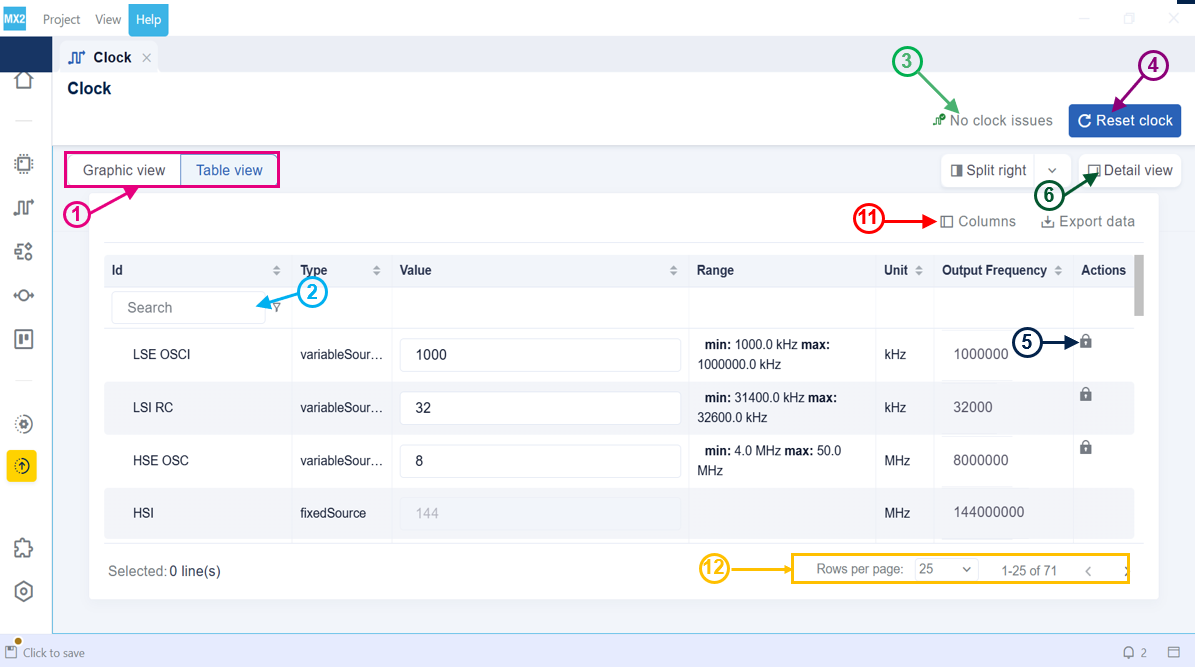
Clock table 
Note
If you enter an invalid frequency for the selected clock sources, a message indicates that the current clock configuration does not provide a valid solution. You can change the clock source or keep the current configuration.

When you enter a value that is not within the acceptable limits for the system, a notification appears stating:

Additional articles 
To get more information about RCC config, please refer to the RCC chapter in https://dev.st.com/stm32cube-docs/embedded-software/latest/en/index.html
How to change the HAL2 TimeBase from Systick to a timer in STM32CubeMX2