
 STM32CubeMX2

Peripherals 
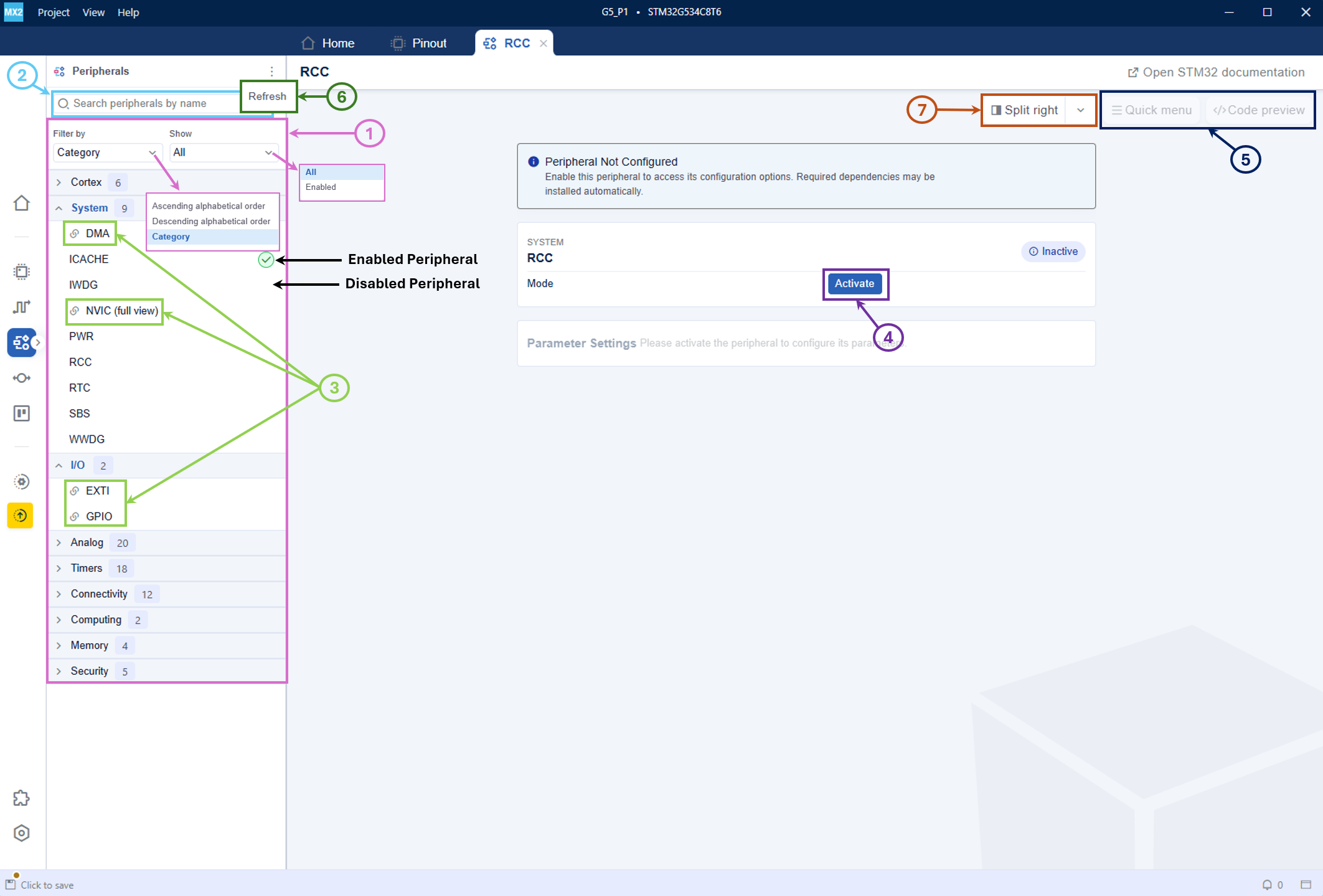
The Peripherals panel in STM32CubeMX2 provides the following features and capabilities (see Peripheral panel):
Peripheral panel 
- Display the list of supported peripherals (1): The list includes components such as ADC, timer, UART, I²C interface, and others.
Users can filter the list by category or sort it alphabetically in ascending or descending order.
Users can filter the list by status to display enabled peripherals or all peripherals.
Search for a peripheral (2): Use the search function to find a peripheral without scrolling through the entire list.
Access GPIO. DMA, EXTI, and NVIC views (3): Click to open the corresponding view in a separate window. See DMA, EXTI, NVIC sections for further information.
Enable or disable a peripheral (4): Click a peripheral to enable it and access its configuration, or disable it if already enabled. See Peripherals configuration section below for further information.
Code preview and Quick Menu (5): When a peripheral is enabled, users preview the content of the associated .h and .c files and navigate the settings panel. See Code preview and Quick Menu sections below for further information.
Refresh (6): If the UI takes a long time to refresh, use this button to update the display.
Split view (7): Split the display horizontaly or verticaly.
Note
Activating a peripheral automatically assigns its corresponding MCU pins (if needed) in the Pinout view, displaying the required connections for operation. The software detects and signals resource conflicts when pin assignments or peripheral settings overlap.
The Code preview button is grayed out when a peripheral is disabled.
Peripherals configuration 
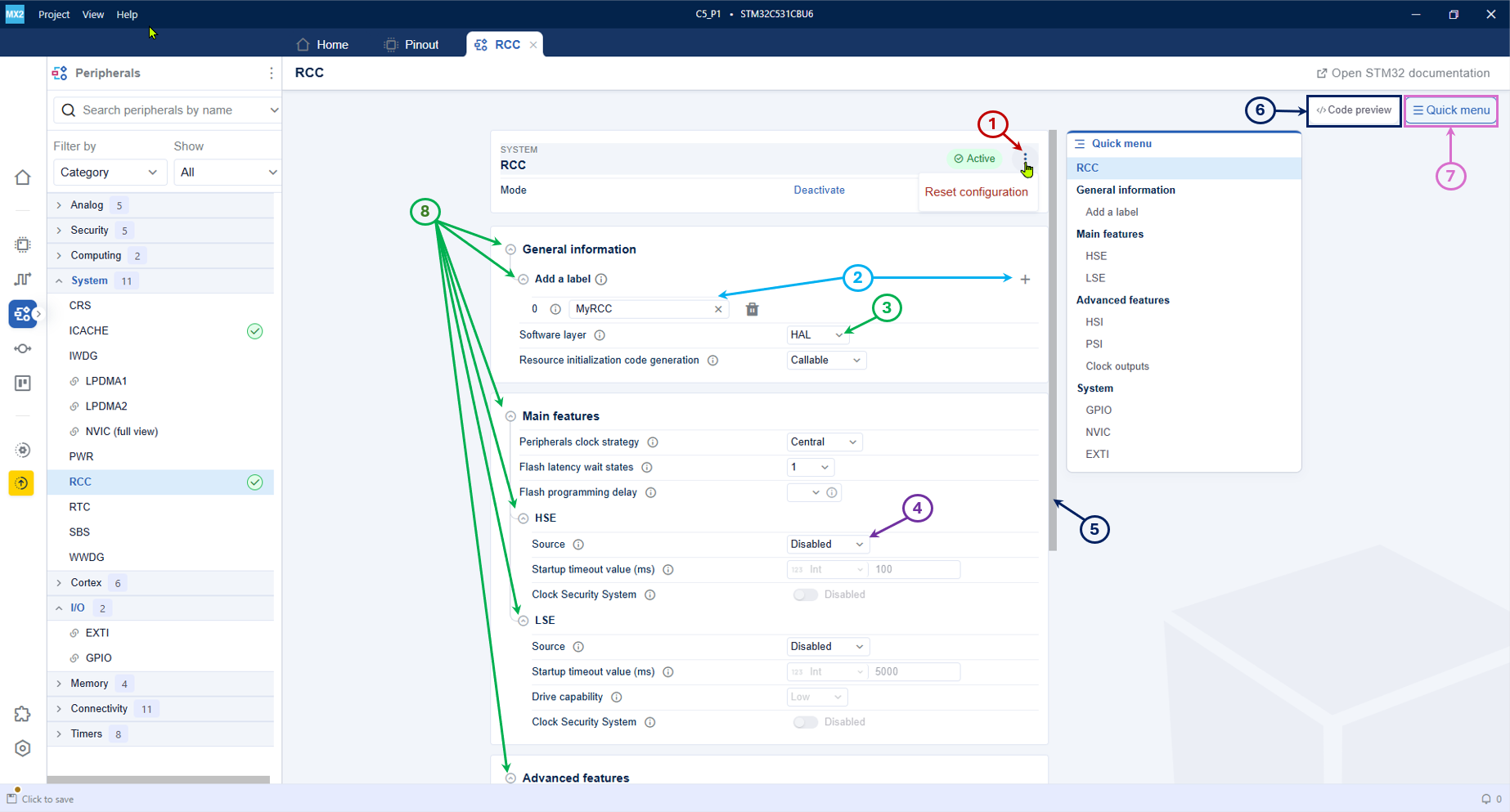
The Peripherals configuration page in STM32CubeMX2 provides the following features and capabilities (see Peripheral configuration window):
Peripheral configuration window 
Reset configuration (1): Reset the settings of the selected peripheral to their default state.
Input fields (2): Define specific values or text for parameters.
Dropdown fields (3): Configure specific parameters of the peripheral by selecting a value from a dropdown list.
Checkbox fields (4): Enable or disable specific parameters.
Scroll bar for additional settings (5): Access additional configuration options for the peripheral that are not visible
Code preview (6): Open the Code preview to view the .h and .c files.
Quick menu (7): Toggle the Quick menu window, that ease the settings panel navigation.
Expand/collapse sections (8): Show or hide additional configuration options by expanding or collapsing sections.
Code preview 
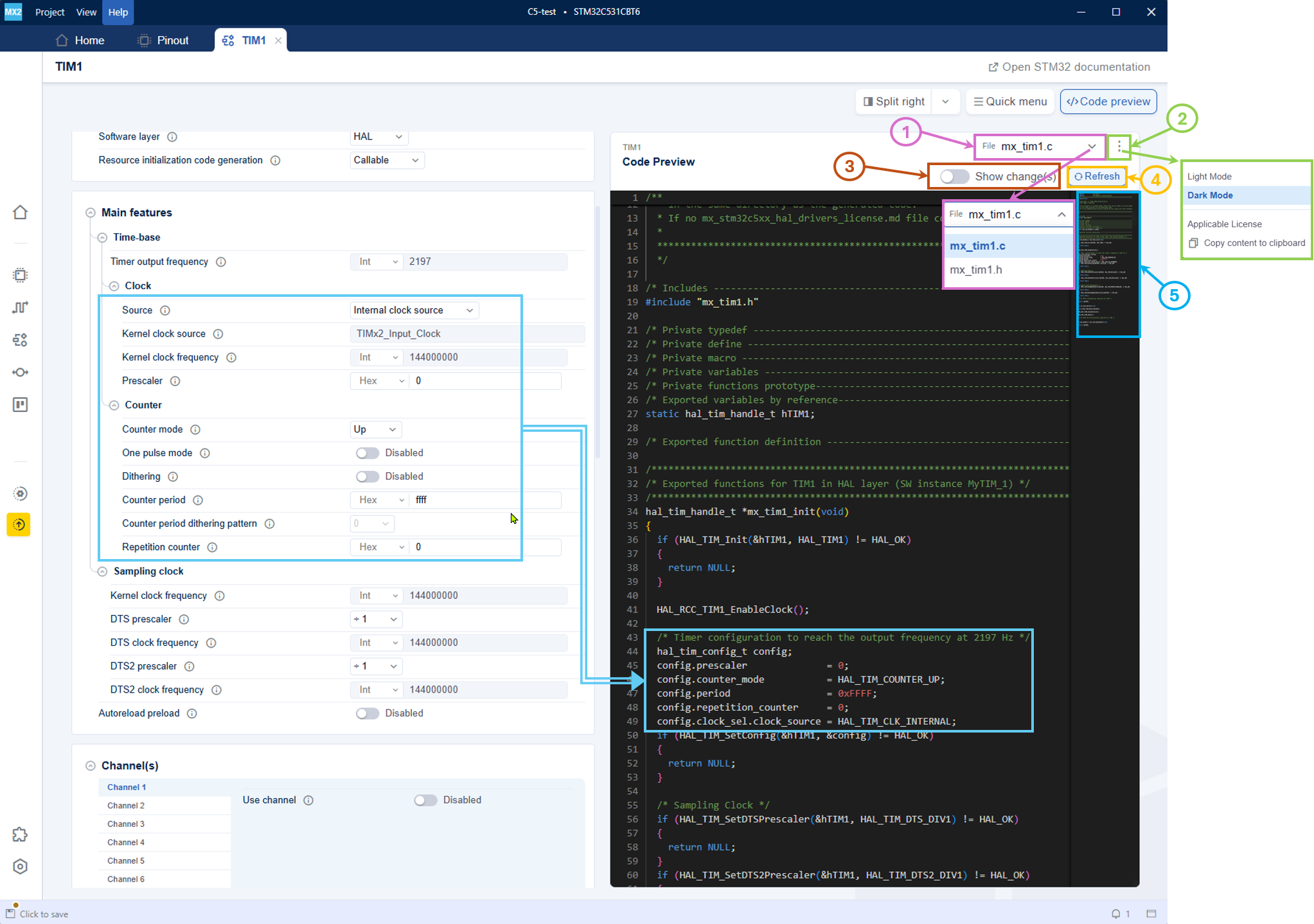
The Code preview panel in STM32CubeMX2 provides the following features and capabilities (see Code preview):
Code preview 
File selection (1): The file selection dropdown allows the user to toggle between .h and .c files.
Settings menu (2): The settings menu provides options such as toggling between Light Mode and Dark Mode, applicable license, and copy content to clipboard.
Show change(s) (3): To show changes after the modification of a parameter.
Refresh view (4): The refresh button updates the static code preview to reflect the latest changes made in the configuration settings.
Minimap (5): The minimap allows users to navigate through the preview file.
Quick Menu 
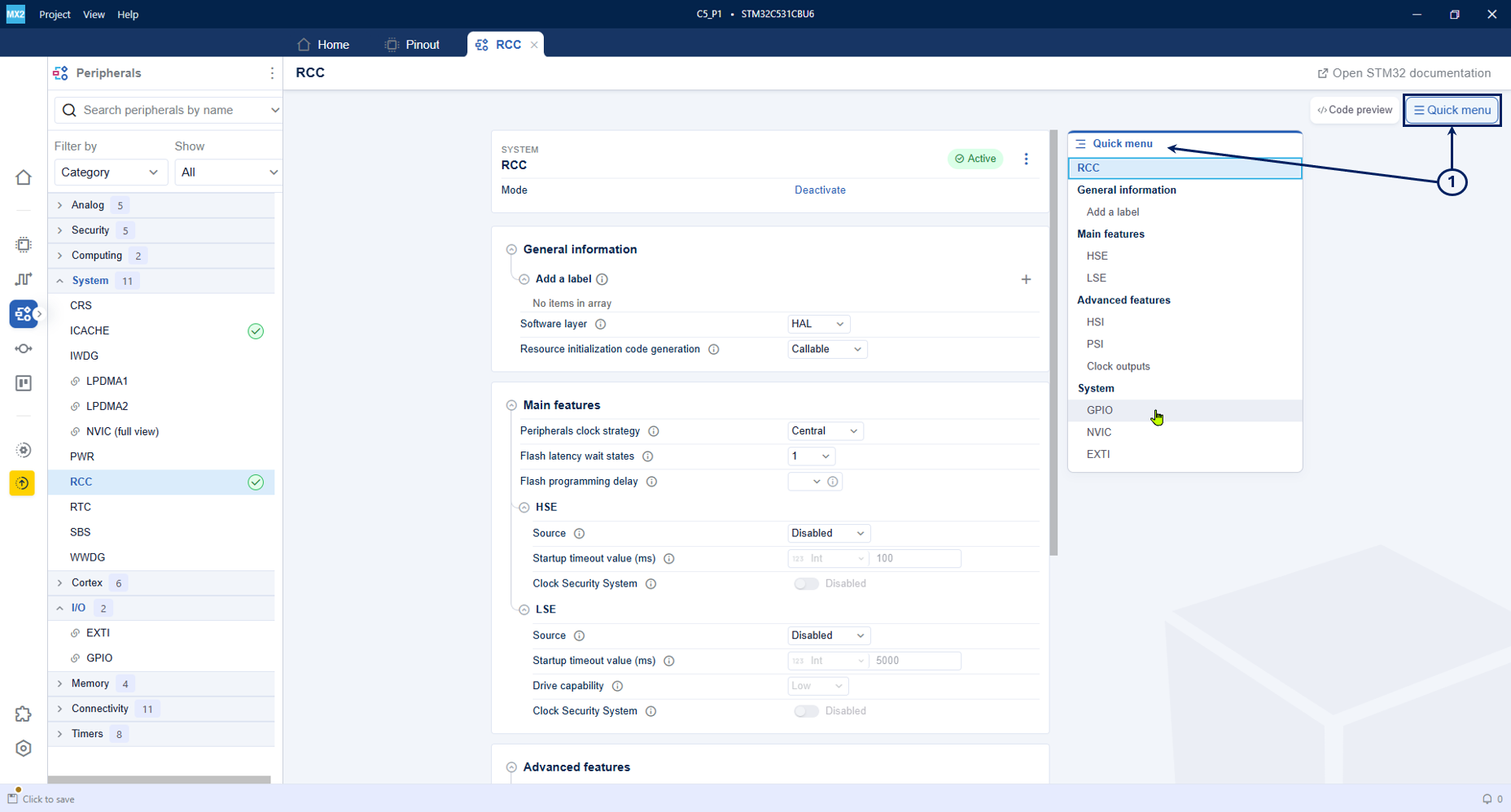
The Quick Menu panel in STM32CubeMX2 provides easy navigation in the parameter page. Click any line to move the settings panel to the corresponding section.
Quick Menu 