
 STM32CubeMX2

IDE project generation 
From the project settings, users select the development toolchain and, if applicable, the target integrated development environment (IDE). STM32CubeMX then generates the corresponding toolchain settings and integrated development environment project files for import as a new project.
IDE project settings 
For IDE project generation , a minimal configuration is required. Additional advanced settings available for further customization.
General setup
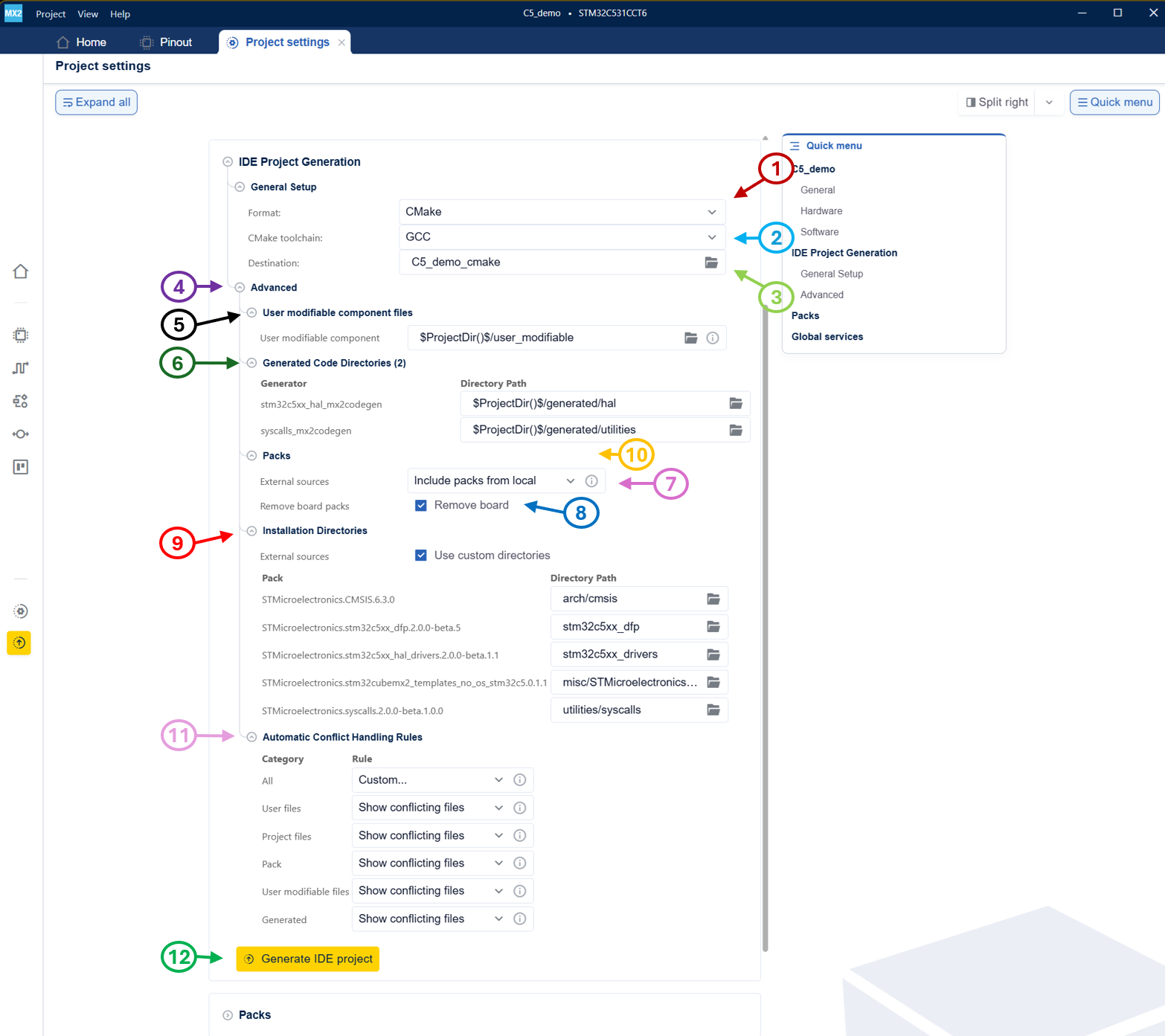
Select format (1) in ‘IDE project settings’ figure
Choose the desired format.
Available formats include:
IAR Embedded Workbench® (default)
CMake
Open-CMSIS
Note
For STM32CubeIDE for VS Code, CMake is the required project format.
Open-CMSIS projects are compatible with Keil µVision and Keil Studio.
Select toolchain: (2): in ‘IDE project settings’ figure
For the IAR Embedded Workbench only IAR is available as a toolchain.
For CMake, select GCC.
For Open-CMSIS, select IAR, GCC or AC6.
Select destination (3): in ‘IDE project settings’ figure
Browse and select the folder for the IDE project.
The default path is the root folder of the created STM32CubeMX2 project.
Advanced setup (4) in ‘IDE project settings’ figure
User modifiable component files (5): in ‘IDE project settings’ figure
Optionally, change the path for user modifiable components.
Generated code directories (6): in ‘IDE project settings’ figure
Optionally, change the default name and directory path for storing generated code.
Select external sources (7): in ‘IDE project settings’ figure
Select the packs source. There are two options to manage packs for the exported project: - Include fresh packs:
Packs are always installed from the .pack file (downloaded if needed) inside the created project.
Relative pack paths cannot be outside of the created project (they are made local).
User code is always copied to the created project.
Generated code is always generated in the created project.
The created project is easily movable and is self-contained.
- Include packs from local:
Packs are copied from $CMSIS_PACK_ROOT to the created project. For more details on $CMSIS_PACK_ROOT, see Packs installation.
Relative pack paths cannot be outside of the created project (they are made local).
User code is always copied to the created project.
Generated code is always generated in the created project.
Created project is easily movable and is self-contained.
Remove board packs (8): in ‘IDE project settings’ figure
Exclude board support packages from the project.
Select packs installation directories (9): in ‘IDE project settings’ figure
Optionally, browse and select a path for the packs installation folder. The default folder is named misc and is placed under the IDE project folder.
Use custom directories (10): in ‘IDE project settings’ figure
Organize installed packs by category into customized folders and modify folder paths and names.
Automatic Conflict Handling Rules (11): in ‘IDE project settings’ figure
By default all files update on change.
By selecting Custom…, multiple ways are available to handle different types of conflict resolution.
- Types of conflict resolution:
Show conflicting files: Launches the conflict resolution tool to handle each case.
Don’t generate: Keeps any existing files.
Backup: Creates backups of existing files and overwrites.
Overwrite: Overwrites existing files.
- Types of files:
User files: Files owned by the user, for example,
main.c,main.h,my_lib.cppetc.Project files: Project files, for example,
CMakeLists.txt,.csolution.yml,cproject.yml,.eww,.ewp)Pack: Files within embedded software packs
User-modifiable files: User-modifiable files from packs.
Generated: Generated files from packs that have a generator run during project export, for example, a tailored file based on the configuration in MX.
Generate project (12): in ‘IDE project settings’ figure Click the Generate button to start the project creation process with all configured settings.
Note
When exporting, ensure to keep the default values for generator directories to avoid issues.
To prevent export problems, make sure that the generation directories are different for each configurable part.
IDE project settings 
Note
With the IDE project settings configured, users can skip the Project settings tab and click the Generate button to start project generation for the selected format.
During the generation process, a popup appears to inform the user about the ongoing project generation and to provide progress updates.

Project generation popup 
After the generation process completes, a popup appears to notify the user that the IDE project is finalized. The user can view the generated files on disk.

Project successfully finalized 
IDE project regeneration 
During the code regeneration process in STM32CubeMX2 , conflicts may arise when the user previously modified files that the tool attempts to update. These conflicts occur because the regeneration process overwrites or modifies existing project files to incorporate the latest changes or configurations made in the tool.
To handle such situations, STM32CubeMX2 provides a conflict resolution mechanism that allows users to decide how each conflicting file is treated.
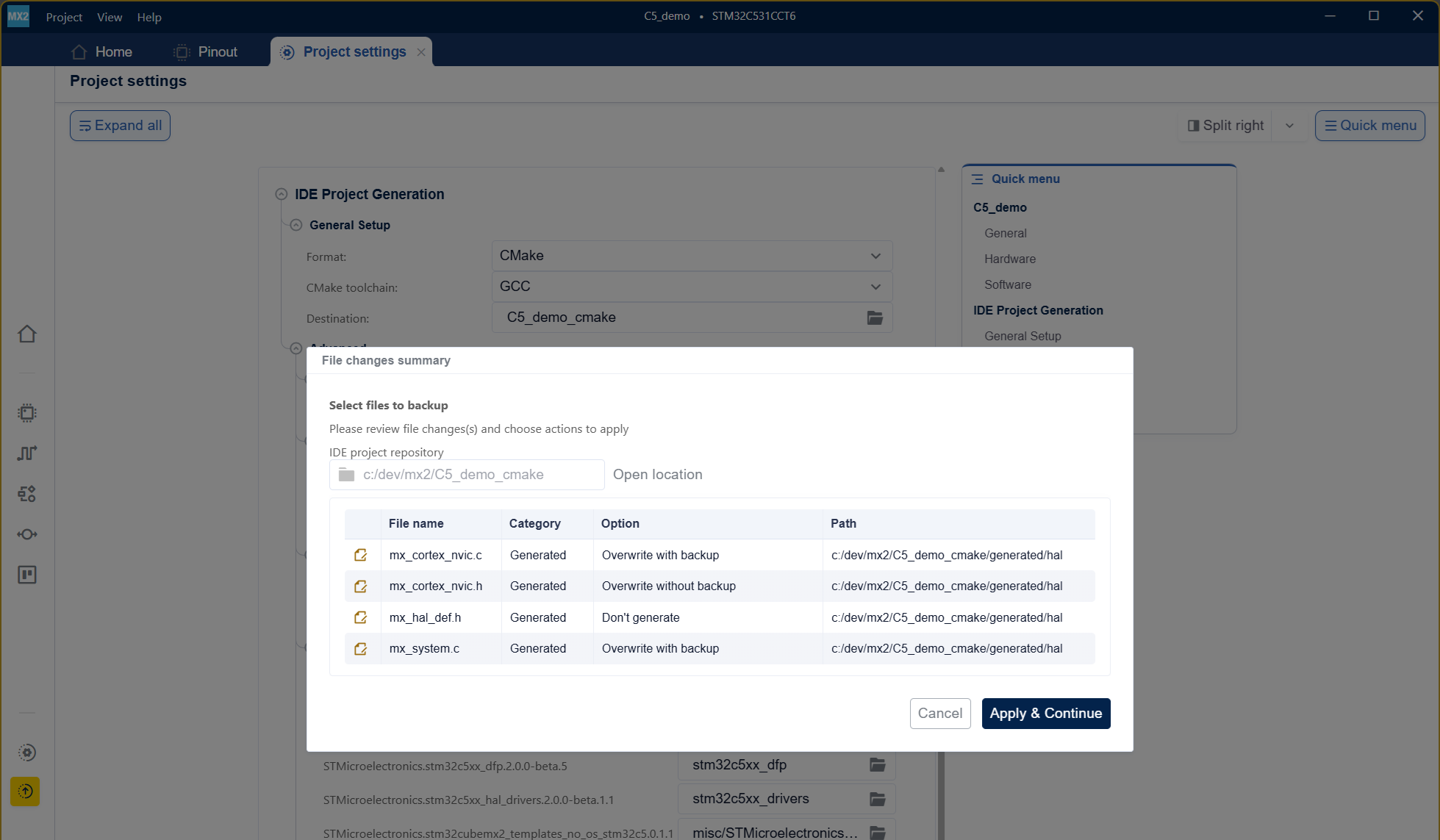
- During code regeneration, a popup appears to inform the user of the following options:
-
Go to project settings: Open the project settings menu to configure automatic conflict handling rules.
- Show differences Enables the user to view the differences between the existing files and the newly generated ones after the regeneration process completes. For each file, the user can choose an action:
Overwrite without backup: The existing file is directly overwritten with the new file containing the latest changes.
Overwrite with backup: The existing file is renamed to FILE_bckp, and a new file (FILE) with the latest changes is created.
Don’t generate: No action is taken, and the existing file remains unchanged.
Overwrite all: Overwrites all files with the latest changes without creating backups.
Cancel: Aborts the regeneration process, leaving all files unchanged.
IDE project regeneration 
For more information about customizing this conflict resolution, refer to step 11 of the IDE project settings guide.
IDE project structure 
The STM32CubeMX2 project is organized to support multiple IDE environments and build systems.
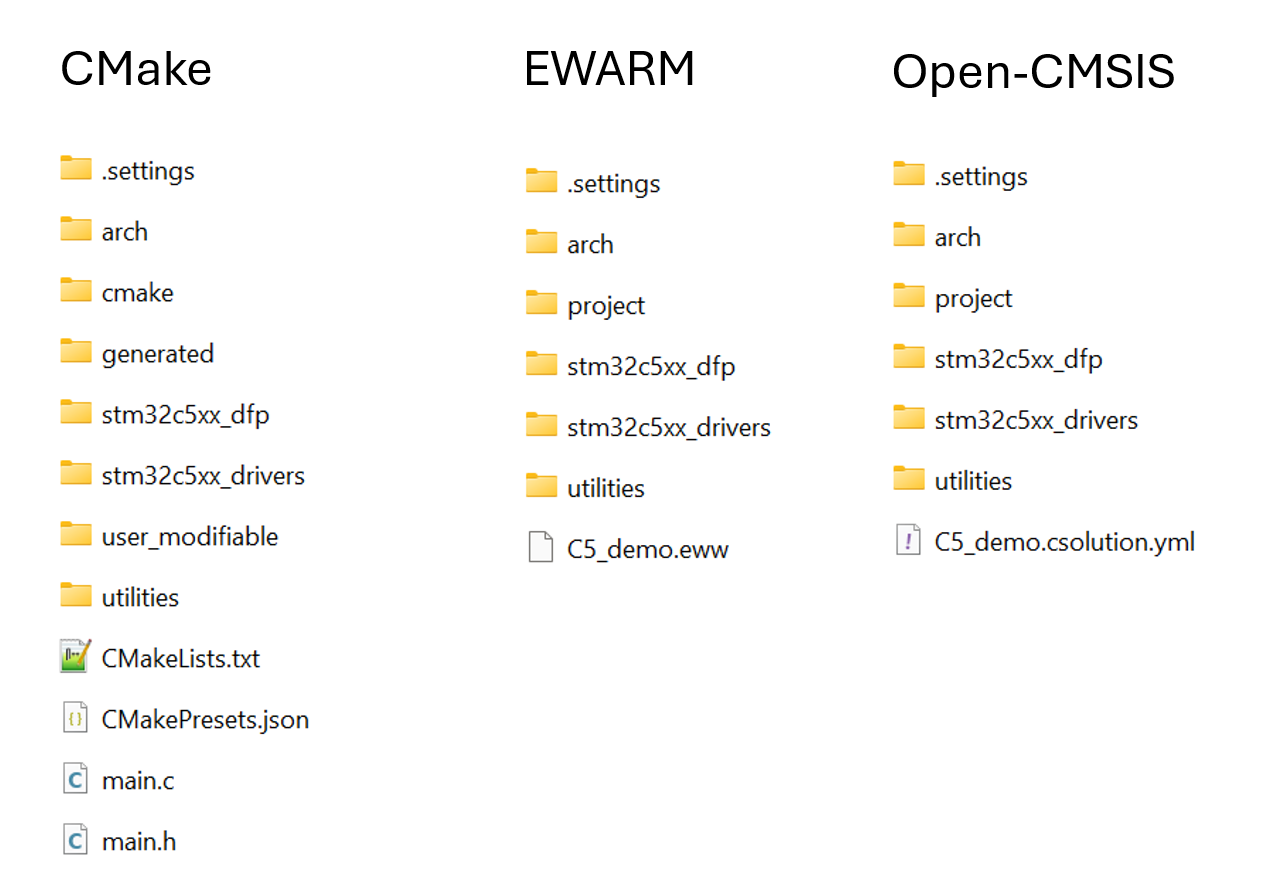
Below is an explanation of the project components and folder structures as illustrated in the figure below.
Project configuration file: MyFirstApp.ioc2 is the main configuration file for the STM32CubeMX2 project.
IDE project folders: The project generates multiple folders corresponding to different IDE and builds.
Each folder contains files and subfolders tailored to the specific environment:
- CMake format — Default folder: MyFirstApp_cmake
.settings/: CubeMX2 metadata used to track and regenerate project files.
arch/: Architecture-specific files.
cmake/: User file inclusion and CMake support files.
generated/: Generated source and header files.
stm32mcuxx_dfp/: Device support pack for the STM32 MCU.
stm32mcuxx_drivers/: Device drivers for the STM32 MCU.
user_modifiable/: Project files intended for user edits (application code, device configuration, and build variant).
utilities/: Utility source files.
CMakeLists.txt, CMakePresets.json: Build configuration files for CMake.
main.c, main.h: Application source and header files.
- EWARM format — Default folder: MyFirstApp_ewarm
.settings/: CubeMX2 metadata used to track and regenerate project files.
arch/: Architecture-specific files.
project/: Software project files including generated code.
stm32mcuxx_dfp/: Device support pack for the STM32 MCU.
stm32mcuxx_drivers/: Device drivers for the STM32 MCU.
utilities/: Utility source files.
MyFirstApp_SW.eww: EWARM project workspace file to open the project in the IDE.
- Open-CMSIS format — Default folder: MyFirstApp_open-cmsis
.settings/: CubeMX2 metadata used to track and regenerate project files.
arch/: Architecture-specific files.
project/: Software project files including generated code.
stm32mcuxx_dfp/: Device support pack for the STM32 MCU.
stm32mcuxx_drivers/: Device drivers for the STM32 MCU.
utilities/: Utility source files.
MyFirstApp.csolution.yml: CMSIS solution file describing the project structure.
IDE project folder structure 