
 STM32CubeProgrammer

Updater 
STM32CubeProgrammer updater allows users to make automatic updates of the software and its associated packages. The updater is available in all supported operating systems.
Update steps 
Check the connection and update its settings if needed.
Check for updates.
Download the new version.
Install the downloaded version (the tool restarts once updated).
Proxy settings 
The user can manually check the connection by using the “Proxy Settings” window opened with the submenu available in the help button (see the figure below). Three settings are available (see the following figure): - No proxy - Use the system parameters - Use manual configuration of server: add the HTTP proxy name, port, and credentials
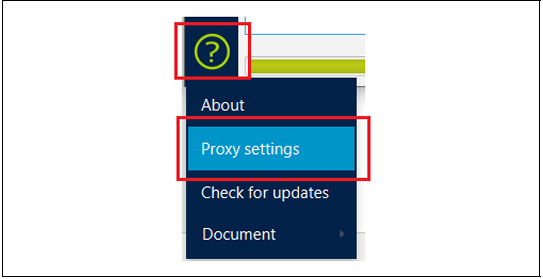
Fig. 8 Proxy settings submenu 
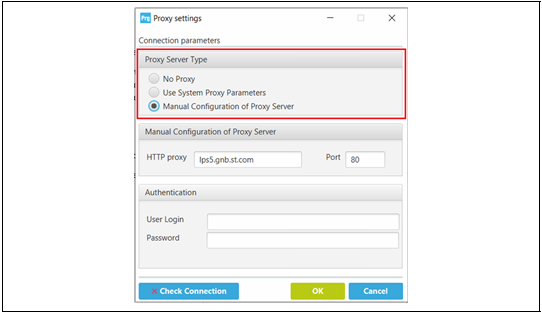
Fig. 9 Proxy settings window 
The status of connection check is displayed in the “check Connection” button: - A green icon indicates success (left side of the figure below). - A red icon indicates that the connection is down (right side of the figure below).
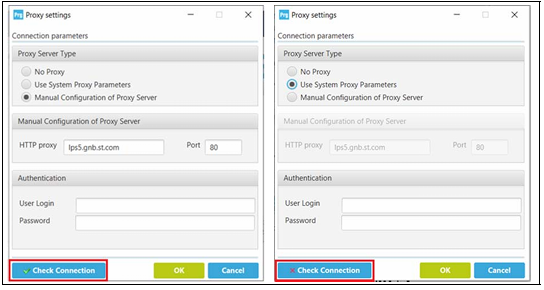
Fig. 10 Successful connection check 
Check for updates 
The user can launch the update using the Updater window opened with the submenu “Software update” added in the Help button. Both the STM32CubeProgrammer tool and the components associated with the version currently in use can be updated.
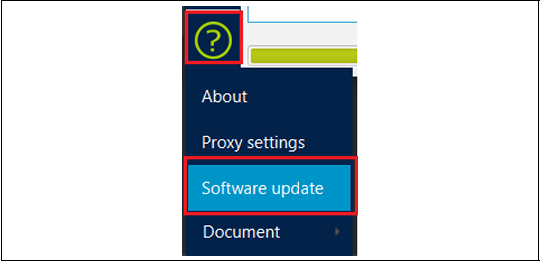
Fig. 11 Check for updates submenu 
If there is a new version of the tool and/or of the components is available, an update button appears in the main menu (see the figure shown below).

Fig. 12 Hyperlink button of new version available 
Note
If the user has already updated the STM32CubeProgrammer and the components patch, the hyperlink button is no longer displayed at startup. If a new version of the tool and/or of the components patch is available, the user can make updates through the updater window.
This window displays:
The current version of the STM32CubeProgrammer and of the components patch
The available version in server of STM32CubeProgrammer and of the components patch
Change log (contains the main changes delivered in the new package and/or components patch)
License
Last update (contains the date of the last update, or the message “No previous updates are done”)
The current version of the updater tool
Refresh button (to check if there is a new version)
Close button (to stop the installation of the new version)
Administrator rights are required to download the new package. Once the update is done, the updater window displays only the new version.
Raspberry Pi support 
STM32CubeProgrammer supports Linux ARM 64-bit for Raspberry Pi platforms. It enables command-line STM32 programming directly from Raspberry Pi and compatible ARM Linux hosts.
Note
On Raspberry Pi and ARM aarch64 Linux, STM32CubeProgrammer support is limited to the command-line interface. GUI, debug features, debug authentication, and SFI are not included.
Supported features 
All STM32 devices supported by STM32CubeProgrammer.
Internal flash programming.
External flash programming.
OTP programming.
Option bytes configuration.
RDP regression with password for supported products.
Interfaces and connectivity 
Existing interfaces remain supported:
ST-LINK using SWD or JTAG.
J-Link.
UART.
USB.
Bootloader via ST-LINK V3.
GPIO-based SPI communication (
/dev/spidevx.x).GPIO-based I2C communication (
/dev/i2c-x).
Debian Package install 
To install the STM32CubeProgrammer CLI tool, download the Debian package and execute the following command:
sudo apt install ./stm32cubeprogrammer_vx.y.z._arm64.deb
Uninstalling STM32CubeProgrammer Debian Package 
To uninstall the STM32CubeProgrammer CLI tool, execute the following command:
sudo apt remove stm32cubeprogrammer