
 STM32CubeProgrammer

Memory and file edition 
This panel allows the user to read and display target memory and file contents.
Reading and displaying target memory
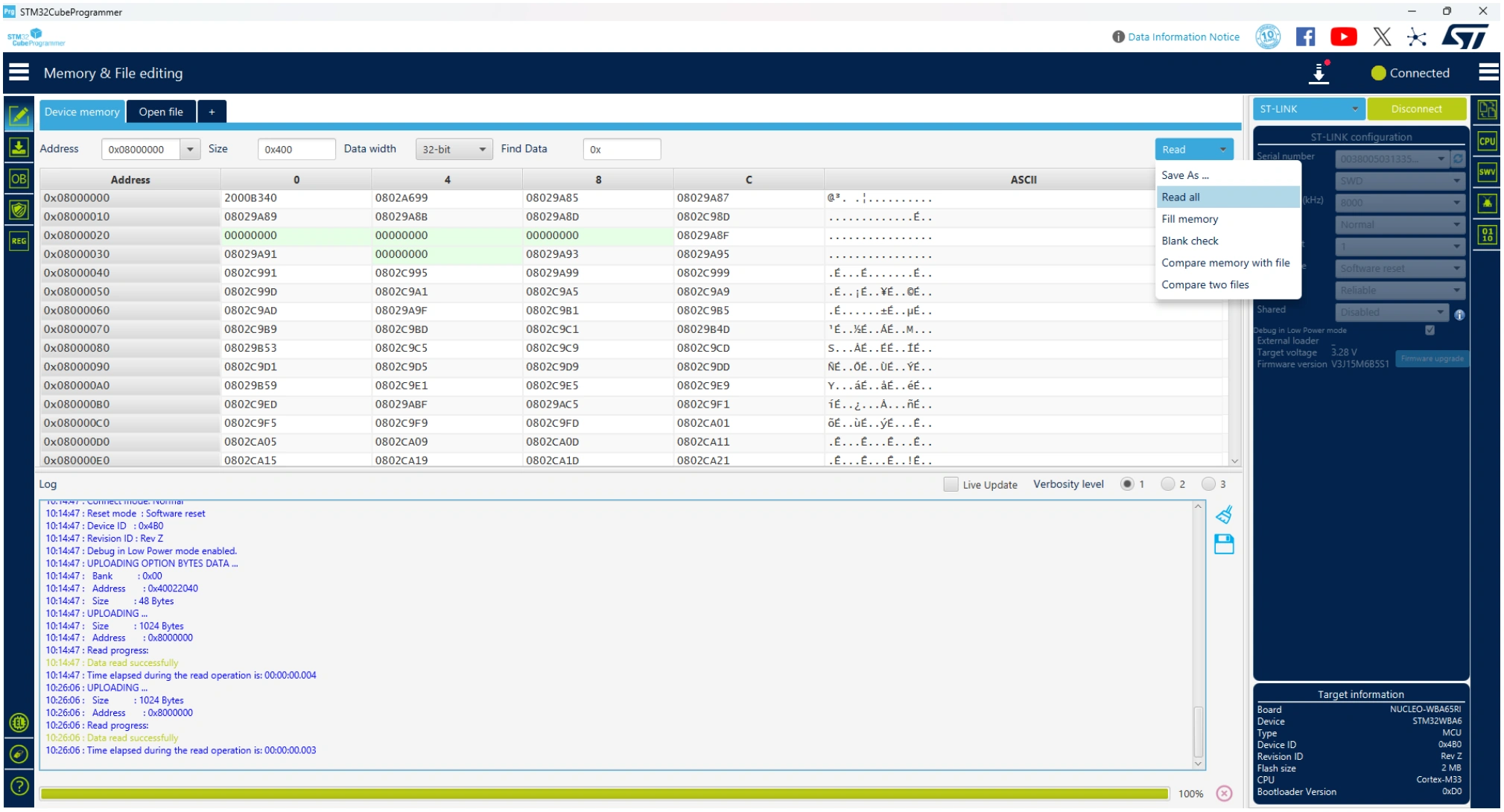
Fig. 22 Device memory tab 
After target connection, the STM32 target memory can be read using this panel. To do this, specify the address and the size of the data to read, then press the Read button in the top-left corner. Data can be displayed in different formats (8-bit, 16-bit and 32-bit) using the “Data width” combo box. The user can read all the flash memory using the “Read All” button, save the device memory content in a .bin, .hex, or .srec file using the “Save As…” menu from the tab contextual menu or the action button. Multiple device memory tabs can be opened to display different locations of the target memory. To do this, click on the “+” tab to display a contextual menu that allows you to add a new “Device memory” tab, or to open a file and display it in a “File” tab.
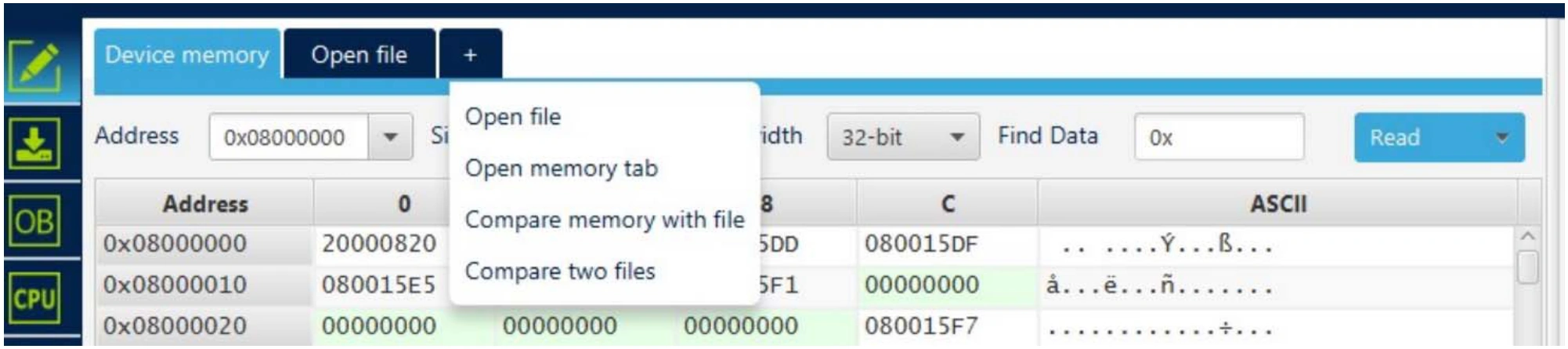
Fig. 23 Contextual menu 
Reading and displaying a file
To open and display a file, just click on the “+” and select “Open File” menu, as illustrated in the figure above. The supported formats are binary files (.bin), ELF files (.elf, .axf, .out), Intel hex files (.hex), and Motorola S-record files (.Srec). Once the file is opened and parsed, it is displayed in a dedicated tab with its name. The file size is displayed in the “Size” field, and the start address of hex, srec, or ELF files, is displayed in the “Address” field (for a binary file it is 0). The address field can be modified to display the file content starting from an offset. Using the tab contextual menu or the action button, the file can be downloaded using the “Download” button/menu. For a binary file, specify the download address in the “Address” menu. The user can verify if the file is downloaded using the “Verify” menu, and save it in another format (.bin, .hex or .srec). As for the “Device memory” tab, the user can display the file memory content in different formats (8-bit, 16-bit and 32-bit), using the “Data width” combo box.