
 STM32CubeProgrammer

USB connection 
Linux install 
When using a USB connection to an STM32 device on Linux, first install the libusb 1.0 development package:
sudo apt-get install libusb-1.0.0-dev
For ST-LINK, J-Link, or USB DFU connections, copy the udev rules from the
Driver/rules
folder into
/etc/udev/rules.d/
on Ubuntu:
sudo cp *.* /etc/udev/rules.d
Note
STM32CubeProgrammer requires libusb version 1.0.12 or newer.
Docker and Ubuntu 
When USB DFU is used inside Docker, it is often necessary to install the device rules on the host machine and start the container with access to host devices and host udev events:
docker run -v /dev:/dev --device /dev:/dev --net=host
VirtualBox 
For better behavior in a VirtualBox virtual machine, switch the USB controller to USB 3.0 (xHCI) in the VM settings under USB.
Fedora 
On Fedora, install libusb with:
sudo dnf install libusb1
To install STM32CubeProgrammer on Linux, download and extract the Linux package from the STM32CubeProg-Linux delivery on the website, then run
SetupSTM32CubeProgrammer-vx.y.z.linux
to complete setup. On Ubuntu 20, the STM32CubeProgrammer icon may be disabled by default; if needed, right-click it and choose Allow launching.
DFU driver 
If you are using the STM32 device in USB DFU mode, install the STM32CubeProgrammer DFU driver by running the
STM32


            Bootloader.bat
file. This driver is provided with the release package and can be found in the DFU driver folder.
If the DFUSE driver is already installed on your machine, first uninstall it, then reboot the machine and run the previously mentioned
.bat
file. When uninstalling, select the Delete the driver software for this device option to avoid reinstalling the old driver when a board is plugged in later.
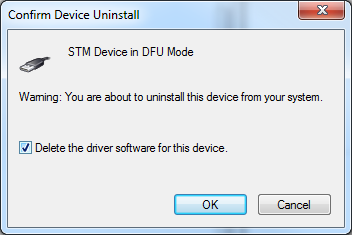
Fig. 156 Deleting the old driver software 
Note
When using the USB DFU interface or the ST-LINK interface on a Windows 7 PC, ensure that all USB 3.0 controller drivers are updated. Older driver versions can contain bugs that prevent access or cause connection problems with USB devices.
USB settings 
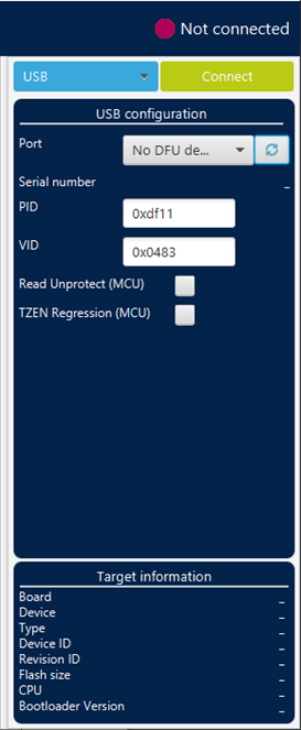
Fig. 157 USB configuration panel 
Port: selects the USB devices in DFU mode connected to the PC. You can use the refresh button to check the available devices again.
Log messages 
Starting Automatic Mode…
Indicates that the system successfully entered the automatic process.
More than one ST-LINK probe detected! Keep only one ST-LINK probe!
Automatic mode cannot be used if more than one ST-LINK probe is connected to the computer when using JTAG or SWD interfaces. A message is displayed asking the user to keep only one ST-LINK probe connected to continue using this mode.
More than one ST-LINK Bridge detected! Keep only one ST-LINK Bridge!
Automatic mode cannot be used if more than one ST-LINK bridge is connected to the computer when using SPI, CAN, or I2C bootloader interfaces. A message is displayed asking the user to keep only one ST-LINK bridge connected to continue using this mode.
More than one ST-LINK USB DFU detected! Keep only one USB DFU!
Automatic mode cannot be used if more than one USB DFU device is connected to the computer when using the USB bootloader interface. A message is displayed asking the user to keep only one USB DFU connected to continue using this mode.
More UART ports detected than last connection!
During the first connection, automatic mode calculates the number of available serial ports and uses that as a reference so it can correctly detect that only one UART port is used for each STM32 device.
Please disconnect device and connect the next…
If the system finishes the first process, whatever the result, disconnect the current device to prepare the next device connection.
Waiting for device…
Once the connection to the previous device is correctly lost, the system keeps searching for a new device.
Automatic Mode is stopped.
Indicates that there is a cancel request and the system stops the process.
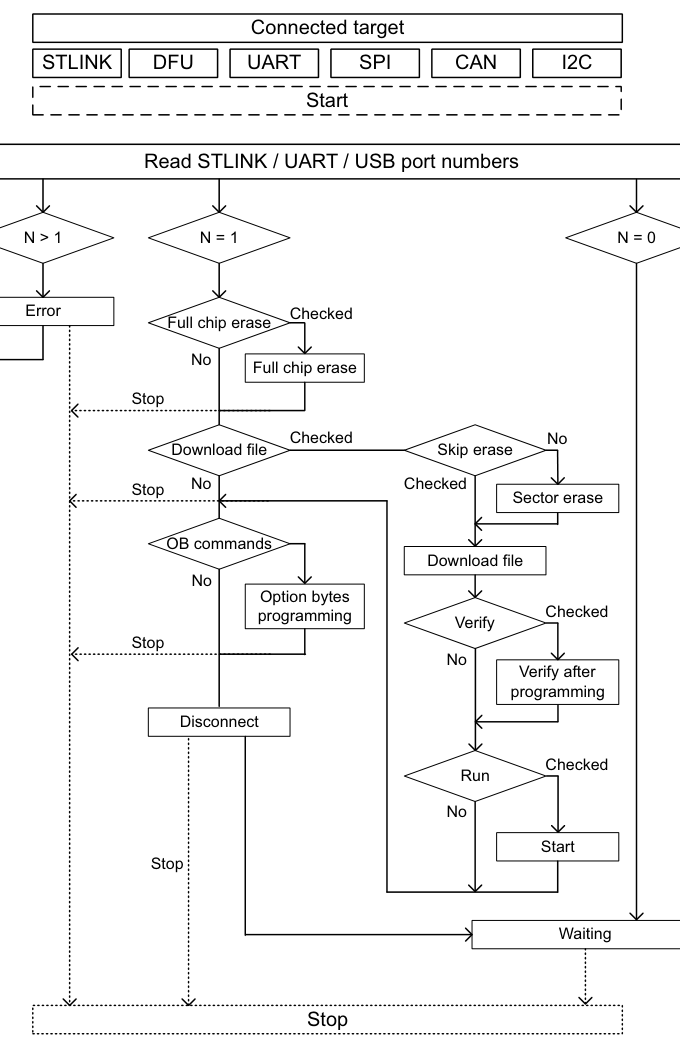
Fig. 158 Algorithm 
In application programming (IAP/USBx) 
STM32CubeProgrammer supports IAP/USBx only with USB DFU connection mode. When USB connection is chosen and the boot is from flash memory, STM32CubeProgrammer detects IAP/USBx like a DFU bootloader, and after connection an IAP/USBx message appears in the log panel.
Note
Option byte, memory edition, and sector erase are not available with IAP/USBx.
Sample IAPs/USBx are available in CubeFW/CubeAzure on www.st.com.
DFU IAP/USBx with custom PID and VID 
STM32CubeProgrammer DFU IAP/USBx supports not only ST product IDs when connecting through DFU IAP.
Before starting the DFU connection with a new product ID, sign your USB driver. For more information, visit woshub.com.
When a USB connection with a new product ID is selected and the boot is from flash memory, STM32CubeProgrammer detects IAP/USBx like a DFU bootloader and, after connection, an IAP message appears in the log panel.
To connect through the new USB DFU, follow this sequence:
Modify the default product ID.
Modify the default vendor ID.
Click the refresh button, then click the connect button.
Note
If the user does not enter a PID or VID value, STM32CubeProgrammer uses the default ST product values:
PID


             =


             0xDF11
and
VID


             =


             0x0483
.
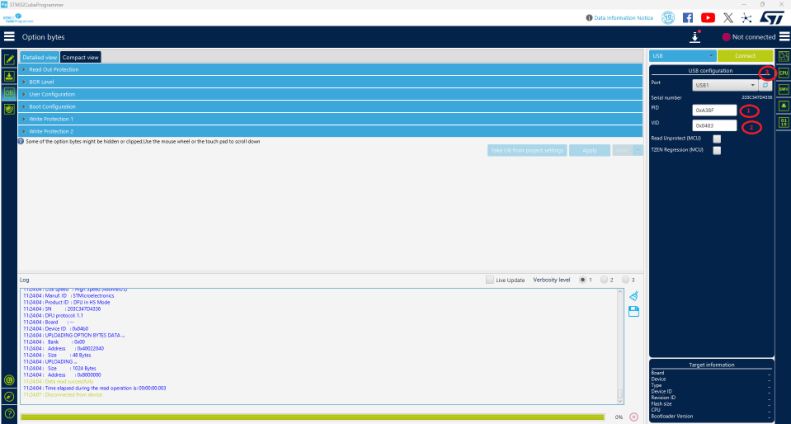
Fig. 159 Connect via USB DFU panel 
Connect command 
-c,


            --connect
Description: Establishes the connection to the device. This command allows the host to open the chosen device port (UART/USB/JTAG/SWD/JLINK/SPI/CAN/I2C).
Syntax:
-c port=<Portname> [noinit=<noinit_bit>] [options]
port=<Portname>: Interface identifier, for exampleCOMxon Windows,/dev/ttySxon Linux,usbxfor USB interface, andSPI,I2C, orCANfor the corresponding interfaces.
USB options 
The connection under the DFU interface supports two options: product ID and vendor ID. The default values are
PID


            =


            0xDF11
and
VID


            =


            0x0483
.
Example using USB 
./STM32_Programmer.sh -c port=usb1
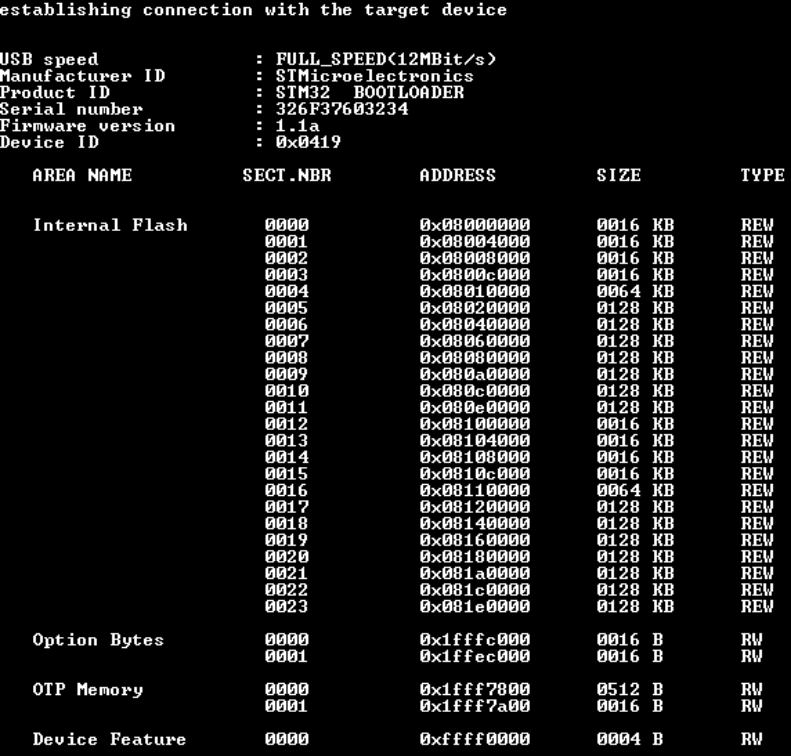
Fig. 160 Connect operation using USB 
Note
When using a USB interface, all configuration parameters such as baud rate, parity, data bits, frequency, and index are ignored. To connect using a UART interface, the port configuration, including baudrate, parity, data bits, stop bits, and flow-control, must use a valid combination for the target device.
Example using DFU IAP/USBx options 
/STM32_Programmer.sh -c port=usb1 pid=0xA38F vid=0x0438
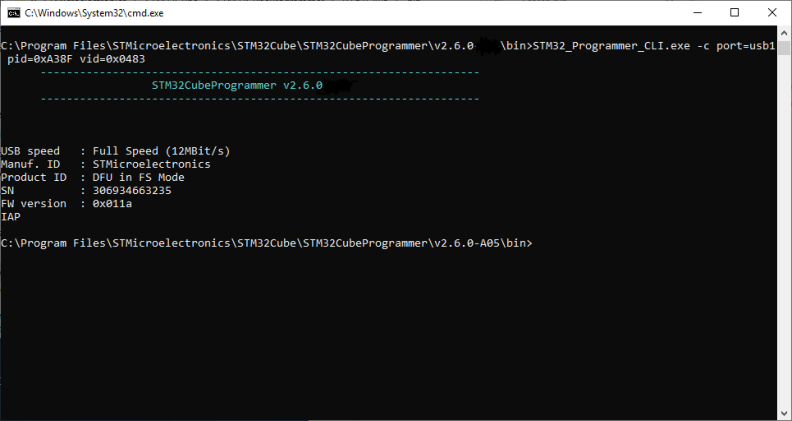
Fig. 161 Connect operation using USB DFU options 
Note
The default value of product ID and vendor ID corresponds to ST product values:
PID


             =


             0xDF11
and
VID


             =


             0x0483
.