
 STM32CubeProgrammer

Option bytes 
This panel allows the user to read and display target option bytes grouped by categories. The option bits are displayed in tables with three columns containing the bit name, the bit value, and a description of the impact on the device.
The user can modify the option bytes by updating the value fields, then clicking on the Apply button, which programs and then verifies that the bytes are correctly programmed. The user can click at any time on the Read button, to read and refresh the displayed option bytes.
For more details refer to the option bytes section in the programming and reference manuals, available from www.st.com.
Synthetic option bytes view 
The user has two ways to display and edit the option bytes:
Detailed (default) view: contains the name, the value, and the description of the option bytes.
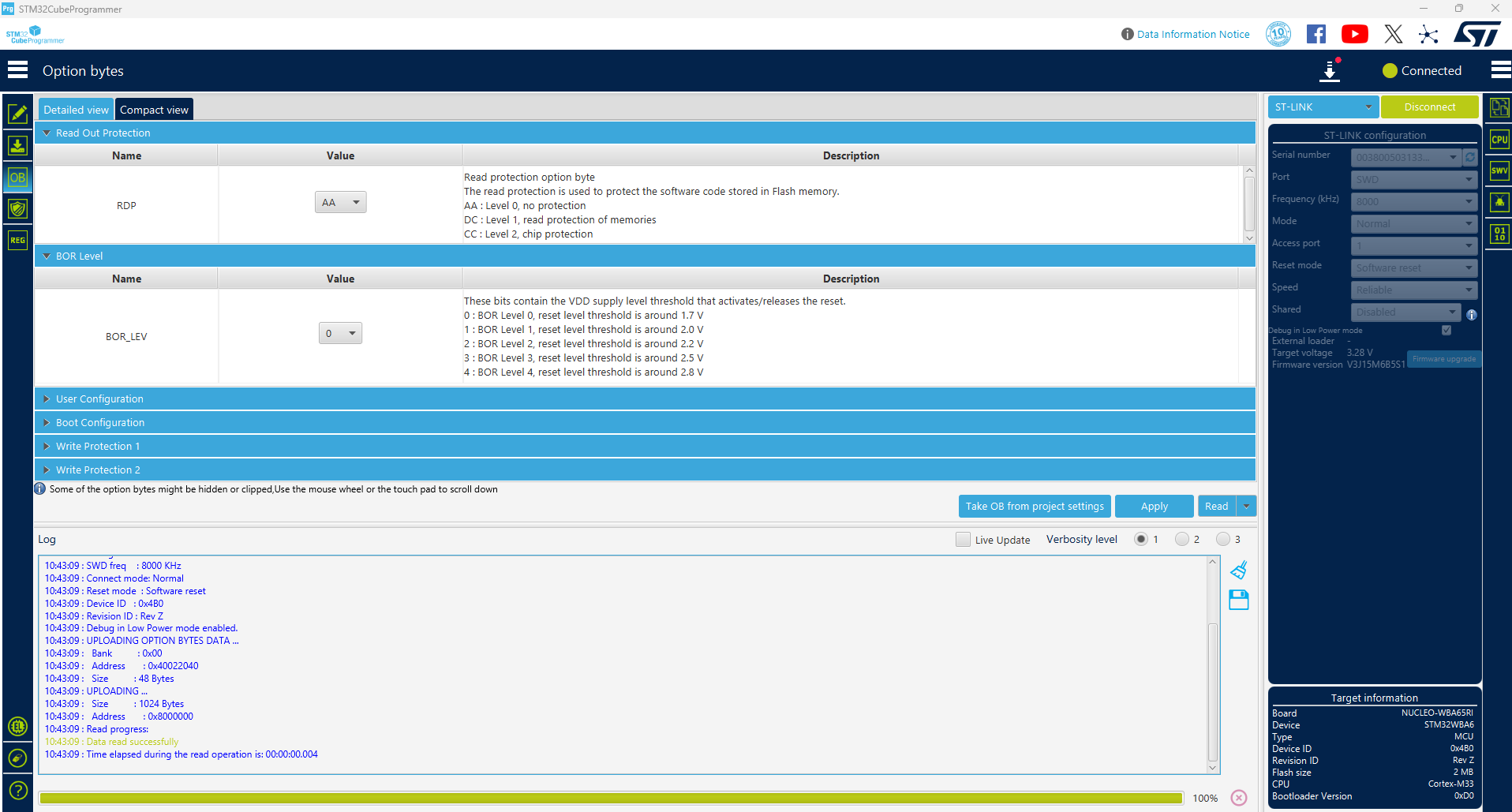
Fig. 24 Option bytes - Detailed view 
Compact view: presents a lower detail level, tailored for expert users who require a compact overview. It excludes the description field of each option byte, and focuses on presenting a list with their values. The description is displayed as a tooltip.
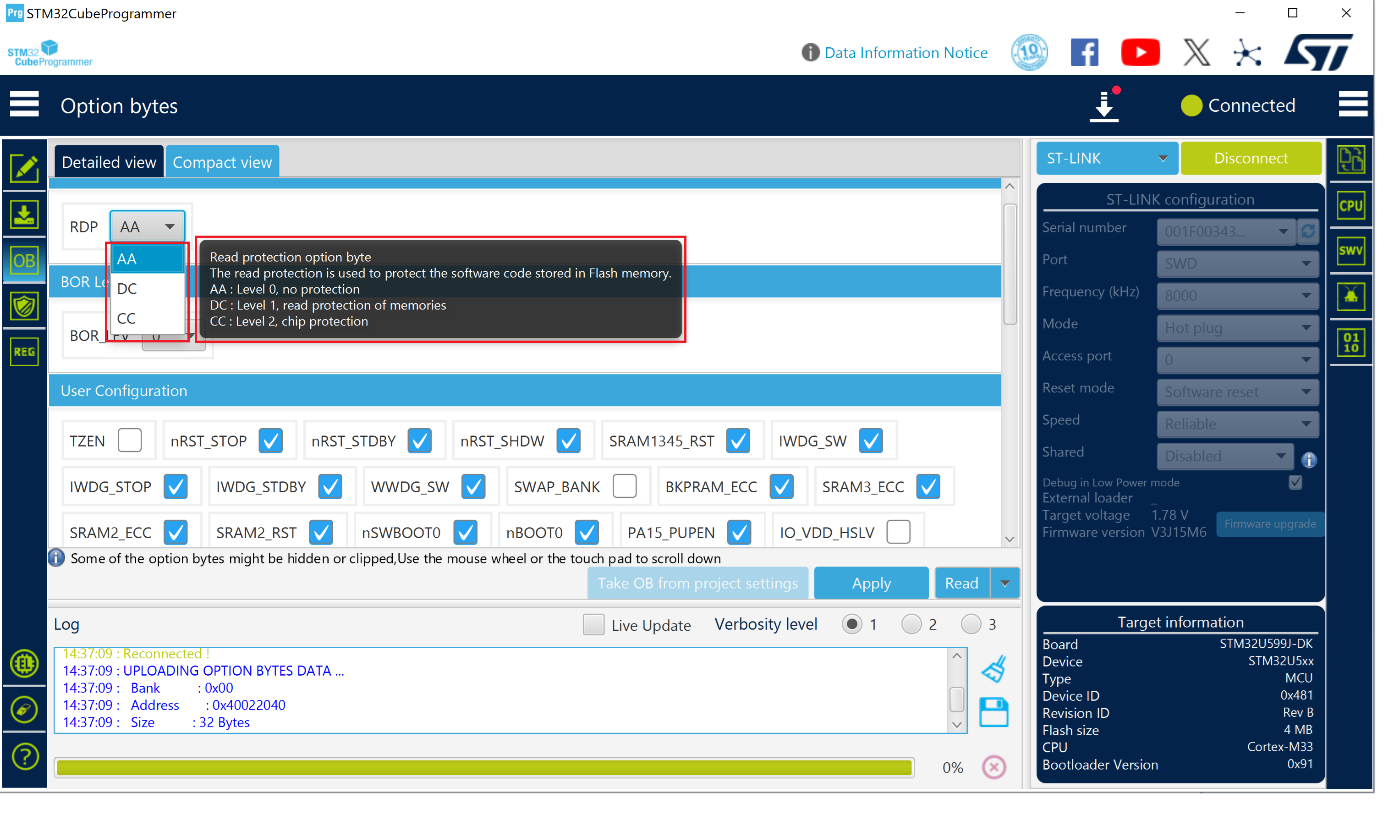
Fig. 25 Option bytes - Compact view 
Recovery button 
Option bytes can be reset to their default values as specified in the reference manual. To use this feature (available for the STM32WBA5/6, STM32U3, STM32U5, and STM32H5 series), select the Option Bytes tab, then choose the “Reset MCU to Factory Settings” option from the “Read” button menu.
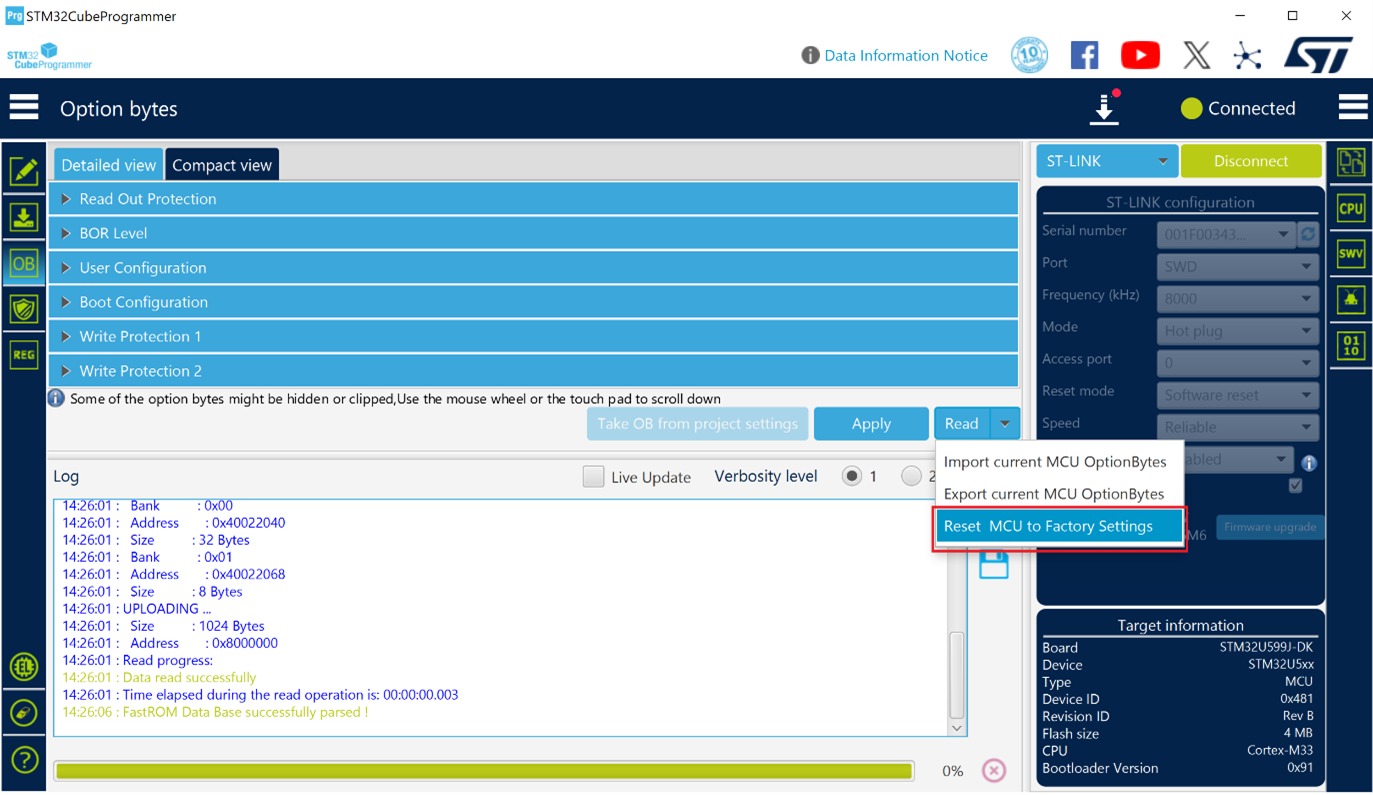
Fig. 26 Reset to factory settings submenu 
After selecting the Reset MCU to Factory Settings sub-menu, a new window appears, displaying a list of operations to perform along with their status.
Clicking the “Start Factory Reset” button initiates the reset operation, and displays all performed operation and their status:
PENDING: the operation is currently pending and awaiting further user actions.
PASSED: the operation was successfully passed.
FAILED: the attempt failed due to detected issue.
ERROR: an error occurred during the process, causing it to stop unexpectedly.
ABORTED: the operation was aborted before completion, halting all progress.
Note
The recovery button is supported only via STLINK.
Export/import option bytes 
Users can export option bytes using a dedicated split button that can be used also to read them. The export format is JSON, ensuring compatibility and ease of use in data manipulation.
Upon exporting, users are prompted to select a desired name and location for the saved file, offering flexibility in file management.
The JSON configuration files can be seamlessly imported to other targets, provided they share the same device ID, facilitating device configuration consistency. Imported settings are displayed for user review before application. This ensures that users have full control over the changes. The settings are applied only if the user is satisfied with the proposed configuration.
If there are discrepancies, such as missing or surplus values, the tool displays a warning, providing details so that the user can take informed decisions about how to proceed.
MCU unlock (specific for the STM32WL series) 
This button is available in the Option Byte panel. The user can unlock the device if bad option bytes are already programmed, by clicking on the “Unlock chip” button (available only for STLink connection). After the unlock a power cycle is needed.
Debug authentication default configuration 
The default configuration is used when programming the product state. The user can provision the configuration after programming the product state to any value. Afterwards, the user can provision its own OBK file.
If the user does not configure the debug authentication (DA) and switches PRODUCT_STATE to provisioned/TZ-closed or closed, it is no longer possible to perform regressions, nor to go back to product state open. All debug features are disabled.
When setting PRODUCT_STATE to 0x17 (provisioning), the user is asked to provision the DA default configuration, or to use its own (see the following figure).
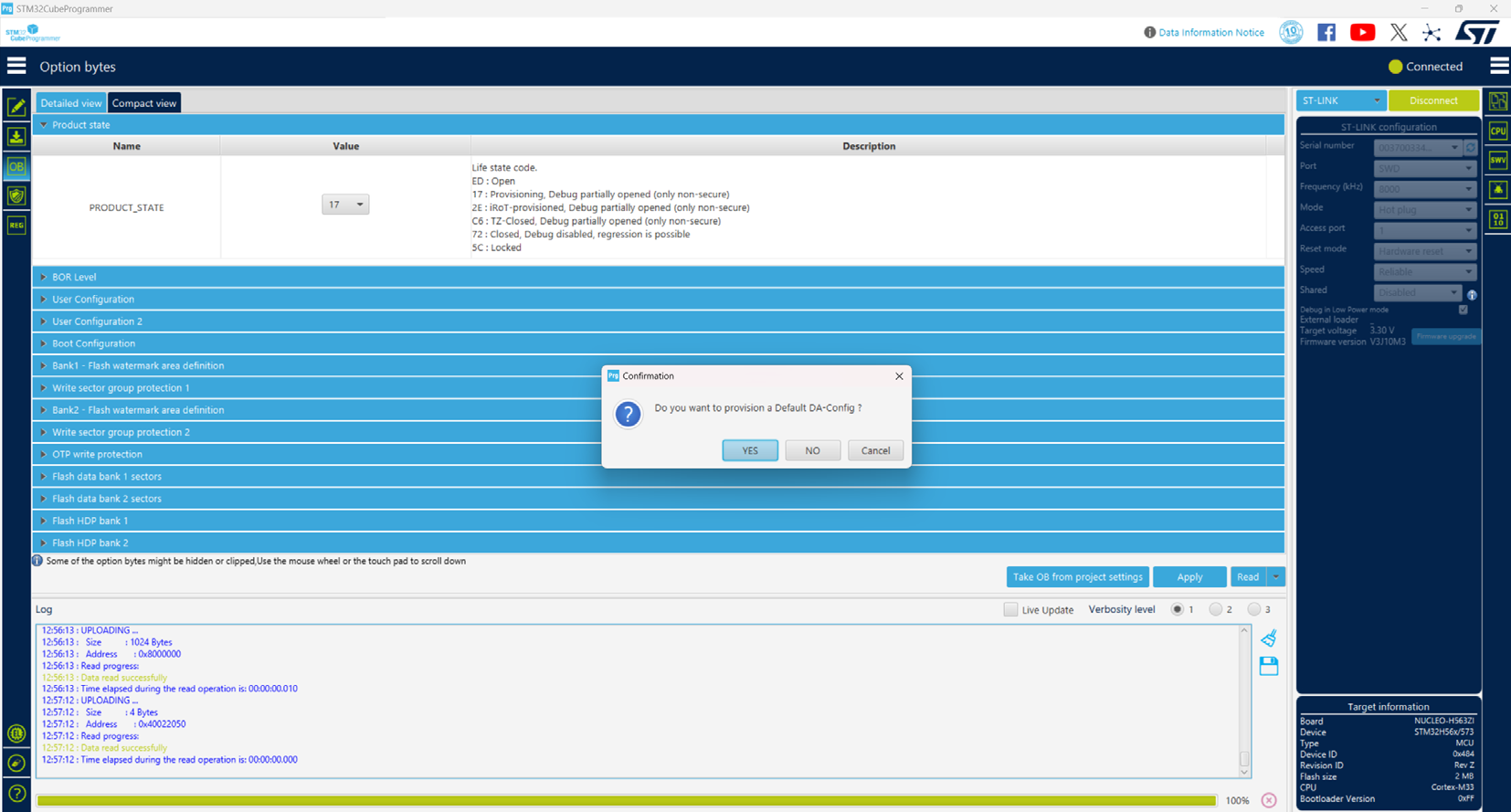
Fig. 27 DA default configuration when switching product state to provisioning 
When switching PRODUCT_STATE from 0xED (open) to values different from 0x17 (provisioning), the user is asked to pass by the provisioning state first (shown in the following figure).
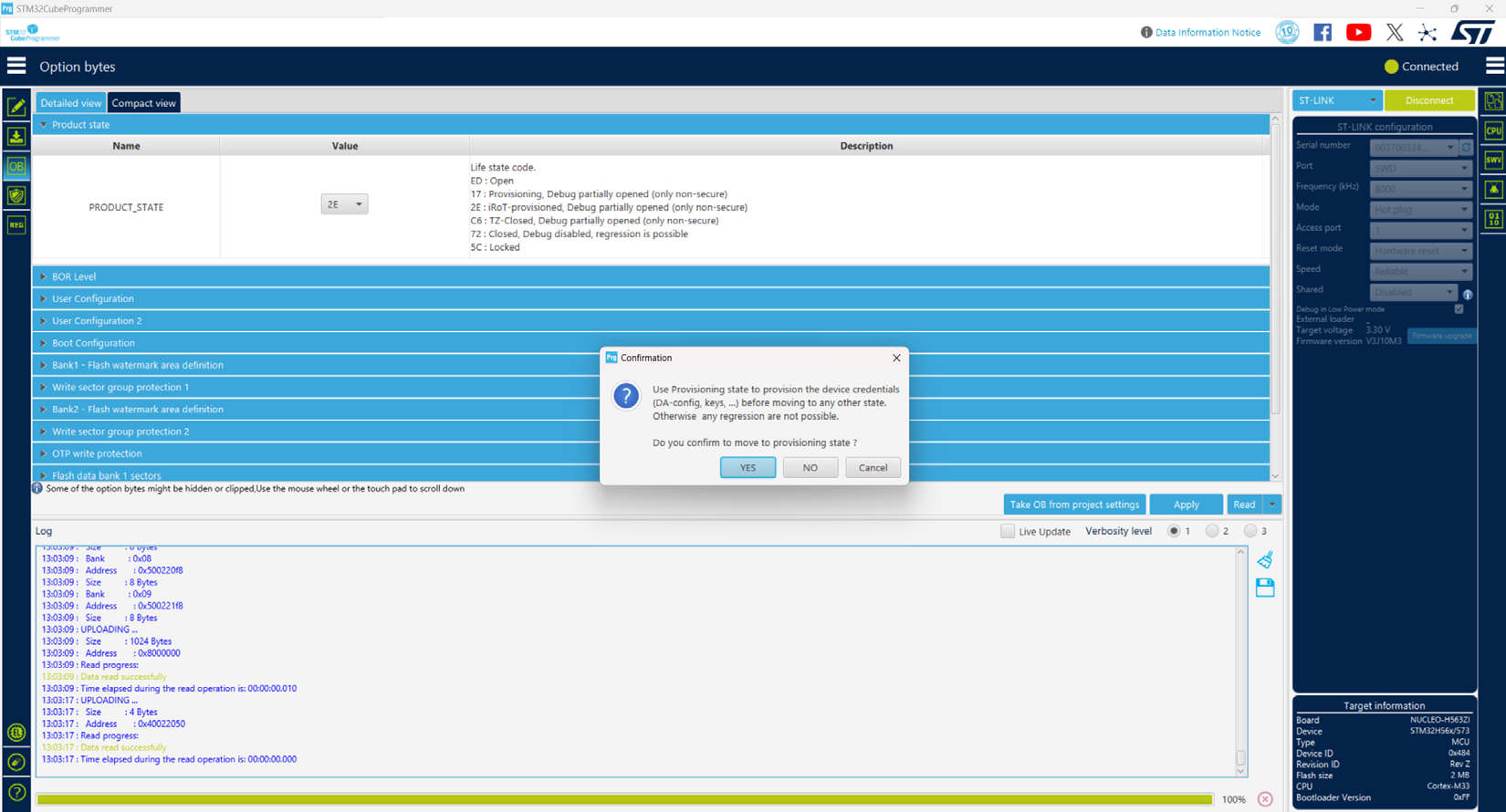
Fig. 28 Configuration when switching product state to values different from 0x17 
If the user chooses to provision a default DA configuration, the tool provisions the OBK file under the “bin/DA_Default_Config” directory. To perform debug authentication, the files under “bin/DA_Default_Config” directory are required.
Debug authentication configuration (STM32H503 only) 
If the user does not configure the DA and switches to PRODUCT_STATE provisioned or closed, it is no longer possible to perform regressions, nor to go back to product state open. All debug features are disabled.
When setting PRODUCT_STATE to 0x17 (provisioning), the tool checks if there is a password provisioned in OTP. If not, a popup asks the user to set a configuration, to be able to perform a regression later.
When switching PRODUCT_STATE from 0xED (open) to values different from 0x17 (provisioning), the tool checks if there is a password provisioned in OTP. If not, the user is asked to pass by the provisioning state first. Refer to the DA default configuration figure shown earlier for GUI details.