
 STM32CubeProgrammer

PMIC NVM programming 
The STM32CubeProgrammer PMIC NVM window is available exclusively for MPU
devices. It extracts the PMIC partition
[ID


           0xF4]
using the
PRGFW-UTIL interface to read, display, and program the PMIC NVM registers.
STPMIC1
has 8 registers and
STPMIC25
has 40 registers, each register
with a 1-byte size.
PRGFW-UTIL can be downloaded from ST GitHub: STMicroelectronics/STM32PRGFW-UTIL.
The UI has five main features:
Get the PMIC information.
Read and display PMIC registers.
Edit and program PMIC registers.
- Program a binary file, only for the entire PMIC registers, since partial
register programming is not supported.
Save or export the PMIC registers, NVM partition, in an output binary file.
To begin reading the PMIC partition, open the PMIC NVM window by pressing the
NVM
button located in the main window. Once the partition is successfully
read, data are displayed in a table format.
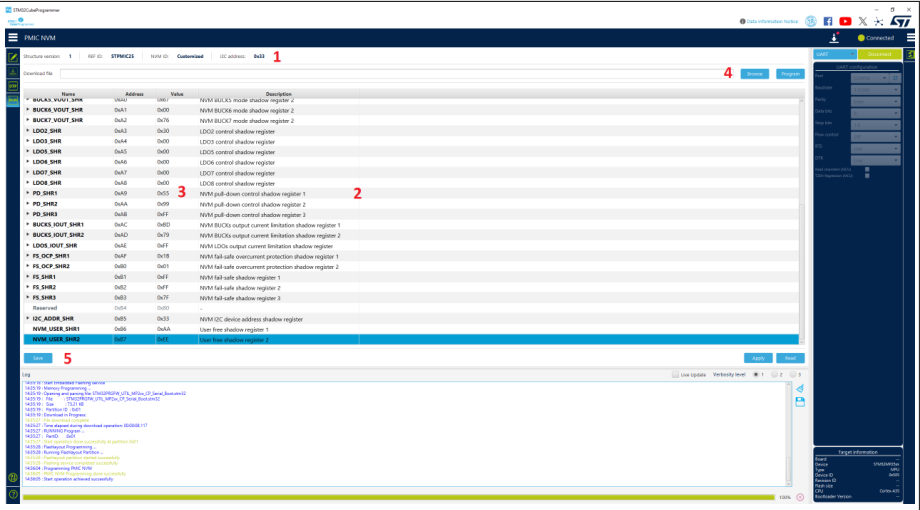
Fig. 101 PMIC NVM window 
Get PMIC NVM structure information 
This section displays an overview of the device.
Structure version: version 1 so far.
Ref ID:
STPMIC1,STPMIC25,STPMIC2L, orSTPMIC1L.NVM ID: Customized, A, B, or C.
I2C address: the address that PRGFW-UTIL uses to communicate with PMIC.
Read and display words 
After checking the PMIC partition, the tool decodes and shows the words in table view format including four columns:
Name: NVM register name.
Address: hexadecimal value representing the address in the NVM.
Value: hexadecimal value, editable.
Description: displays the description of the register and its fields.
Note
Press the
Read
button to refresh all table fields or discard changes.
The value and name cells expose a tooltip message to add description, name, hex value, and binary value representation.
Edit and program registers 
There are two ways to edit the value of the register:
Use the combo box with a list of possible values.
- Directly write the register value in the text field and press
Enter after each change.
- Directly write the register value in the text field and press
The modified element is highlighted in red.
After modification, it is mandatory to press the
Apply
button and confirm
the operation to start the update and refresh the table view.
Program binary file 
To program a binary file into the PMIC NVM register, it is necessary to take care about the following points:
Select the adequate binary having a
.binextension.- The file size must have the exact size of the PMIC NVM registers partition,
for example STPMIC1 8 Bytes and STPMIC25 40 Bytes.
Using an incorrect file may risk damaging the board.
Press the
Programbutton to start the download sequence.
Note
If the binary file contains the same content as the NVM registers, the tool takes no action.
Save/Export PMIC NVM partition 
This capability allows saving the whole content of the PMIC NVM partition into
a binary file with
.bin
extension or into an output text file in
human-readable format, which can be used for future analysis or to archive the
current device configuration.
Press
Save
or
Export
and choose the desired output file name and
directory. If the save operation is completed successfully, an informational
dialog appears to confirm the completion of the process.
Note
PRGFW-UTIL firmware must be installed before launching the PMIC NVM window, which is necessary to expose the PMIC partition. It is mandatory to use an adequate version of PRGFW-UTIL that supports the new PMIC structure format, version 1 or later. Otherwise the tool shows an error message.