
 STM32CubeProgrammer

Serial wire viewer (SWV) 
The serial wire viewer window, shown in the following figure, displays the printf data sent from the target through SWO, and useful information on the running firmware.
Note
The serial wire viewer is available only through SWD interface.
Before starting to receive SWO data, the user has to specify the exact target System clock frequency, in MHz, to allow the tool to correctly configure the ST-LINK and the target for the correct SWO frequency. The Stimulus port combo box allows the user to choose a given ITM Stimulus port, from port 0 to 31, or to receive data simultaneously from all of them.
The user can optionally specify a
.log
file to save the SWV trace log by
using the Browse button. The default path is
$USER_HOME/STMicroelectronics/STM32CubeProgrammer/SWV_Log/swv.log.
The user can optionally check the Activate colors checkbox to enable colored trace output. This feature requires the original traces to contain the color codes listed below:
#GRN#for green color#RED#for red color#ORG#for orange color
Example:
printf("#GRN#This outputs a green message!");
A help window that demonstrates the feature and shows how to use it can be accessed by clicking on the Info icon button next to the Activate colors checkbox.
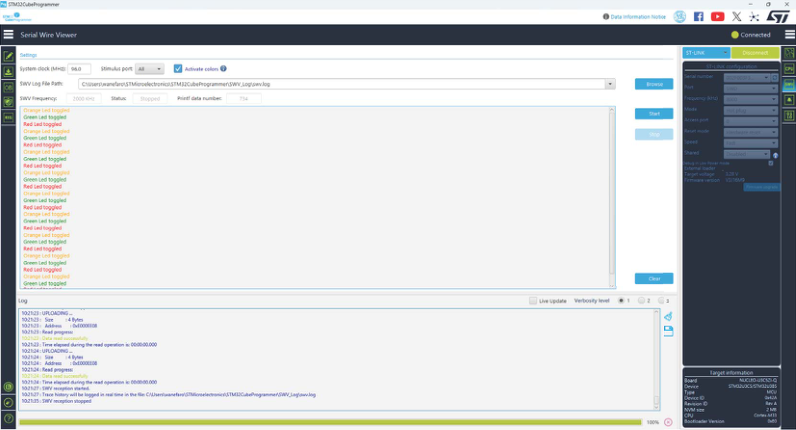
Fig. 35 SWV window 
After specifying the SWV configuration, SWV reception can be started or stopped using the Start and Stop buttons. The SWO data is displayed in the dedicated area, which can be cleared by using the Clear button.
The SWV information bar displays useful information on the current SWV transfer, such as the SWO frequency, deduced from the system clock frequency, and the received printf data number, expressed in bytes.
Note
Some SWV bytes can be lost during transfer, due to ST-LINK hardware buffer size limitation.